What is Wireshark? Installation and Usage Guide
Security

What is Wireshark? Installation and Usage Guide

Wireshark is an open-source network analysis software. Learn about its features, how it works, pros, cons, and step-by-step installation guide.

✦ Quick summary
Wireshark is an open-source network analysis software. Learn about its features, how it works, pros, cons, and step-by-step installation guide.
How was this post?

Wireshark is the most popular open-source network analysis software, widely used by system administrators, security professionals, and IT students. This article explains what Wireshark is, how it works, its key features, and provides a detailed installation guide.

What is Wireshark?

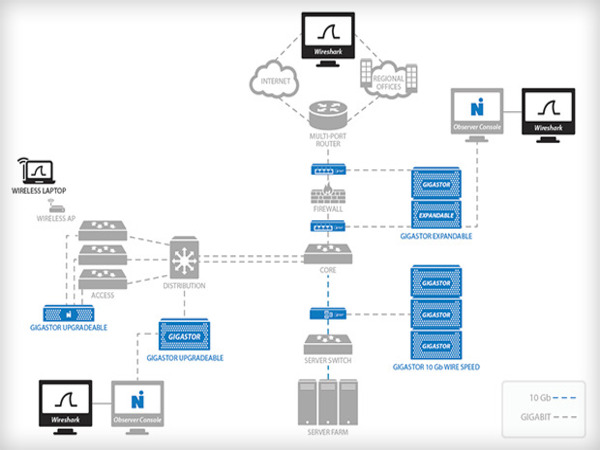
Wireshark is an open-source software designed for analyzing and monitoring network traffic. First developed in 1998, Wireshark allows users to capture and inspect data packets transmitted across a network in real time.

The software supports hundreds of network protocols (TCP, UDP, HTTP, DNS, SSL/TLS...) and displays data in layered format following the OSI model. Wireshark runs on Windows, macOS, and Linux, making it suitable for network administrators, cybersecurity experts, software developers, and students.

How Wireshark Works

Wireshark operates through three main phases:

Packet Capture: When launched, users select a network interface (Wi-Fi, Ethernet, Bluetooth). Wireshark starts "listening" and recording every data packet passing through that interface, including source address, destination address, protocol, and data content.

Packet Analysis: Wireshark analyzes each packet from the data link layer to the application layer in the OSI model. It identifies detailed data structures and checks for errors or anomalies in protocols.

Data Presentation: Packets are displayed chronologically through a graphical interface, organized into columns: sequence number, time, source/destination address, protocol, length, and detailed information.

Notable Features

  • Real-time Capture: Continuously records packets from the selected network interface for instant monitoring.
  • Multi-protocol Analysis: Supports hundreds of protocols from TCP, UDP, IP to HTTP, FTP, DNS, SSL/TLS, and specialized protocols.
  • Powerful Filters: Display Filters allow searching packets by IP, protocol, port, or specific keywords.
  • Multiple File Formats: Supports pcap, pcapng, and formats from other network analysis tools.
  • SSL/TLS Decryption: Decrypts encrypted data when the appropriate key is available, useful for HTTPS analysis.
  • Charts and Statistics: Protocol charts and time-based traffic graphs help detect abnormal trends.
  • Color Coding: Distinguishes different packet types with customizable colors.

What is SSH? Functions and How SSH Protocol Works

Use Cases for Wireshark

Network Troubleshooting: Identify the cause of connection loss, slow speeds, packet loss, or configuration errors. Wireshark records the data flow and pinpoints which layer the error occurs at.

Network Traffic Monitoring: Track traffic by protocol, IP address, or device to manage resources and optimize performance.

Security Analysis: Detect DoS attacks, malware, Man-in-the-Middle attacks, suspicious connections, or unauthorized access attempts.

Application Optimization: Test how applications interact with the network, detect congestion or transmission errors in video, gaming, or streaming applications.

Pros and Cons of Wireshark

Criteria Pros Cons
Cost Free, open-source
Platform Windows, macOS, Linux
Protocols Supports hundreds of protocols Difficult to analyze encrypted data
Interface Intuitive, clear layering Complex for beginners
Performance Real-time analysis CPU/RAM intensive with high traffic
Security Threat detection Requires root/admin access
Legal Privacy violation risks
Legal Warning

Only use Wireshark on your own network or with explicit permission. Monitoring others' network traffic without consent may violate privacy laws in many countries.

Installing Wireshark on Windows
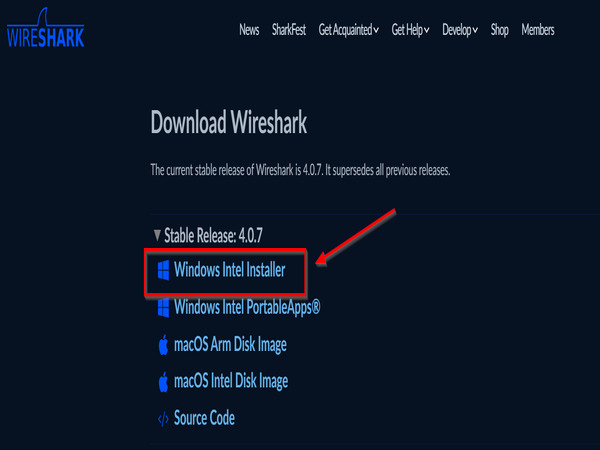
  1. Visit wireshark.org and click Download.
  2. Select the appropriate version (64-bit or 32-bit) and download the .exe file.
  3. Run the installer: NextI Agree → keep default Select Components.
  4. Install Npcap when prompted (packet capture library).
  5. Click Install and wait for completion. Click Finish to exit.

Installing Wireshark on macOS
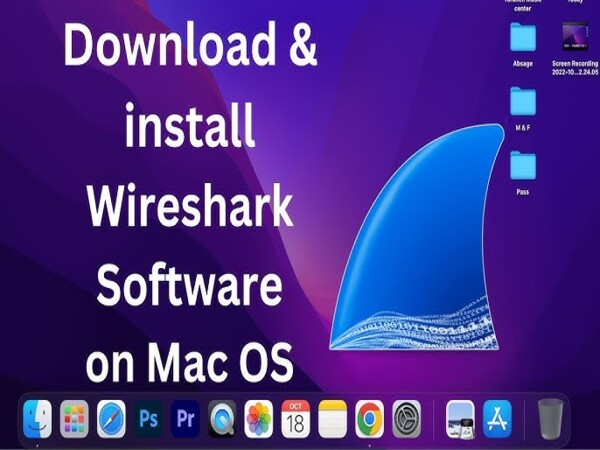
  1. Visit wireshark.org and download the .dmg file for macOS.
  2. Open the .dmg file and drag the Wireshark icon to the Applications folder.
  3. On first launch, go to System Preferences → Security & Privacy → Open Anyway if warned.
  4. Grant network traffic access when prompted, enter your admin password.
  5. Select Capture → choose a network interface to start analyzing.

Installing Wireshark on Ubuntu
Bash
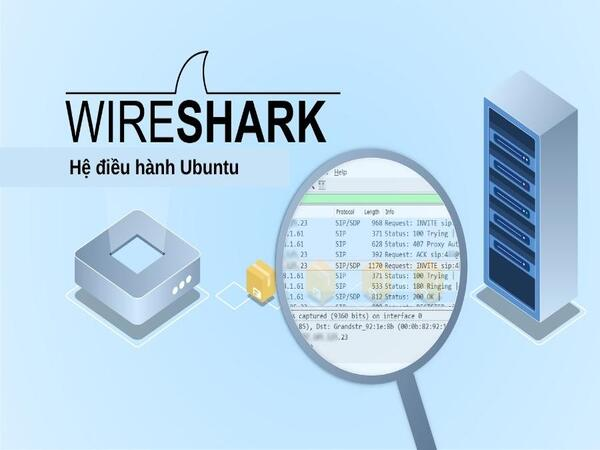
 1# Update system
 2sudo apt update
 3
 4# Install Wireshark
 5sudo apt install wireshark
 6
 7# Allow non-root users (select Yes when prompted)
 8sudo usermod -aG wireshark $(whoami)
 9
10# Verify installation
11wireshark --version

Restart your machine after running usermod for changes to take effect.

Installing Wireshark on RedHat/Fedora

Bash
 1# Update system
 2sudo dnf update -y
 3
 4# Install Wireshark
 5sudo dnf install wireshark -y
 6
 7# Grant user permissions
 8sudo usermod -aG wireshark $USER
 9
10# Launch Wireshark
11wireshark

Installing Wireshark on Kali Linux
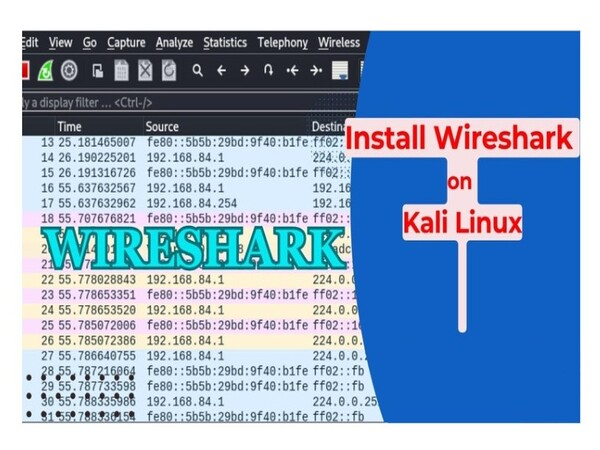
Kali Linux usually comes with Wireshark pre-installed. If not available or needs updating:

Bash
1# Update and install
2sudo apt update && sudo apt upgrade
3sudo apt install wireshark
4
5# Grant permissions
6sudo usermod -aG wireshark $USER

Restart your machine and open Wireshark from Terminal or the application menu.

Wireshark Performance Tip

Use Capture Filters before starting packet capture to reduce the amount of collected data. For example: host 192.168.1.1 captures only packets to/from a specific IP, saving system resources.

Basic Usage Guide

Capture Packets: Select a network interface (Ethernet/Wi-Fi) → click Start. Wireshark displays packets in real time. Click Stop to end.

Save and Open Files: Select File → Save As to save as .pcap or .pcapng. Reopen with File → Open.

Filter Packets: Enter filters in the Display Filter bar:

text
1ip.addr == 192.168.1.1        # Filter by IP
2tcp.port == 443                # Filter by port
3http                           # Show HTTP only
4dns                            # Show DNS only
5tcp.flags.syn == 1             # Filter SYN packets

Inspect Packets: Double-click a packet to view details by layer: Ethernet → IP → TCP/UDP → Application Data.

Customize Colors: Go to View → Coloring Rules to distinguish packet types with color coding.

What is TCP/IP? Understanding the TCP/IP Protocol Suite

Conclusion: Wireshark is a powerful, free, open-source network analysis tool with multi-platform support. While the interface can be complex for beginners, Wireshark is an essential tool for network administrators and security professionals.
Sources

Frequently Asked Questions

Frequently Asked QuestionsQ&A
What is Wireshark?
Wireshark is an open-source software used to analyze and monitor network traffic, allowing users to capture and inspect data packets transmitted across a network in real time.
Is Wireshark free?
Yes, Wireshark is completely free and open-source, available for Windows, macOS, and Linux. You can download it from wireshark.org.
What is Wireshark used for?
Wireshark is used for network troubleshooting, traffic monitoring, security analysis, detecting network attacks, and testing and optimizing network applications.
What protocols does Wireshark support?
Wireshark supports hundreds of network protocols including TCP, UDP, HTTP, DNS, FTP, SSL/TLS, ICMP, ARP, DHCP, and many other specialized protocols.
Is it legal to use Wireshark?
Wireshark is legal when used on your own network or with permission. Monitoring others' network traffic without consent may violate privacy laws.

Wireshark là phần mềm phân tích mạng mã nguồn mở phổ biến nhất hiện nay, được sử dụng rộng rãi bởi quản trị viên hệ thống, chuyên gia bảo mật và sinh viên CNTT. Bài viết giúp bạn hiểu rõ Wireshark là gì, cách hoạt động, tính năng nổi bật và hướng dẫn cài đặt chi tiết.

Wireshark là gì?

Wireshark là phần mềm mã nguồn mở chuyên phân tích và giám sát lưu lượng mạng. Được phát triển lần đầu vào năm 1998, Wireshark cho phép người dùng thu thập và kiểm tra chi tiết các gói dữ liệu truyền qua mạng theo thời gian thực.

Phần mềm hỗ trợ hàng trăm giao thức mạng (TCP, UDP, HTTP, DNS, SSL/TLS...) và hiển thị dữ liệu dưới dạng phân lớp theo mô hình OSI. Wireshark hoạt động trên Windows, macOS và Linux, phù hợp cho quản trị viên mạng, chuyên gia an ninh mạng, nhà phát triển phần mềm và sinh viên.

Cách thức hoạt động của Wireshark

Wireshark hoạt động qua ba giai đoạn chính:

Thu thập gói tin (Packet Capture): Khi khởi động, người dùng chọn giao diện mạng (Wi-Fi, Ethernet, Bluetooth). Wireshark bắt đầu "nghe" và ghi lại từng gói dữ liệu đi qua giao diện đó, bao gồm địa chỉ nguồn, địa chỉ đích, giao thức và nội dung dữ liệu.

Phân tích gói tin (Packet Analysis): Wireshark phân tích từng gói tin từ lớp liên kết dữ liệu đến lớp ứng dụng trong mô hình OSI. Công cụ xác định chi tiết cấu trúc dữ liệu, kiểm tra lỗi hoặc bất thường trong giao thức.

Trình bày dữ liệu (Data Presentation): Các gói tin được hiển thị theo thời gian qua giao diện đồ họa, chia thành các cột: số thứ tự, thời gian, địa chỉ nguồn/đích, giao thức, độ dài và thông tin chi tiết.

Tính năng nổi bật

  • Thu thập thời gian thực: Ghi lại gói tin liên tục từ giao diện mạng đã chọn, theo dõi hoạt động mạng tức thì.
  • Phân tích đa giao thức: Hỗ trợ hàng trăm giao thức từ TCP, UDP, IP đến HTTP, FTP, DNS, SSL/TLS và các giao thức chuyên biệt.
  • Bộ lọc mạnh mẽ: Display Filter cho phép tìm kiếm gói tin theo IP, giao thức, cổng hoặc từ khóa cụ thể.
  • Đa định dạng tệp: Hỗ trợ pcap, pcapng và các định dạng từ công cụ phân tích mạng khác.
  • Giải mã SSL/TLS: Giải mã dữ liệu mã hóa khi có khóa phù hợp, hữu ích cho phân tích HTTPS.
  • Biểu đồ và thống kê: Biểu đồ giao thức, lưu lượng theo thời gian giúp phát hiện xu hướng bất thường.
  • Mã màu (Color Coding): Phân biệt các loại gói tin bằng màu sắc, tùy chỉnh được.

mTLS là gì? Ưu nhược điểm và cách hoạt động mTLS

Mục đích sử dụng Wireshark

Khắc phục sự cố mạng: Xác định nguyên nhân mất kết nối, tốc độ chậm, mất gói tin hoặc lỗi cấu hình. Wireshark ghi lại luồng dữ liệu và cho biết lỗi xảy ra ở tầng nào.

Giám sát lưu lượng mạng: Theo dõi lưu lượng theo giao thức, địa chỉ IP hoặc thiết bị để quản lý tài nguyên và tối ưu hiệu suất.

Phân tích bảo mật: Phát hiện tấn công DoS, mã độc, Man-in-the-Middle, kết nối đáng ngờ hoặc hành vi truy cập trái phép.

Tối ưu ứng dụng mạng: Kiểm tra cách ứng dụng tương tác với mạng, phát hiện tắc nghẽn hoặc lỗi truyền tải trong ứng dụng video, game online hay streaming.

Ưu nhược điểm của Wireshark

Tiêu chí Ưu điểm Nhược điểm
Chi phí Miễn phí, mã nguồn mở
Nền tảng Windows, macOS, Linux
Giao thức Hỗ trợ hàng trăm giao thức Khó phân tích dữ liệu mã hóa
Giao diện Trực quan, phân lớp rõ ràng Phức tạp cho người mới
Hiệu năng Phân tích thời gian thực Tốn CPU/RAM khi lưu lượng lớn
Bảo mật Phát hiện mối đe dọa Cần quyền root/admin
Pháp lý Rủi ro vi phạm quyền riêng tư
Cảnh báo pháp lý

Chỉ sử dụng Wireshark trên mạng của bạn hoặc khi được sự cho phép rõ ràng. Giám sát lưu lượng mạng của người khác mà không có sự đồng ý có thể vi phạm pháp luật về quyền riêng tư tại nhiều quốc gia.

Cài đặt Wireshark trên Windows

  1. Truy cập trang chính thức tại wireshark.org và nhấn Download.
  2. Chọn phiên bản phù hợp (64-bit hoặc 32-bit) và tải file .exe.
  3. Chạy file cài đặt, nhấn NextI Agree → giữ mặc định Select Components.
  4. Chọn cài đặt Npcap khi được yêu cầu (thư viện bắt gói tin mạng).
  5. Nhấn Install và chờ hoàn tất. Nhấn Finish để kết thúc.

Cài đặt Wireshark trên macOS

  1. Truy cập wireshark.org và tải file .dmg cho macOS.
  2. Mở file .dmg và kéo biểu tượng Wireshark vào thư mục Applications.
  3. Lần đầu mở, vào System Preferences → Security & Privacy → Open Anyway nếu có cảnh báo.
  4. Cấp quyền truy cập lưu lượng mạng khi được yêu cầu, nhập mật khẩu admin.
  5. Chọn Capture → chọn giao diện mạng để bắt đầu phân tích.

Cài đặt Wireshark trên Ubuntu

Bash
 1# Cập nhật hệ thống
 2sudo apt update
 3
 4# Cài đặt Wireshark
 5sudo apt install wireshark
 6
 7# Cho phép người dùng không root sử dụng (chọn Yes khi được hỏi)
 8sudo usermod -aG wireshark $(whoami)
 9
10# Kiểm tra cài đặt
11wireshark --version

Sau khi chạy lệnh usermod, khởi động lại máy để thay đổi có hiệu lực.

Cài đặt Wireshark trên RedHat/Fedora

Bash
 1# Cập nhật hệ thống
 2sudo dnf update -y
 3
 4# Cài đặt Wireshark
 5sudo dnf install wireshark -y
 6
 7# Cấp quyền cho người dùng
 8sudo usermod -aG wireshark $USER
 9
10# Khởi động Wireshark
11wireshark

Cài đặt Wireshark trên Kali Linux

Kali Linux thường tích hợp sẵn Wireshark. Nếu chưa có hoặc cần cập nhật:

Bash
1# Cập nhật và cài đặt
2sudo apt update && sudo apt upgrade
3sudo apt install wireshark
4
5# Cấp quyền
6sudo usermod -aG wireshark $USER

Khởi động lại máy và mở Wireshark từ Terminal hoặc menu ứng dụng.

Mẹo sử dụng Wireshark hiệu quả

Sử dụng Capture Filter trước khi bắt gói tin để giảm lượng dữ liệu thu thập. Ví dụ: host 192.168.1.1 chỉ bắt gói tin từ/đến IP cụ thể, giúp tiết kiệm tài nguyên hệ thống.

Hướng dẫn sử dụng cơ bản

Bắt gói tin: Chọn giao diện mạng (Ethernet/Wi-Fi) → nhấn Start. Wireshark hiển thị gói tin theo thời gian thực. Nhấn Stop để dừng.

Lưu và mở file: Chọn File → Save As để lưu định dạng .pcap hoặc .pcapng. Mở lại bằng File → Open.

Lọc gói tin: Nhập bộ lọc vào thanh Display Filter:

text
1ip.addr == 192.168.1.1        # Lọc theo IP
2tcp.port == 443                # Lọc theo cổng
3http                           # Chỉ hiển thị HTTP
4dns                            # Chỉ hiển thị DNS
5tcp.flags.syn == 1             # Lọc gói SYN

Kiểm tra gói tin: Nhấn đúp vào gói tin để xem chi tiết theo các lớp: Ethernet → IP → TCP/UDP → Application Data.

TCP/IP là gì? Tìm hiểu bộ giao thức TCP/IP

Tùy chỉnh màu sắc: Vào View → Coloring Rules để phân biệt các loại gói tin bằng mã màu.

Kết luận: Wireshark là công cụ phân tích mạng mã nguồn mở mạnh mẽ, miễn phí, hỗ trợ đa nền tảng. Dù giao diện phức tạp với người mới, Wireshark là công cụ không thể thiếu cho quản trị viên mạng và chuyên gia bảo mật.

Nguồn tham khảo

Câu hỏi thường gặp

Câu hỏi thường gặpQ&A
Wireshark là gì?
Wireshark là phần mềm mã nguồn mở dùng để phân tích và giám sát lưu lượng mạng, giúp người dùng thu thập, kiểm tra chi tiết các gói dữ liệu truyền qua mạng theo thời gian thực.
Wireshark có miễn phí không?
Có, Wireshark là phần mềm mã nguồn mở hoàn toàn miễn phí, hỗ trợ Windows, macOS và Linux. Bạn có thể tải tại wireshark.org.
Wireshark dùng để làm gì?
Wireshark dùng để khắc phục sự cố mạng, giám sát lưu lượng, phân tích bảo mật, phát hiện tấn công mạng, kiểm tra và tối ưu hóa ứng dụng mạng.
Wireshark có hỗ trợ những giao thức nào?
Wireshark hỗ trợ hàng trăm giao thức mạng bao gồm TCP, UDP, HTTP, DNS, FTP, SSL/TLS, ICMP, ARP, DHCP và nhiều giao thức chuyên biệt khác.
Sử dụng Wireshark có hợp pháp không?
Wireshark hợp pháp khi sử dụng trên mạng của bạn hoặc được sự cho phép. Giám sát mạng người khác mà không có sự đồng ý có thể vi phạm pháp luật về quyền riêng tư.