FileZilla is the most popular open-source FTP software, supporting FTP/FTPS/SFTP for transferring files between computers and servers. This article provides a detailed guide on installing FileZilla Client and Server, creating FTP accounts, connecting to hosting, along with important security considerations.
2019Trusted since
B2BData solutions
Data·AIExpertise
Need data solutions for your business?
AlgoData has helped businesses with data engineering, analytics & AI since 2019.
FileZilla is a popular FTP (File Transfer Protocol) file management software used for transferring data between personal computers and servers. It supports multiple file transfer protocols, including FTP, FTPS, and SFTP, helping users manage and transfer files efficiently and securely.
What is FileZilla?
What is FileZilla? FileZilla is an open-source software that allows users to transfer files over a network. It was developed to make uploading and downloading files between computers and servers simpler and more intuitive. FileZilla is available on multiple operating systems such as Windows, macOS, and Linux. With its user-friendly and easy-to-use interface, it is very popular among developers, system administrators, and individual users.
What is FileZilla Client?
FileZilla Client is the application version that users install on their personal computers to connect and manage files on a server. It allows users to perform operations such as uploading, downloading, deleting, and editing files on the server. FileZilla Client supports many useful features such as drag and drop, managing multiple simultaneous connections, and secure protocols like FTPS and SFTP.
What is FileZilla Server?
FileZilla Server is server software that allows users to set up their own FTP server. It enables users to share files over a network and manage access permissions for other users. FileZilla Server provides an easy-to-use management interface that allows configuration of settings such as user accounts, shared directories, and security options. It is an ideal solution for those who want to set up an FTP server for their organization or personal use.
What is SFTP?
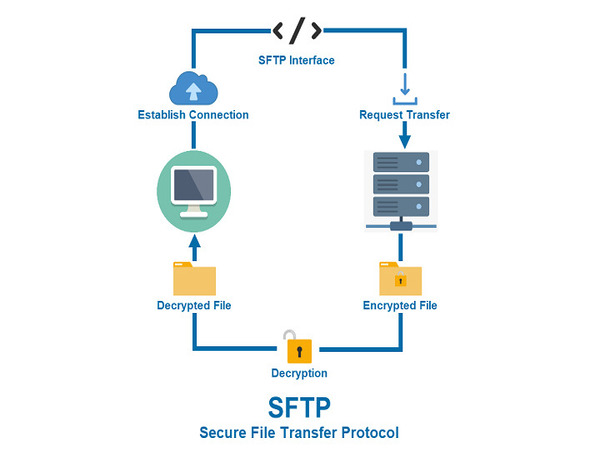
SFTP (SSH File Transfer Protocol) is a secure protocol for transferring files over a network. It is designed to operate over an SSH (Secure Shell) connection, ensuring that data is encrypted during transfer. SFTP provides higher security than traditional FTP, including user authentication and data encryption, helping protect sensitive information during file exchanges.
History and Development
What is the history of FileZilla? FileZilla was first developed in 2001 by Tim Kosse and a group of other developers. Initially, FileZilla was designed as an open-source project with the goal of providing a powerful and easy-to-use FTP application. Over the years, FileZilla has undergone many updates and improvements, expanding its features and compatibility with different operating systems.
In 2003, FileZilla Client and FileZilla Server were released as open-source software, allowing users and other developers to contribute to its development. Since then, FileZilla has become one of the most popular FTP file management applications in the world, with millions of downloads and a large user community. Today, FileZilla continues to be updated and developed, adding new features to meet user needs in an ever-changing technological landscape.
Advantages and Disadvantages of FileZilla
What are the advantages and disadvantages of FileZilla? FileZilla Server is one of the most popular FTP management software due to its user-friendliness and efficiency in data transfer. However, like any other tool, FileZilla Server has its own advantages and disadvantages. Understanding these strengths and weaknesses will help users make informed decisions when choosing a solution for their file transfer and management needs.
Advantages of FileZilla
What are the advantages of FileZilla? FileZilla Server possesses many outstanding advantages, making it a top choice for both individual users and businesses. From its user-friendly interface, support for multiple transfer protocols, to high security features, FileZilla provides flexibility and convenience for users in data management.
Free and open-source: FileZilla Server is free software, helping users save costs while still utilizing the powerful features of an FTP server. With open-source code, users can customize and develop the software according to their own needs.
Easy to install and configure: FileZilla Server's intuitive and easy-to-use interface helps users quickly set up and configure an FTP server without requiring extensive technical knowledge.
Multi-protocol support: FileZilla Server supports multiple file transfer protocols, including FTP, FTPS, and SFTP, allowing users to choose the appropriate security method.
Flexible user management: FileZilla Server allows administrators to easily manage user accounts, set access permissions, and control shared directories, ensuring data security.
Logging capability: FileZilla Server provides the ability to log user activities, helping administrators monitor and audit operations on the server.
In summary, the advantages of FileZilla Server lie not only in its ease of use but also in its security capabilities and flexibility in file management. These factors truly make FileZilla a useful tool that enhances work efficiency and helps users save time during data transfer.
Disadvantages of FileZilla
What are the disadvantages of FileZilla? Identifying and understanding these limitations is very important so that users can make the right decisions when using the software. Some issues that may affect the effectiveness of FileZilla need to be carefully considered.
Lack of support for advanced features: Although FileZilla Server provides the basic features necessary for an FTP server, some advanced features may not be supported, such as detailed bandwidth management or LDAP authentication.
Not optimized for large enterprise environments: FileZilla Server may not be the best fit for large organizations with complex security and user management requirements.
No web interface: FileZilla Server does not have an integrated web interface, which can make remote management difficult compared to some other FTP server software.
Overall, the disadvantages of FileZilla Server, such as security concerns and limited support for advanced features, may be obstacles for some users. However, being aware of these disadvantages will help users apply remedial measures and optimize their usage.
Key Features of FileZilla
What are the features of FileZilla? FileZilla is not just an ordinary FTP software but also a multifunctional tool with many outstanding features. From supporting multiple transfer protocols to flexible file management capabilities, FileZilla meets the needs of both individuals and businesses. Below are the key features of FileZilla that will help users recognize the benefits this software provides.
Outstanding Features
FileZilla stands out with many distinctive features that simplify the file transfer process and server management. These features not only improve work efficiency but also provide the best user experience. Understanding the outstanding features of FileZilla will help users maximize the potential of this tool.
Drag and drop: Users can easily drag and drop files between the computer and the server, saving time and effort.
Multiple connection management: FileZilla allows users to open multiple FTP connections simultaneously, speeding up data transfer.
Secure protocol support: FileZilla supports FTPS (FTP Secure) and SFTP (SSH File Transfer Protocol), protecting data during transfer.
Transfer queue management: Users can view and manage files being uploaded or downloaded, providing better control over the transfer process.
These features not only improve work efficiency but also enhance the user experience, making FileZilla one of the most popular choices in the data transfer field.
Other Features
In addition to the outstanding features, FileZilla also provides many other functions that enhance file management and transfer capabilities. Although these features are not mentioned as often, they play an important role in completing the user experience. Exploring other features of FileZilla will help users fully leverage the software's potential.
Credential storage: FileZilla allows storing login credentials for different FTP servers, making it easy for users to access without re-entering passwords.
Error reporting: FileZilla has the ability to provide detailed error notifications, helping users easily identify and troubleshoot issues during transfer.
Interface customization: Users can customize the FileZilla interface according to their personal preferences, improving the user experience.
The other features of FileZilla, from file management to custom settings, create a flexible and efficient working environment. Leveraging these functions will help users not only save time but also improve accuracy during data transfer.
Important Terms When Using FileZilla
What are the key terms when using FileZilla? When using FileZilla Server, understanding technical terminology is essential for users to optimize the file transfer process. These terms not only help users understand how the software works but also help them resolve issues more effectively.
FTP (File Transfer Protocol): A file transfer protocol used to transmit data between computers and servers.
FTPS: A secure version of FTP that uses SSL/TLS to encrypt data during transfer.
SFTP: A file transfer protocol over SSH that provides higher security for data transfer.
User account: Login credentials used to authenticate users when connecting to an FTP server.
Access permissions: The rights granted to users to perform operations on files and directories, such as read, write, or delete.
Shared directory: A directory on the server where users can access and transfer files.
Logging: A feature that records user activities on the server for auditing and monitoring purposes.
Mastering the important terms when using FileZilla will help users be more confident in managing files and configuring servers. This understanding not only enhances software usage skills but also facilitates information exchange and resolution of technical issues during work.
Guide to Installing and Using FileZilla Client
FileZilla Client is a free, open-source FTP (File Transfer Protocol) tool that helps you easily manage files on remote web servers. With FileZilla, you can upload, download, and edit files on hosting quickly and efficiently. This section will guide you through the detailed steps of installing and using FileZilla Client.
Downloading and installing FileZilla is relatively simple and quick, allowing users to easily start managing their files. In this guide, we will walk through the process of downloading and installing FileZilla so you can use the software effectively.
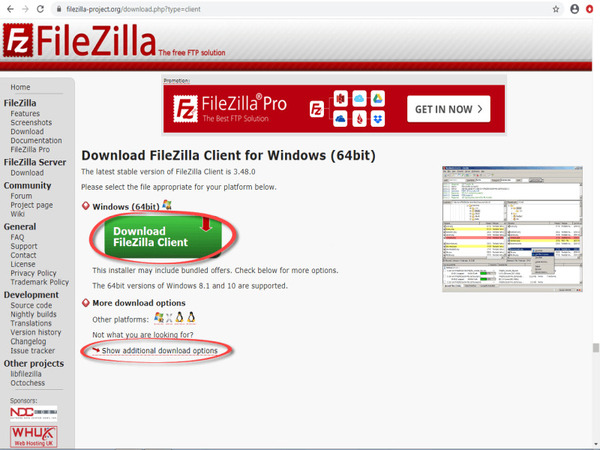
Visit the official FileZilla website: Go to filezilla-project.org.
Choose the appropriate version: Click the "Download FileZilla Client" button and select the version compatible with your operating system (Windows, macOS, or Linux).
Download and install:
For Windows: Double-click the downloaded .exe file, then follow the instructions to install.
For macOS: Drag the FileZilla file into the Applications folder.
For Linux: You can install FileZilla through package managers like APT (Ubuntu) or YUM (CentOS).
Launch FileZilla: After installation, open FileZilla to start using it.
How to Create an FTP Account on Hosting
An FTP account allows you to connect to hosting, enabling operations such as uploading or downloading files. Below is a detailed step-by-step guide to creating an FTP account on hosting simply and quickly.
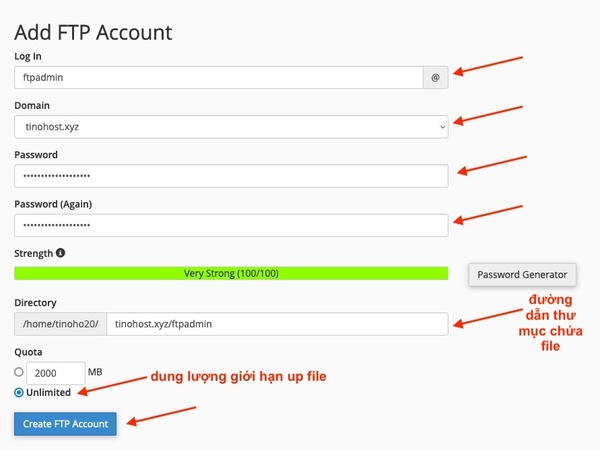
Log in to cPanel: Use the login credentials provided by your hosting provider.
Access the FTP Accounts section: Find and select "FTP Accounts" in cPanel.
Create a new FTP account:
Username: Enter the username for the FTP account.
Password: Enter the password and confirm it.
Directory: Select the root directory that the FTP account can access. Usually "/public_html/".
Quota: Set a storage limit for this account if needed, or select "Unlimited" for no limit.
Click "Create Account": Complete the FTP account creation.
How to Log In to FTP on Hosting
After creating an FTP account on hosting, the next step is to log in to FTP to manage files. FTP login allows you to access files and directories on the server, enabling operations such as uploading, downloading, or editing files.
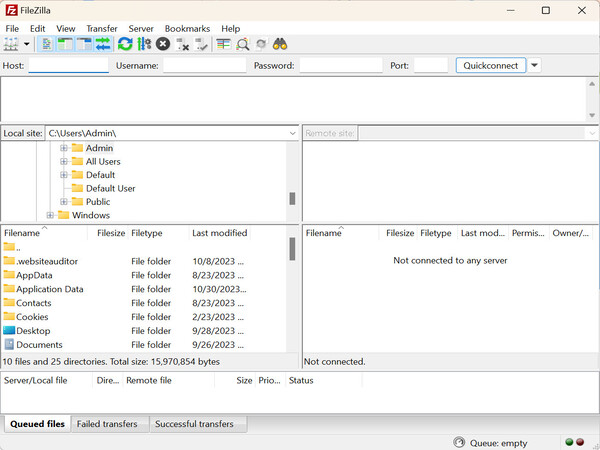
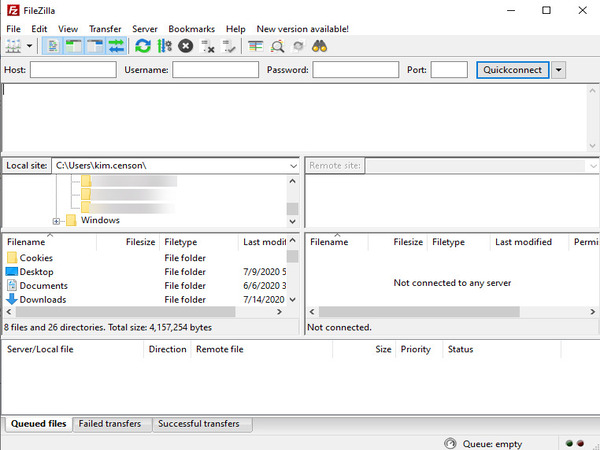
Open FileZilla: Launch the FileZilla Client application.
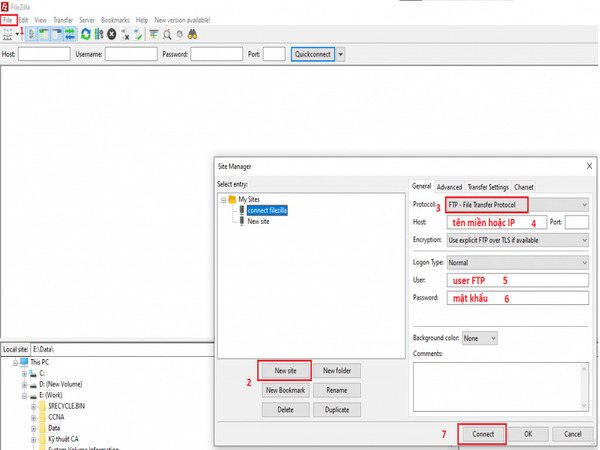
Enter connection information:
Host: Enter the IP address or domain name of the hosting server.
Username: The FTP username you created.
Password: The password corresponding to the FTP account.
Port: Usually left at the default of 21, or 22 if you are using SFTP.
Click "Quickconnect": FileZilla will connect to the server and display your directory structure on the server in the right column.
How to Edit Files with FileZilla
Editing files on hosting is one of the useful features that FileZilla provides to users. This operation helps you update file content without needing to download and re-upload, saving time and effort. This guide will help you understand how to edit files efficiently with FileZilla.
Connect via FTP: Log in to the FTP server as instructed above.
Find the file to edit: In the right column, navigate to the directory and file you want to edit.
Right-click the file: Select "View/Edit."
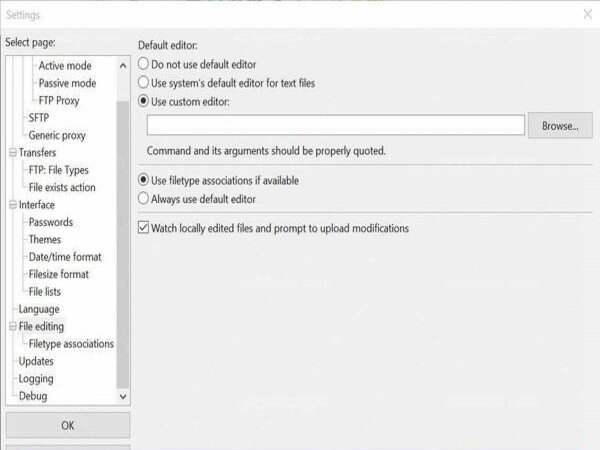
Edit the file with a text editor: The file will open in your default text editor (Notepad, Sublime Text, etc.). You can edit and save it.
Save changes and update: After editing, save the file and FileZilla will automatically update the file on the server.
How to Upload and Download Data to Hosting with FileZilla
Uploading and downloading data to hosting is one of the main functions of FileZilla, allowing you to manage files efficiently. By using FileZilla, you can easily transfer data from your personal computer to the hosting server, as well as download necessary files.
Upload data to the server:
Connect to the FTP server: Log in as instructed in section 4.
Select files from your computer: In the left column, select the file or folder you want to upload.
Drag and drop to the right column: Drag the file from the left column (your computer) to the right column (server). FileZilla will automatically upload it to the server.
Download data from the server to your computer:
Select files from the server: In the right column, select the file or folder you want to download.
Drag and drop to the left column: Drag the file from the right column (server) to the left column (your computer). The file will be downloaded to your computer.
Installing and Using FileZilla Server Interface
FileZilla Server is a powerful tool that helps users set up and manage an FTP server. Below is a detailed step-by-step guide to installing and using the FileZilla Server Interface.
Download and Install FileZilla Server Interface
To start using FileZilla Server, the first step is to download and install the FileZilla Server Interface. This process is very simple and quick, allowing you to take advantage of the useful features this software offers.
Download FileZilla Server: Visit the official FileZilla website (https://filezilla-project.org/) and find the download section for FileZilla Server. Select the version compatible with your operating system (Windows, macOS, or Linux).
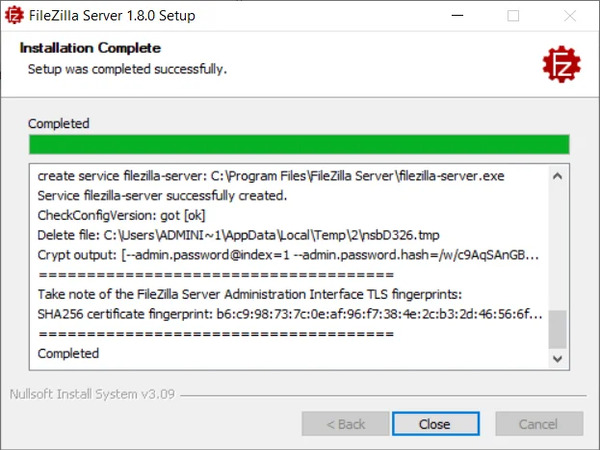
Install: After downloading, run the installation file. You will be guided through the installation steps. Make sure to select the option to install the server management interface, then complete the installation.
Start the Server: When installation is complete, launch the FileZilla Server Interface from the Start menu or home screen.
Setting Up Groups on FileZilla Server
In an FTP server environment, organizing users into groups is very important for managing access permissions and data security. FileZilla Server allows you to set up user groups easily, helping you control access permissions for each user group.
Open the management interface: After launching the FileZilla Server Interface, connect to the server (default is localhost on port 14147).
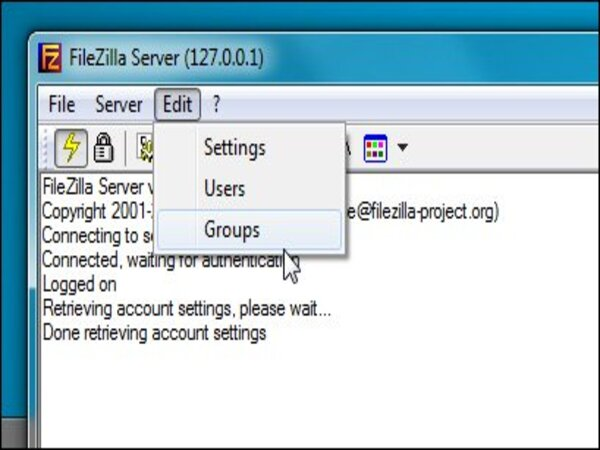
Add a new Group: In the left menu, select "Edit" > "Groups." Click the "Add" button to create a new group. Enter the group name and set access permissions for that group.
Configure permissions: You can set access permissions for specific directories such as read, write, delete, or modify files. When finished, click "OK" to save.
Setting Up Users on FileZilla Server
After setting up user groups, the next step is to create user accounts on FileZilla Server. Setting up users allows you to assign specific access permissions to each user, ensuring data security on the server.
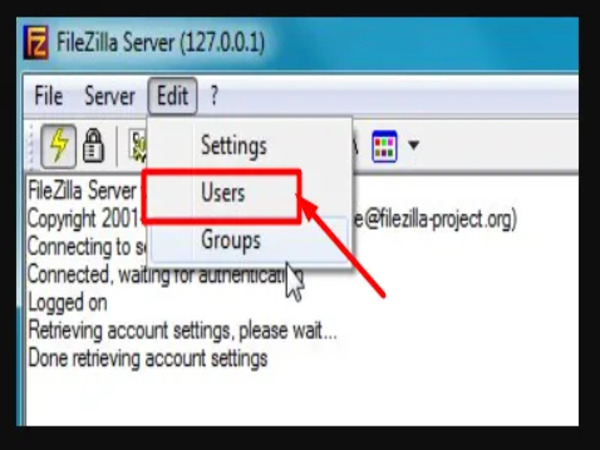
Add a new User: In the management interface, select "Edit" > "Users." Click the "Add" button to create a new user. Enter the username and click "OK."
Assign User to a Group: In the "Groups" tab, you can select the group that this user will belong to in order to inherit access permissions.
Configure password: In the "General" tab, you can set a password for the user. Ensure the password is strong enough to protect the account.
Select shared directories: In the "Shared folders" tab, select the directory that the user will have access to and set permissions for that directory.
To transfer data between a personal computer and an FTP server, you need to connect FileZilla Server with FileZilla Client. This connection allows you to manage files efficiently, performing operations such as uploading, downloading, and editing files.
Open FileZilla Client: Download and install FileZilla Client from the official website (https://filezilla-project.org/).
Connect to the server: Open FileZilla Client and enter the server's IP address (or localhost if connecting on the same machine), along with the username and password you set up. Click "Quickconnect" to connect.
Verify the connection: If everything is set up correctly, you will see the server's shared directory in FileZilla Client.
Configuring Windows Firewall for FileZilla
To ensure FileZilla Server operates correctly and can receive connections from outside, configuring Windows Firewall is an important step. The firewall can block connections to your server if not configured properly, causing issues during data transfer.
Open Windows Firewall: Go to Control Panel > System and Security > Windows Defender Firewall. Click "Advanced settings."
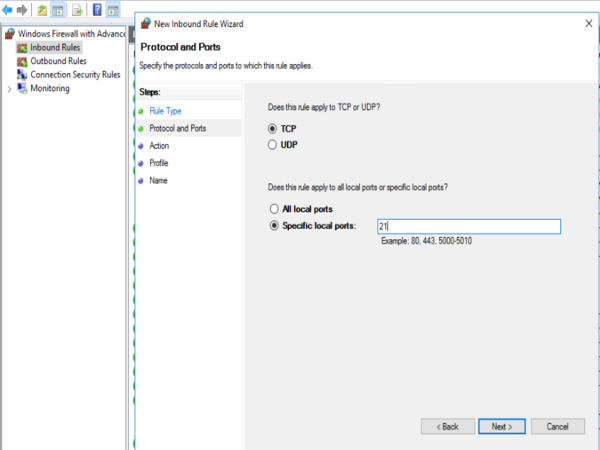
Add an allow rule: In "Inbound Rules," select "New Rule." Choose "Port" and click "Next." Enter the port that FileZilla Server is using (default is 21 for FTP). Click "Next" and select "Allow the connection." Complete the process.
Repeat for port 14147: If you are using the FileZilla Server Interface on port 14147, repeat the process to add a rule for this port.
Map FTP Share
Mapping FTP Share is a useful technique that allows users to access directories on the FTP server as if they were part of the local file system. This simplifies the file transfer and management process, providing convenience to users.
Open File Explorer: Access File Explorer on your computer.
Map Network Drive: Right-click on "This PC" and select "Map network drive."
Enter connection information: Choose a drive letter and enter the FTP address in the format ftp://your-server-ip or ftp://localhost. Click "Finish."
Enter login credentials: If prompted, enter the username and password you set up on FileZilla Server to complete the connection.
Installing and using the FileZilla Server Interface not only helps you easily manage your FTP server but also allows flexible access permission setup for users. By following each step above, you can set up a safe and efficient file sharing environment.
Important Notes When Using FileZilla
What should you note when using FileZilla? When using FileZilla, users should pay attention to several factors to optimize their experience and ensure data security. Below are some essential notes to help you use FileZilla effectively:
Check the FileZilla version: Make sure you are using the latest version of FileZilla to ensure you have the newest features and security patches. Visit the official website to check for updates.
Secure login credentials: Use strong passwords for user accounts, including uppercase letters, lowercase letters, numbers, and special characters. Avoid using easily guessable information such as names or dates of birth. To protect data during transfer, use secure protocols like FTPS or SFTP instead of regular FTP.
Manage access permissions: When creating users and groups, carefully set access permissions to prevent unauthorized access to sensitive directories. Periodically review and adjust user access permissions to ensure no one has unnecessary access.
Back up data: To avoid losing important data, establish a regular backup process for files and directories on the FTP server.
Monitor activities: FileZilla Server allows you to log user activities. Monitor these logs to detect unusual behavior or potential security issues.
Configure the firewall: Ensure that the ports used by FileZilla Server are open on the operating system's firewall. Check and reconfigure if necessary to avoid blocking connections.
Train users: If you manage a group of users, provide guidance and training so they understand how to use FileZilla effectively and safely. Introduce users to features such as drag and drop, transfer queue management, and how to change access permissions so they can use the tool optimally.
Test before deployment: If you make major configuration changes, test them in a non-production environment to ensure no issues arise.
Using FileZilla can bring many benefits in managing and transferring data, but paying attention to security factors, access permissions, and data management is very important. By following the notes above, you can ensure that your FTP environment is safe and efficient.
{{< test-result
title="FTP Client Software Comparison"
columns="Software | Price | Platform | Protocol | Interface | Best For"
rows="FileZilla | Free | Windows/macOS/Linux | FTP/FTPS/SFTP | Good | Everyone;WinSCP | Free | Windows | FTP/SFTP/SCP | Good | Windows users;Transmit | Paid ($45) | macOS | FTP/SFTP + Cloud | Excellent | macOS developers;Cyberduck | Free | Windows/macOS | FTP/SFTP + Cloud | Good | Cloud integration;WS_FTP Pro | Paid | Windows | FTP/FTPS/SFTP | Good | Enterprises"
/>}}
Security When Using FileZilla
Always use SFTP or FTPS instead of plain FTP. Do not save passwords in Site Manager if using a shared computer. Update FileZilla to the latest version to patch security vulnerabilities.
Conclusion: FileZilla is a powerful open-source FTP software that supports FTP/FTPS/SFTP across multiple platforms. With its intuitive interface, drag-and-drop capability, and simultaneous connection management, FileZilla is an ideal choice for both individual users and system administrators for file transfer and management.
FileZilla is a free, open-source software used for transferring files via FTP, FTPS, and SFTP. It comes in two versions: FileZilla Client (installed on a computer to connect to a server) and FileZilla Server (for setting up an FTP server).
QWhat is the difference between FileZilla Client and FileZilla Server?
FileZilla Client is an application installed on a personal computer to connect and transfer files to a server. FileZilla Server is server software that allows you to set up your own FTP server, manage accounts, and control access permissions.
QIs FileZilla free?
Yes, both FileZilla Client and FileZilla Server are free and open-source. FileZilla Pro is a paid version that adds support for Amazon S3, Google Cloud Storage, Dropbox, and other cloud storage services.
QWhat protocols does FileZilla support?
FileZilla supports FTP (unencrypted), FTPS (FTP over SSL/TLS), and SFTP (SSH File Transfer Protocol). It is recommended to use FTPS or SFTP to secure data during transfer.
QHow to connect FileZilla to hosting?
Open FileZilla Client, enter the Host (IP or domain), Username, Password, and Port (21 for FTP, 22 for SFTP) in the Quickconnect bar, then click connect. FTP credentials can be obtained from your hosting cPanel.