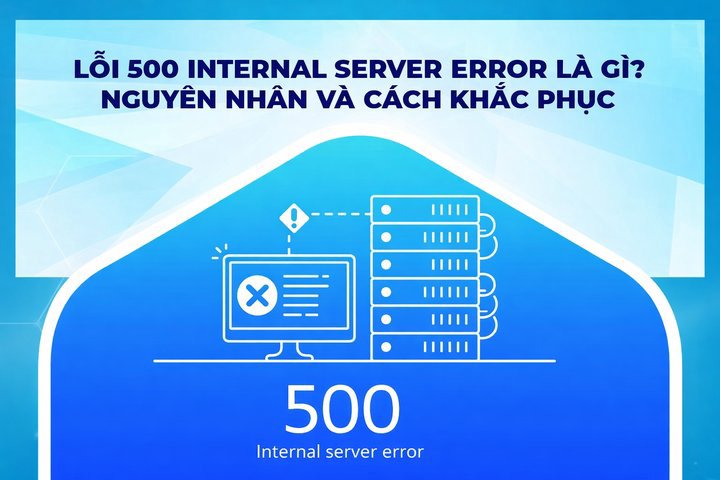
What is a 500 Internal Server Error? Effective Troubleshooting Guide
Cloud and Server

What is a 500 Internal Server Error? Effective Troubleshooting Guide

500 Internal Server Error is an HTTP error code that occurs when a server cannot process a request. Learn the causes, how to fix it, and related errors like 501 and 502.

✦ Quick summary
500 Internal Server Error is an HTTP error code that occurs when a server cannot process a request. Learn the causes, how to fix it, and related errors like 501 and 502.
How was this post?

500 Internal Server Error is a common HTTP error code that occurs when the server cannot process a request. This article explains the causes of a 500 error, provides troubleshooting steps from both the server and user perspectives, and covers related errors 501 and 502.

What is a 500 Internal Server Error?

A 500 Internal Server Error is an HTTP status code that tells the user a website cannot be accessed due to an internal server issue. This means the server received the request from the user's browser but was unable to process and fulfill it for some reason.

When visiting a website, if you see the message "500 Internal Server Error," it means the website is experiencing a technical issue.

The 500 Internal Server Error can appear in various forms such as: "500 Internal Server Error," "500 Error," "HTTP Error 500," "500. That's an error," "Temporary Error (500)," or simply "500." The way the error is displayed may vary depending on the website's configuration. Some sites even use humorous images to present this error, helping to ease user frustration when encountering the issue.

In summary, a 500 Internal Server Error is a generic error with HTTP status code 500. It occurs when the web server you are trying to access encounters a problem and cannot display any content. Instead of the normal interface, the server sends a 500 error page to the browser and displays it on your screen.
How to Fix a 500 Internal Server Error

To fix a 500 Internal Server Error, you need to identify the root cause and apply the corresponding fix on the server or web application. Here are some common troubleshooting steps:

  • Check the website code: Server administrators should review the website code to detect errors. If the issue originates from the code, the web developer needs to inspect and fix it.
  • Check server performance: If the error is caused by server overload, you should upgrade resources to handle the traffic volume.
  • Check security software: If the 500 error appears because security software is blocking requests, you need to reconfigure or temporarily disable the software.
  • Check the .htaccess file: A 500 error can be caused by a corrupted .htaccess file. You can inspect this file or temporarily remove it to see if the error is resolved.
  • Check the error log: If you have access to the server's error log, review it to find the root cause. The information in the log will help you pinpoint the issue.
  • Check plugins or themes: If you are using WordPress, the error may be caused by conflicts between plugins or themes. Try disabling all plugins and switching to the default theme to test.
  • Update the PHP version: An outdated or incompatible PHP version can cause a 500 error. You can update to the latest PHP version and recheck.
  • Contact the service provider: If you cannot find the cause, contact your hosting provider for further investigation and support.
  • Reload or refresh the page: A 500 Internal Server Error is often just a temporary server issue. To fix it, you can reload or refresh (press F5) the page you are trying to access.
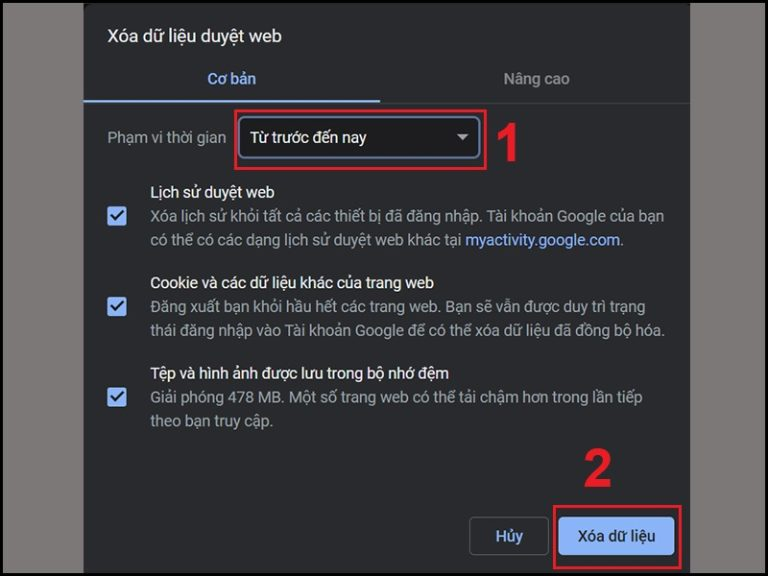
  • Clear browser cache: Issues with the website's cached data can be the cause of a 500 error. In this case, clearing the browser cache is the simplest way to resolve it.
  • Clear browser cookies: Sometimes, a 500 error can be fixed by clearing browser cookies. After clearing them, restart the browser and visit the website again.

What is DHCP? An Overview of the IP Address Assignment Protocol

Causes of a 500 Internal Server Error

When a website encounters an error, there is usually a specific message about the issue. However, a 500 Internal Server Error is a generic error that does not specify the cause. Here are some common reasons for this error:

  • Corrupted .htaccess file
  • Plugin conflicts
  • PHP memory limit exceeded
  • Issues with web server software such as Apache or PHP
  • Server overload due to too many simultaneous visitors

Understanding these causes will help you take a more effective approach to troubleshooting 500 Internal Server Errors.

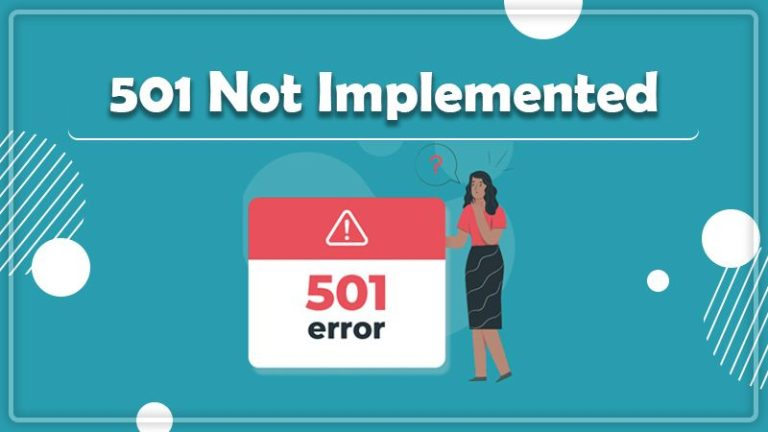
Understanding the 501 Not Implemented Error

Although less common than the 500 Internal Server Error, the 501 Not Implemented error can also cause significant problems for websites.

What is a 501 Not Implemented Error?

A 501 Not Implemented error is an HTTP response code indicating that the server does not support the HTTP method requested by the browser or has not been properly configured to handle the request. Some of the main causes of a 501 Not Implemented error include:

  • Unsupported HTTP version: The server does not support the HTTP version requested by the client. For example, if the client requests HTTP/2 but the server only supports HTTP/1.1, a 501 error will occur.
  • Unsupported request method: The server does not support the method in the client's request. For instance, if the client requests the TRACE method but the server does not support it, a 501 error will appear.
  • Server cannot fulfill the request: The server lacks the necessary plugin or extension to process the client's request.
  • Server configuration error: Incorrect server configuration, such as not accepting POST or GET requests, can lead to a 501 error.
  • Internal server error: Some internal server errors can produce a 501 error code if the server cannot process the client's request.
  • Network error: Network issues can prevent the client's request from reaching the server, resulting in a 501 error.

How to Fix a 501 Not Implemented Error

Here are troubleshooting approaches depending on the cause:

  • Missing required plugins or extensions on the server: If the server does not support the client's request, add the necessary plugins or extensions. If the error is related to server configuration, adjust the settings or contact the system administrator for assistance.
  • Temporarily disable browser plugins or extensions: If a 501 error appears on a specific website, try disabling browser plugins or extensions to see if they are the cause.
  • Overloaded web server: Upgrade server resources such as RAM or disk space to increase capacity, or switch to a higher-performance service.
  • Check the web server for errors: Inspect server settings, configuration, or maintenance to detect issues. Diagnostic tools can be used to identify the cause.
  • Verify the URL: Ensure the entered URL is correct and valid, as an incorrect URL can also cause a 501 error.
  • Update web server software version: Ensure the server software version supports the HTTP method requested by the client.
What is Shared Hosting? Types, Features, and How It Works

Understanding the 502 Bad Gateway Error

The 502 Bad Gateway error commonly occurs in complex server environments. Below are the causes of this error and the steps needed to fix it.

What is a 502 Bad Gateway Error?

A 502 Bad Gateway error is a common error when accessing a website. It occurs when an intermediary server cannot connect to the destination server to complete the user's request. Causes of a 502 Bad Gateway error include:

  • Server error: This is the primary cause of a 502 error. When a server experiences technical problems or is overloaded, it cannot process requests and returns a 502 error code.
  • Incorrect proxy configuration: A proxy server that is malfunctioning or incorrectly configured can cause errors when connecting to the server.
  • Network transmission error: When the internet connection is interrupted or data transmission encounters errors, the server cannot process the request and returns a 502 error.
  • DNS error: When the DNS server cannot resolve the requested domain name, it cannot connect to the destination server and returns a 502 error.
  • Security software: Some security software may block incoming and outgoing requests to and from the server, leading to a 502 error.
  • System configuration error: Incorrect system configuration or hardware issues can also cause a 502 error.

How to Fix a 502 Bad Gateway Error

To resolve a 502 Bad Gateway error, you can try the following steps:

  • Reload the page: A 502 error may just be a temporary issue, so try reloading the web page to see if the error disappears.
  • Check your network connection: Ensure your internet connection is stable and not experiencing issues.
  • Flush cached DNS: Incorrectly cached DNS can cause a 502 error. To fix this, you can flush DNS. On Windows, open Command Prompt and type "ipconfig /flushdns," then press Enter. On MacOS, open Terminal and type "dscacheutil -flushcache."
  • Disable CDN: If the CDN is incorrectly configured, try temporarily pausing the CDN and reloading the page to see if the error is resolved.
  • Check the destination server: If the destination server is overloaded or down, contact the service provider for assistance.
  • Check the proxy server: If using a proxy server, ensure the proxy is functioning properly. If not, try disabling the proxy or switching to a different one.
  • Run the browser in Safe Mode: This mode runs the browser with default settings, without add-ons, extensions, or toolbars. If the error does not occur in Safe Mode, you can disable extensions to fix the issue.
  • Clear cookies: If clearing the cache did not resolve the error, try clearing browser cookies to remove outdated files that may be causing the 502 error.
  • Restart the browser: A 502 error may be caused by a browser issue. Restarting the browser is a simple way to resolve it.
  • Try a different browser: If the 502 error only appears in one browser, try using a different browser to see if the error disappears.

Contact the service provider: If the steps above do not resolve the error, you should contact the service provider for further assistance.
HTTPS Proxy

How to Fix a 500 Internal Server Error from a User's Perspective

Although the 500 Internal Server Error is primarily a server-side issue, users can still take some steps to try to resolve the problem on their end.

Reload the Web Page

Sometimes, a 500 Internal Server Error is just temporary due to a momentary server problem. In this case, the simplest thing to do is reload the web page. You can do this by:

  • Pressing the F5 key on your keyboard.
  • Clicking the reload icon in your browser.
  • Pressing Ctrl + R (Windows) or Command + R (Mac).

If reloading the page does not solve the problem, try other methods.

Clear Cache and Cookies

Outdated cache and cookies can cause conflicts that lead to a 500 Internal Server Error. Clearing them may help resolve the issue:

  • Open your browser settings.
  • Find the "Clear browsing data" section or similar.
  • Select to clear cache and cookies.
  • Reload the web page after clearing.

Handle Website Cache

If you are using a cache plugin or CDN service, you may need to clear the website cache:

  • Log in to the website admin panel (if you have access).
  • Find the cache clearing option in the cache plugin or CDN settings.
  • Clear all website cache.
  • Reload the web page and check if the error still appears.

Contact the Website Administrator

If you have tried all the methods above and the problem is still not resolved, the final step is to contact the website administrator. They have access to the server and can investigate the cause of the 500 Internal Server Error more deeply.

When contacting them, provide the following information:

  • The exact URL of the page where you encountered the error.
  • The time you encountered the error.
  • The type of device and browser you are using.
  • A screenshot of the error message (if available).
  • A detailed description of what you were doing when the error appeared.

This information will help the website administrator identify and fix the issue more easily.
{{< test-result title="So sanh cac loi HTTP 5xx" headers="Ma loi|Ten|Nguyen nhan chinh|Cach xu ly" rows="500|Internal Server Error|Loi noi bo server (.htaccess, plugin, PHP)|Kiem tra log, .htaccess, tat plugin;501|Not Implemented|Server khong ho tro phuong thuc HTTP|Cap nhat server, cai extension;502|Bad Gateway|Proxy/gateway khong ket noi duoc server dich|Kiem tra proxy, DNS, tai lai trang" />}}

Note

Loi 500 la loi chung khong chi ro nguyen nhan cu the. Kiem tra file .htaccess, error log va thu tat plugin la cac buoc dau tien can lam. Neu la nguoi dung, thu tai lai trang va xoa cache truoc khi lien he quan tri vien.

Conclusion: Errors 500, 501, and 502 are common challenges when operating a website. Understanding their causes and troubleshooting steps helps administrators resolve issues quickly. Users can try reloading the page, clearing cache/cookies, or contacting the administrator for support.

Sources
  • https://developer.mozilla.org/en-US/docs/Web/HTTP/Status/500
  • https://httpd.apache.org/docs/2.4/custom-error.html
  • https://www.cloudflare.com/learning/cdn/glossary/502-bad-gateway/

Frequently Asked Questions

Frequently Asked QuestionsQ&A
What is a 500 Internal Server Error?
A 500 error is an HTTP status code indicating that the server received a request but could not process it due to an internal issue. This can be caused by a faulty .htaccess file, plugin conflicts, or exceeding the PHP memory limit.
What is the fastest way to fix a 500 error?
Try reloading the page (F5), clearing browser cache and cookies, checking the .htaccess file, disabling conflicting plugins, updating PHP, and reviewing the error log to identify the specific cause.
How does a 501 Not Implemented error differ from a 500 error?
A 501 error occurs when the server does not support the requested HTTP method or lacks a required plugin/extension, while a 500 error is a general error caused by an internal server issue.
What is a 502 Bad Gateway error?
A 502 error occurs when an intermediary server (proxy/gateway) cannot connect to the destination server, usually due to server overload, misconfigured proxy settings, or DNS issues.
When should you contact your hosting provider?
When you have already tried reloading the page, clearing cache/cookies, and checking .htaccess and plugins but the error persists, you should contact your hosting provider to have the server and error logs inspected.

Lỗi 500 Internal Server Error là mã lỗi HTTP phổ biến xảy ra khi máy chủ không thể xử lý yêu cầu. Bài viết giải thích nguyên nhân gây lỗi 500, hướng dẫn khắc phục từ phía server và người dùng, cùng các lỗi liên quan 501 và 502.

Lỗi 500 Internal Server Error là gì?

Lỗi 500 Internal Server Error là một mã lỗi HTTP cho người dùng biết rằng trang web không thể truy cập do lỗi nội bộ trên máy chủ. Điều này có nghĩa là máy chủ đã nhận được yêu cầu từ trình duyệt của người dùng nhưng không thể xử lý và đáp ứng yêu cầu đó vì một lý do nào đó.

Khi truy cập vào một trang web, nếu bạn thấy thông báo "500 Internal Server Error," điều này có nghĩa là trang web đó đang gặp sự cố kỹ thuật.

Lỗi 500 Internal Server Error có thể xuất hiện dưới nhiều hình thức khác nhau như: "500 Internal Server Error," "500 Error," "HTTP Error 500," "500. That's an error," "Temporary Error (500)" hoặc đơn giản chỉ là "500." Cách hiển thị lỗi có thể khác nhau tùy vào thiết lập của trang web. Một số trang còn dùng hình ảnh vui nhộn để thể hiện lỗi này nhằm giúp người dùng giảm bớt sự khó chịu khi gặp sự cố.

Tóm lại, lỗi 500 Internal Server Error là một lỗi chung với mã trạng thái HTTP 500. Lỗi này xảy ra khi máy chủ của trang web bạn truy cập gặp sự cố và không thể hiển thị bất kỳ nội dung nào. Thay vì giao diện bình thường, máy chủ sẽ gửi trang báo lỗi 500 tới trình duyệt và hiện nó lên màn hình của bạn.

Cách khắc phục lỗi 500 Internal Server Error

Để sửa lỗi 500 Internal Server Error, bạn cần xác định nguyên nhân gây lỗi và thực hiện các biện pháp khắc phục tương ứng trên máy chủ hoặc phần mềm/ứng dụng web. Dưới đây là một số bước kiểm tra và xử lý phổ biến:

  • Kiểm tra mã lệnh của trang web: Người quản trị máy chủ cần xem xét mã lệnh của trang web để phát hiện lỗi. Nếu lỗi xuất phát từ mã lệnh, nhà phát triển web cần kiểm tra và sửa lỗi này.
  • Kiểm tra hiệu suất máy chủ: Nếu lỗi do máy chủ quá tải, bạn nên nâng cấp tài nguyên để đáp ứng lượng truy cập.
  • Kiểm tra phần mềm bảo mật: Nếu lỗi 500 xuất hiện do phần mềm bảo mật chặn yêu cầu, bạn cần cấu hình lại hoặc tạm thời vô hiệu hóa phần mềm này.
  • Kiểm tra file .htaccess: Lỗi 500 có thể do file .htaccess bị lỗi. Bạn có thể kiểm tra file này hoặc tạm thời xóa nó để xem lỗi có được giải quyết hay không.
  • Kiểm tra file log: Nếu có quyền truy cập vào file log trên máy chủ, hãy xem xét file này để tìm ra nguyên nhân lỗi. Thông tin trong file log sẽ giúp bạn xác định gốc rễ của vấn đề.
  • Kiểm tra các plugin hoặc theme: Nếu bạn sử dụng WordPress, lỗi có thể do xung đột giữa các plugin hoặc theme. Hãy thử tắt tất cả plugin và chuyển sang theme mặc định để kiểm tra.
  • Cập nhật phiên bản PHP: Phiên bản PHP cũ hoặc không tương thích có thể gây lỗi 500. Bạn có thể cập nhật lên phiên bản PHP mới nhất và kiểm tra lại.
  • Liên hệ nhà cung cấp dịch vụ: Nếu không tìm ra nguyên nhân, hãy liên hệ nhà cung cấp dịch vụ để họ kiểm tra và hỗ trợ thêm.
  • Tải lại hoặc làm mới trang: Lỗi 500 Internal Server Error thường chỉ là sự cố tạm thời trên máy chủ. Để khắc phục, bạn có thể tải lại hoặc làm mới (nhấn phím F5) trang web muốn truy cập.
  • Xóa bộ nhớ cache của trình duyệt: Sự cố với bộ nhớ cache của trang web có thể là nguyên nhân gây lỗi 500. Trong trường hợp này, xóa cache của trình duyệt là cách đơn giản nhất để giải quyết.
  • Xóa Cookies của trình duyệt: Đôi khi, lỗi 500 có thể được khắc phục bằng cách xóa cookies trên trình duyệt. Sau khi xóa, hãy khởi động lại trình duyệt và truy cập lại trang web.

DHCP là gì? Tổng quan về giao thức cấp phát địa chỉ IP

Nguyên nhân gây ra lỗi 500 Internal Server Error

Khi một trang web gặp lỗi, thường sẽ có thông báo cụ thể về vấn đề xảy ra. Tuy nhiên, lỗi 500 Internal Server Error là một lỗi chung và không chỉ rõ nguyên nhân. Dưới đây là một số lý do phổ biến gây ra lỗi này:

  • Tập tin .htaccess bị hỏng
  • Xung đột giữa các plugin
  • Giới hạn bộ nhớ PHP bị vượt quá
  • Sự cố trong phần mềm máy chủ web như Apache hoặc PHP
  • Máy chủ quá tải do quá nhiều người truy cập cùng lúc

Hiểu rõ các nguyên nhân này sẽ giúp bạn có cách tiếp cận hiệu quả hơn trong việc khắc phục lỗi 500 Internal Server Error.

Tìm hiểu lỗi 501 Not Implemented

Mặc dù ít phổ biến hơn lỗi 500 internal server error, lỗi 501 Not Implemented cũng có thể gây ra những vấn đề đáng kể cho website.

Lỗi 501 Not Implemented là gì?

Lỗi 501 Not Implemented là mã phản hồi HTTP cho biết máy chủ không hỗ trợ phương thức HTTP được trình duyệt yêu cầu hoặc chưa được cấu hình đúng để xử lý yêu cầu đó. Một số nguyên nhân chính gây ra lỗi 501 Not Implemented bao gồm:

  • Phiên bản HTTP không được hỗ trợ: Máy chủ không hỗ trợ phiên bản HTTP mà client yêu cầu. Ví dụ, nếu client yêu cầu HTTP/2 nhưng máy chủ chỉ hỗ trợ HTTP/1.1, lỗi 501 sẽ xảy ra.
  • Phương thức yêu cầu không được hỗ trợ: Máy chủ không hỗ trợ phương thức trong yêu cầu của client. Chẳng hạn, nếu client yêu cầu phương thức TRACE mà máy chủ không hỗ trợ, lỗi 501 sẽ xuất hiện.
  • Máy chủ không thể hoàn thành yêu cầu: Máy chủ thiếu plugin hoặc extension cần thiết để xử lý yêu cầu từ client.
  • Lỗi cấu hình máy chủ: Cấu hình sai trên máy chủ, chẳng hạn như không chấp nhận các yêu cầu POST hoặc GET, có thể dẫn đến lỗi 501.
  • Lỗi máy chủ nội bộ: Một số lỗi bên trong máy chủ có thể gây ra mã lỗi 501 nếu máy chủ không xử lý được yêu cầu từ client.
  • Lỗi mạng: Sự cố mạng có thể ngăn yêu cầu từ client được gửi đến máy chủ, dẫn đến lỗi 501.

Cách khắc phục lỗi 501 Not Implemented

Dưới đây là các phương án khắc phục tùy thuộc vào nguyên nhân lỗi:

  • Thiếu plugin hoặc extension cần thiết trên máy chủ: Nếu máy chủ không hỗ trợ yêu cầu của client, hãy bổ sung các plugin hoặc extension cần thiết. Nếu lỗi liên quan đến cấu hình máy chủ, hãy chỉnh sửa cấu hình hoặc liên hệ quản trị viên hệ thống để được hỗ trợ.
  • Vô hiệu hóa tạm thời các plugin hoặc extension trên trình duyệt: Nếu lỗi 501 xuất hiện trên một trang web cụ thể, hãy thử tắt các plugin hoặc extension của trình duyệt để xem liệu chúng có phải là nguyên nhân không.
  • Máy chủ web quá tải: Nâng cấp tài nguyên máy chủ như RAM hoặc dung lượng ổ đĩa để tăng khả năng chịu tải, hoặc chuyển sang dịch vụ có hiệu suất cao hơn.
  • Kiểm tra lỗi trên máy chủ web: Kiểm tra cài đặt, cấu hình hoặc bảo trì máy chủ để phát hiện lỗi, có thể sử dụng công cụ chẩn đoán để tìm nguyên nhân.
  • Kiểm tra lại URL: Đảm bảo URL nhập vào chính xác và hợp lệ vì URL sai cũng có thể gây ra lỗi 501.
  • Cập nhật phiên bản phần mềm máy chủ web: Đảm bảo phiên bản phần mềm máy chủ hỗ trợ phương thức HTTP mà client yêu cầu.

Shared Hosting là gì? Phân loại, tính năng và cách hoạt động

Tìm hiểu lỗi 502 Bad Gateway

Lỗi 502 Bad Gateway thường xảy ra trong môi trường máy chủ phức tạp. Dưới đây là nguyên nhân gây ra lỗi này và các bước cần thiết để khắc phục nó.

Lỗi 502 Bad Gateway là gì?

Lỗi 502 Bad Gateway là một lỗi phổ biến khi truy cập vào trang web, xảy ra khi máy chủ trung gian không thể kết nối với máy chủ đích để hoàn thành yêu cầu của người dùng. Nguyên nhân gây ra lỗi 502 Bad Gateway:

  • Lỗi máy chủ: Đây là nguyên nhân chính của lỗi 502. Khi máy chủ gặp sự cố kỹ thuật hoặc quá tải, nó không thể xử lý yêu cầu và sẽ trả về mã lỗi 502.
  • Cấu hình proxy không đúng: Proxy server hoạt động sai hoặc được cấu hình không chính xác, gây ra lỗi khi kết nối với máy chủ.
  • Lỗi đường truyền mạng: Khi tín hiệu internet bị gián đoạn hoặc gặp lỗi trong quá trình truyền dữ liệu, máy chủ không thể xử lý yêu cầu và trả về lỗi 502.
  • Lỗi DNS: Khi máy chủ DNS không thể giải quyết tên miền được yêu cầu, nó không thể kết nối với máy chủ đích và trả về lỗi 502.
  • Phần mềm bảo mật: Một số phần mềm bảo mật có thể chặn các yêu cầu đến và đi từ máy chủ, dẫn đến lỗi 502.
  • Lỗi cấu hình hệ thống: Cấu hình hệ thống không chính xác hoặc sự cố phần cứng cũng có thể gây ra lỗi 502.

Cách khắc phục lỗi 502 Bad Gateway

Để xử lý lỗi 502 Bad Gateway, bạn có thể thử các bước sau:

  • Tải lại trang: Lỗi 502 có thể chỉ là sự cố tạm thời, nên bạn có thể thử tải lại trang web để xem lỗi có biến mất không.
  • Kiểm tra kết nối mạng: Đảm bảo kết nối internet của bạn ổn định và không gặp vấn đề.
  • Xóa Cached DNS: DNS bị lưu cache sai có thể gây lỗi 502. Để khắc phục, bạn có thể "flush DNS". Trên Windows, mở Command Prompt và nhập "ipconfig /flushdns", sau đó nhấn Enter. Với MacOS, mở Terminal và nhập "dscacheutil –flushcache".
  • Vô hiệu hóa CDN: Nếu CDN được cấu hình không chính xác, hãy thử tạm ngưng CDN và tải lại trang để xem lỗi có được khắc phục không.
  • Kiểm tra máy chủ đích: Nếu máy chủ đích đang quá tải hoặc ngừng hoạt động, bạn nên liên hệ nhà cung cấp dịch vụ để được hỗ trợ.
  • Kiểm tra proxy server: Nếu sử dụng proxy server, đảm bảo proxy hoạt động đúng. Nếu không, thử tắt proxy hoặc đổi sang proxy khác.
  • Chạy trình duyệt ở chế độ Safe Mode: Chế độ này sẽ chạy trình duyệt với thiết lập mặc định, không có add-on, tiện ích mở rộng, toolbar. Nếu lỗi không xảy ra trong chế độ Safe Mode, bạn có thể vô hiệu hóa các tiện ích mở rộng để khắc phục.
  • Xóa cookies: Nếu bộ nhớ cache đã được xóa mà lỗi vẫn còn, hãy thử xóa cookies trên trình duyệt để loại bỏ các file lỗi thời có thể gây ra lỗi 502.
  • Khởi động lại trình duyệt: Lỗi 502 có thể do trình duyệt gặp sự cố. Khởi động lại trình duyệt là cách đơn giản để giải quyết lỗi này.
  • Thử trình duyệt khác: Nếu lỗi 502 chỉ xuất hiện trên một trình duyệt, thử sử dụng trình duyệt khác để xem lỗi có biến mất không.

Liên hệ nhà cung cấp dịch vụ: Nếu các bước trên không khắc phục được lỗi, bạn nên liên hệ với nhà cung cấp dịch vụ để được hỗ trợ thêm.

Cách khắc phục lỗi 500 Internal Server Error từ góc độ người dùng

Mặc dù lỗi 500 Internal Server Error chủ yếu là vấn đề từ phía máy chủ, người dùng vẫn có thể thực hiện một số bước để cố gắng khắc phục vấn đề từ phía mình.

Tải lại trang web

Đôi khi, lỗi 500 internal server error chỉ là tạm thời do máy chủ gặp vấn đề nhất thời. Trong trường hợp này, việc đơn giản nhất là tải lại trang web. Bạn có thể làm điều này bằng cách:

  • Nhấn nút F5 trên bàn phím.
  • Nhấp vào biểu tượng tải lại trên trình duyệt.
  • Nhấn tổ hợp phím Ctrl + R (Windows) hoặc Command + R (Mac).

Nếu tải lại trang không giải quyết được vấn đề, hãy thử các phương pháp khác.

Xóa bộ nhớ đệm và Cookies

Bộ nhớ đệm (cache) và cookies cũ có thể gây ra xung đột, dẫn đến lỗi 500 internal server error. Xóa chúng có thể giúp giải quyết vấn đề:

  • Mở cài đặt trình duyệt của bạn.
  • Tìm phần "Xóa dữ liệu duyệt web" hoặc tương tự.
  • Chọn xóa cache và cookies.
  • Tải lại trang web sau khi xóa.

Xử lý bản lưu cache của trang web

Nếu bạn đang sử dụng một plugin cache hoặc dịch vụ CDN, có thể cần xóa cache của trang web:

  • Đăng nhập vào trang quản trị của website (nếu bạn có quyền truy cập).
  • Tìm tùy chọn xóa cache trong cài đặt plugin cache hoặc CDN.
  • Xóa toàn bộ cache của trang web.
  • Tải lại trang web và kiểm tra xem lỗi có còn xuất hiện không.

Liên hệ với người quản trị website

Nếu bạn đã thử tất cả các phương pháp trên mà vẫn không giải quyết được vấn đề, bước cuối cùng là liên hệ với người quản trị website. Họ có quyền truy cập vào máy chủ và có thể điều tra sâu hơn về nguyên nhân của lỗi 500 internal server error.

Khi liên hệ, hãy cung cấp những thông tin sau:

  • URL chính xác của trang bạn đang gặp lỗi.
  • Thời gian bạn gặp lỗi.
  • Loại thiết bị và trình duyệt bạn đang sử dụng.
  • Ảnh chụp màn hình của thông báo lỗi (nếu có).
  • Mô tả chi tiết về những gì bạn đang làm khi lỗi xuất hiện.

Những thông tin này sẽ giúp người quản trị website dễ dàng xác định và khắc phục vấn đề hơn.

{{< test-result title="So sanh cac loi HTTP 5xx" headers="Ma loi|Ten|Nguyen nhan chinh|Cach xu ly" rows="500|Internal Server Error|Loi noi bo server (.htaccess, plugin, PHP)|Kiem tra log, .htaccess, tat plugin;501|Not Implemented|Server khong ho tro phuong thuc HTTP|Cap nhat server, cai extension;502|Bad Gateway|Proxy/gateway khong ket noi duoc server dich|Kiem tra proxy, DNS, tai lai trang" />}}

Ghi chú

Loi 500 la loi chung khong chi ro nguyen nhan cu the. Kiem tra file .htaccess, error log va thu tat plugin la cac buoc dau tien can lam. Neu la nguoi dung, thu tai lai trang va xoa cache truoc khi lien he quan tri vien.

Ket luan: Loi 500, 501 va 502 la nhung thach thuc pho bien khi van hanh website. Hieu ro nguyen nhan va cac buoc khac phuc giup quan tri vien xu ly nhanh chong. Nguoi dung co the thu tai lai trang, xoa cache/cookies hoac lien he quan tri vien de duoc ho tro.

Nguồn tham khảo
  • https://developer.mozilla.org/en-US/docs/Web/HTTP/Status/500
  • https://httpd.apache.org/docs/2.4/custom-error.html
  • https://www.cloudflare.com/learning/cdn/glossary/502-bad-gateway/
Câu hỏi thường gặpQ&A