VPS Windows là gì? Tìm hiểu cơ bản về dịch vụ máy chủ ảo Windows
Cloud and Server

VPS Windows là gì? Tìm hiểu cơ bản về dịch vụ máy chủ ảo Windows

Tìm hiểu VPS Windows là gì, ưu nhược điểm, so sánh với VPS Linux, hướng dẫn tạo VPS Windows và những lưu ý bảo mật quan trọng khi sử dụng.

✦ Tóm tắt nhanh
Tìm hiểu VPS Windows là gì, ưu nhược điểm, so sánh với VPS Linux, hướng dẫn tạo VPS Windows và những lưu ý bảo mật quan trọng khi sử dụng.
Bài này thế nào?

VPS Windows là máy chủ ảo chạy hệ điều hành Windows Server, phù hợp cho ứng dụng .NET, ASP.NET và các phần mềm doanh nghiệp. Bài viết phân tích ưu nhược điểm, so sánh với VPS Linux và hướng dẫn bảo mật.

VPS Windows là gì?
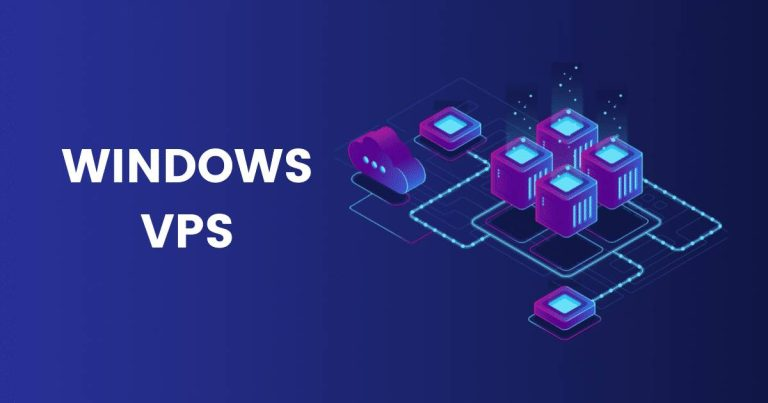
VPS Windows (Virtual Private Server Windows) là một dịch vụ máy chủ ảo hoạt động trên hệ điều hành Windows. Đây là một giải pháp ảo hóa, cho phép chia sẻ tài nguyên từ một máy chủ vật lý thành nhiều máy chủ ảo độc lập. Mỗi VPS Windows được cấp tài nguyên riêng như CPU, RAM, và ổ cứng, đồng thời được cài đặt hệ điều hành Windows Server, giúp nó hoạt động như một máy tính độc lập.

Sử dụng VPS Windows là gì? Khi bạn sử dụng VPS Windows, bạn sẽ có quyền kiểm soát toàn bộ môi trường máy chủ của mình, giống như khi bạn quản lý một máy tính Windows thông thường. Bạn có thể cài đặt và cấu hình các ứng dụng theo nhu cầu, giúp tối ưu hóa quá trình vận hành và quản lý hệ thống.

VPS Windows có nhiều ứng dụng khác nhau, từ hosting website cho các nền tảng Microsoft như ASP.NET, đến chạy các ứng dụng doanh nghiệp yêu cầu môi trường Windows. VPS Windows cũng rất hữu ích cho việc lưu trữ và chia sẻ file, phát triển phần mềm, hoặc sử dụng Remote Desktop, cho phép truy cập máy chủ từ xa.

Ưu điểm và nhược điểm của VPS Windows

Để xác định liệu VPS Windows có phù hợp với nhu cầu của bạn hay không, việc hiểu rõ những ưu và nhược điểm của nó là rất quan trọng. Dưới đây là một số ưu điểm nổi bật của VPS Windows:

Ưu điểm

  • Tương thích tốt: VPS Windows tương thích với hầu hết các ứng dụng và phần mềm phát triển dành riêng cho hệ điều hành Windows, đặc biệt hữu ích cho doanh nghiệp sử dụng các phần mềm đặc thù của Windows.
  • Giao diện dễ sử dụng: Với giao diện đồ họa trực quan, Windows rất thân thiện với người dùng, giúp ngay cả những người không am hiểu kỹ thuật vẫn có thể dễ dàng quản lý và vận hành máy chủ.
  • Hỗ trợ Remote Desktop: VPS Windows cho phép kết nối và điều khiển máy chủ từ xa qua giao thức Remote Desktop Protocol (RDP), mang lại sự thuận tiện trong quản lý và vận hành từ bất kỳ đâu.
  • Tích hợp sẵn nhiều công cụ: Windows Server đi kèm với các công cụ quản lý và bảo mật tích hợp như Active Directory, Group Policy, và Windows Defender, giúp bạn dễ dàng quản lý và bảo vệ hệ thống của mình.
  • Hỗ trợ kỹ thuật chuyên nghiệp: Microsoft cung cấp hỗ trợ kỹ thuật chuyên sâu cho Windows Server, giúp giải quyết các vấn đề kỹ thuật nhanh chóng và hiệu quả.
  • Cập nhật thường xuyên: Microsoft thường xuyên phát hành các bản cập nhật bảo mật và tính năng mới cho Windows Server, đảm bảo hệ thống luôn an toàn và hoạt động ổn định.
  • Tính linh hoạt: VPS Windows cho phép tùy chỉnh linh hoạt về cấu hình phần cứng như CPU, RAM, và dung lượng ổ cứng để phù hợp với nhu cầu sử dụng thực tế.
  • Khả năng mở rộng: Khi nhu cầu tăng cao, bạn có thể dễ dàng nâng cấp tài nguyên cho VPS Windows mà không cần thay đổi cấu trúc hệ thống, giúp tiết kiệm thời gian và chi phí.

Nhược điểm

  • Chi phí cao hơn: VPS Windows thường đắt hơn so với VPS Linux do phải trả chi phí bản quyền cho hệ điều hành Windows.
  • Yêu cầu tài nguyên lớn: Windows đòi hỏi nhiều tài nguyên hơn (CPU, RAM) so với các hệ điều hành dựa trên Unix như Linux, ảnh hưởng đến hiệu suất máy chủ.
  • Vấn đề bảo mật: Mặc dù Microsoft liên tục cải thiện, Windows vẫn là mục tiêu phổ biến của các cuộc tấn công mạng nhiều hơn so với Linux.
RDP là cổng tấn công phổ biến nhất trên VPS Windows

Cổng RDP (3389) bị scan tự động liên tục bởi botnet trên toàn cầu. Không bao giờ để RDP mở trực tiếp ra internet với mật khẩu đơn giản. Giải pháp: đổi cổng mặc định, chỉ cho phép IP cụ thể trong firewall, hoặc dùng VPN để truy cập RDP an toàn hơn.

  • Phụ thuộc vào nhà cung cấp: Sử dụng VPS Windows đồng nghĩa với việc phụ thuộc vào các chính sách về bản quyền, cập nhật và hỗ trợ của Microsoft.
  • Ít khả năng tùy biến: Windows Server không cung cấp nhiều tùy chỉnh ở cấp độ hệ thống so với Linux, đặc biệt với các tác vụ phức tạp.
  • Yêu cầu khởi động lại: Windows thường yêu cầu khởi động lại sau khi cài đặt các bản cập nhật, có thể gây gián đoạn dịch vụ.
  • Quản lý phức tạp: Một số tác vụ quản trị hệ thống trong Windows có thể phức tạp hơn so với việc quản lý qua command-line trong Linux.
  • Giới hạn số kết nối: Windows Server có giới hạn số lượng kết nối đồng thời, có thể không phù hợp cho các ứng dụng với lưu lượng truy cập lớn.

Khi nào nên sử dụng VPS Windows?

Việc lựa chọn sử dụng VPS Windows phụ thuộc vào nhiều yếu tố khác nhau. Dưới đây là những trường hợp mà VPS Windows có thể là lựa chọn lý tưởng:

  • Khi cần chạy ứng dụng đặc thù cho Windows: Nếu bạn sử dụng các ứng dụng phát triển riêng cho Windows như ASP.NET, MS SQL Server hoặc các phần mềm doanh nghiệp chỉ tương thích với Windows, thì VPS Windows là giải pháp tốt nhất.
  • Khi bạn đã quen với môi trường Windows: Nếu đội ngũ của bạn đã có kinh nghiệm quản lý hệ thống Windows, việc sử dụng VPS Windows sẽ giúp giảm bớt thời gian học hỏi và nhanh chóng thích nghi.
  • Khi cần sử dụng Remote Desktop: VPS Windows hỗ trợ tính năng Remote Desktop, cho phép bạn quản lý và truy cập máy chủ từ xa dễ dàng thông qua giao diện đồ họa.
  • Khi cần tích hợp với Active Directory: Nếu doanh nghiệp của bạn sử dụng Active Directory để quản lý người dùng và quyền truy cập, VPS Windows sẽ tích hợp một cách trơn tru.
  • Khi cần hỗ trợ .NET Framework: Đối với các ứng dụng dựa trên .NET Framework, VPS Windows là sự lựa chọn tự nhiên vì tích hợp sẵn.
  • Khi cần các công cụ quản lý của Microsoft: Windows Server đi kèm nhiều công cụ quản lý mạnh mẽ như IIS, Exchange Server, SharePoint, giúp bạn quản lý tốt các dịch vụ này.
  • Khi cần môi trường phát triển và kiểm thử ứng dụng Windows: VPS Windows cung cấp môi trường lý tưởng để phát triển, kiểm thử ứng dụng Windows trước khi triển khai chính thức.
  • Khi cần tương thích với phần cứng đặc thù: Một số phần cứng chỉ có driver dành cho Windows, khiến VPS Windows trở thành lựa chọn bắt buộc.
  • Khi cần chạy ứng dụng desktop trên máy chủ: VPS Windows cung cấp môi trường phù hợp để chạy các ứng dụng desktop của Windows.
  • Khi cần tích hợp với dịch vụ đám mây của Microsoft: Nếu bạn đang sử dụng các dịch vụ đám mây như Azure, Office 365, VPS Windows sẽ mang lại sự tích hợp tốt hơn.

WinSCP là gì? Hướng dẫn cách sử dụng WinSCP đơn giản

Tuy nhiên, VPS Windows không phải luôn là lựa chọn tốt nhất. Một số trường hợp có thể chọn VPS Linux nếu:

  • Bạn cần giải pháp chi phí thấp hơn.
  • Bạn đang chạy ứng dụng web không phụ thuộc vào Windows (như PHP, Python, Ruby on Rails).
  • Bạn cần một hệ thống có tính tùy chỉnh cao và linh hoạt.
  • Bạn ưu tiên hiệu suất và độ ổn định trong các tác vụ server-side.

VPS Windows miễn phí: Có nên chọn không?

Khi tìm kiếm giải pháp hosting, bạn có thể bắt gặp các dịch vụ quảng cáo "VPS Windows miễn phí". Tuy nhiên, trước khi quyết định, cần cân nhắc một số yếu tố quan trọng:

  • Giới hạn tài nguyên: VPS Windows miễn phí thường bị giới hạn nghiêm ngặt về tài nguyên (CPU, RAM, dung lượng ổ cứng), không đủ để vận hành các ứng dụng hoặc website có lưu lượng truy cập lớn.
  • Thời gian sử dụng ngắn: Nhiều dịch vụ miễn phí chỉ cung cấp trong thời gian ngắn (ví dụ: 30 ngày) như một bản dùng thử, sau đó bạn sẽ phải chuyển sang gói trả phí.
  • Bảo mật thấp: VPS miễn phí thường không được cập nhật thường xuyên hoặc thiếu các biện pháp bảo mật cần thiết, tăng nguy cơ bị tấn công.
  • Hiệu suất không ổn định: Do chia sẻ tài nguyên với nhiều người dùng khác, hiệu suất của VPS miễn phí thường không ổn định và khó dự đoán.
  • Hỗ trợ kỹ thuật hạn chế: Các dịch vụ VPS miễn phí thường không đi kèm hỗ trợ kỹ thuật chất lượng, khiến việc khắc phục sự cố trở nên khó khăn.
  • Quảng cáo không mong muốn: Một số nhà cung cấp có thể hiển thị quảng cáo trên dịch vụ miễn phí, làm giảm trải nghiệm người dùng.
  • Rủi ro mất dữ liệu: VPS miễn phí thường không có các biện pháp bảo vệ dữ liệu đầy đủ, tăng nguy cơ mất mát dữ liệu quan trọng.
  • Giới hạn tính năng: Nhiều tính năng quan trọng của Windows Server có thể bị khóa hoặc không khả dụng trên VPS miễn phí.
  • Độ tin cậy thấp: Nhà cung cấp dịch vụ miễn phí có thể ngừng hoạt động bất cứ lúc nào, gây gián đoạn dịch vụ của bạn.
  • Khó khăn trong nâng cấp: Khi nhu cầu tăng, việc nâng cấp từ VPS miễn phí lên gói trả phí có thể gặp trở ngại.

Mặc dù VPS Windows miễn phí có vẻ hấp dẫn về mặt chi phí, nó thường không phù hợp cho các dự án quan trọng hoặc dài hạn. Dịch vụ này chỉ thích hợp cho học tập, thử nghiệm ngắn hạn hoặc phát triển cá nhân.

Để đảm bảo hiệu suất, bảo mật và hỗ trợ tốt nhất, bạn nên cân nhắc chọn VPS Windows có trả phí từ các nhà cung cấp uy tín.

So sánh giữa VPS Windows và VPS Linux

Khi lựa chọn VPS, hai lựa chọn phổ biến nhất là VPS Windows và VPS Linux. Mỗi loại đều có những ưu điểm và hạn chế riêng. Dưới đây là so sánh chi tiết giữa hai loại VPS này:

Tiêu chí VPS Linux VPS Windows
Hiệu suất Cao hơn, yêu cầu tài nguyên thấp Thấp hơn, tốn nhiều RAM/CPU
Chi phí Rẻ hơn, không phí bản quyền Đắt hơn 20-40% do bản quyền
Bảo mật Ít bị tấn công, cộng đồng audit lớn Mục tiêu phổ biến, Microsoft patch thường xuyên
Linh hoạt Tùy chỉnh sâu rộng cấp hệ thống Ít tùy chỉnh, tích hợp tốt hệ sinh thái Microsoft
Ứng dụng PHP, Python, Ruby, Node.js .NET, ASP.NET, MS SQL Server
Ổn định Chạy liên tục không cần restart Cần restart sau cập nhật
So sánh hiệu suất VPS Windows vs Linux
Tested on 2026-01-05 Vultr 2 vCPU / 4GB RAM
Kết quả benchmark trên cùng cấu hình phần cứng (2 vCPU, 4GB RAM, 80GB SSD):
Tiêu chí VPS Linux (Ubuntu 22.04) VPS Windows (Server 2022)
RAM khả dụng sau boot 3.6 GB 2.4 GB
Thời gian boot 12s 45s
Nginx/IIS throughput (req/s) 8,500 5,200
Chi phí tháng $12 $18

VPS Linux có hiệu suất cao hơn và chi phí thấp hơn trên cùng cấu hình. VPS Windows phù hợp khi bắt buộc dùng ứng dụng Windows-only.

Hướng dẫn tạo VPS Windows

Quá trình tạo một VPS Windows khá đơn giản nếu bạn làm theo các bước cơ bản sau. Dưới đây là hướng dẫn chung:

  • Chọn nhà cung cấp VPS: Tìm kiếm và lựa chọn nhà cung cấp VPS uy tín như DigitalOcean, Vultr, Linode, AWS, hoặc Azure. Xem xét giá cả, hiệu suất, độ tin cậy và chất lượng hỗ trợ kỹ thuật.
  • Đăng ký tài khoản: Tạo tài khoản trên trang web của nhà cung cấp bạn đã chọn và xác minh tài khoản (thường qua email).
  • Chọn gói VPS: Lựa chọn gói VPS phù hợp với nhu cầu sử dụng của bạn về CPU, RAM, và dung lượng ổ cứng. Bạn luôn có thể nâng cấp sau này nếu cần thiết.
  • Chọn hệ điều hành: Chọn phiên bản Windows Server mà bạn muốn, chẳng hạn như Windows Server 2019 hoặc 2022.
  • Chọn vị trí máy chủ: Chọn trung tâm dữ liệu gần đối tượng người dùng mục tiêu để giảm độ trễ.
  • Cấu hình bảo mật: Đặt mật khẩu mạnh cho tài khoản quản trị. Nếu có tùy chọn, hãy cài đặt SSH key để tăng cường bảo mật.
  • Xem lại và xác nhận: Kiểm tra kỹ cài đặt và chi phí. Sau đó, xác nhận và thanh toán cho VPS của bạn.
  • Chờ khởi tạo: Quá trình tạo VPS thường mất vài phút. Sau đó, bạn sẽ nhận được email xác nhận kèm thông tin đăng nhập.
  • Truy cập VPS: Sử dụng Remote Desktop Protocol (RDP) để kết nối với VPS Windows. Bạn sẽ cần nhập địa chỉ IP, tên người dùng và mật khẩu.
  • Cấu hình ban đầu: Cập nhật hệ điều hành Windows Server lên phiên bản mới nhất, cài đặt phần mềm chống virus và tường lửa, đồng thời cấu hình các thiết lập bảo mật cơ bản.
  • Cài đặt phần mềm cần thiết: Cài đặt các ứng dụng và dịch vụ bạn cần cho dự án.
  • Thiết lập sao lưu: Đảm bảo thiết lập hệ thống sao lưu tự động để bảo vệ dữ liệu.

Lưu ý: Các bước cụ thể có thể thay đổi tùy theo nhà cung cấp VPS bạn chọn, vì vậy hãy tham khảo tài liệu hướng dẫn chi tiết từ nhà cung cấp để đảm bảo quy trình chính xác.
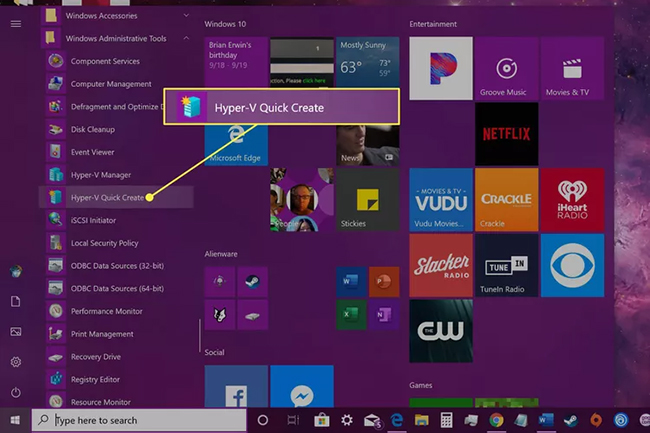
Địa chỉ thuê VPS Windows tốt nhất

Khi tìm kiếm địa chỉ thuê VPS Windows tốt nhất, có nhiều yếu tố cần xem xét như hiệu suất, độ tin cậy, giá cả, và hỗ trợ kỹ thuật. Dưới đây là một số nhà cung cấp VPS Windows được đánh giá cao:

  • Microsoft Azure:
    • Ưu điểm: Tích hợp tốt với các dịch vụ Microsoft khác, độ tin cậy cao, có mặt toàn cầu.
    • Nhược điểm: Có thể phức tạp đối với người mới bắt đầu, giá cả có thể cao hơn một số đối thủ.
    • Amazon Web Services (AWS):
    • Ưu điểm: Đa dạng về dịch vụ, hiệu suất cao, khả năng mở rộng tốt.
    • Nhược điểm: Cấu trúc giá phức tạp, có thể khó sử dụng cho người mới.
  • Vultr:
    • Ưu điểm: Giao diện người dùng đơn giản, giá cả cạnh tranh, nhiều vị trí máy chủ.
    • Nhược điểm: Hỗ trợ kỹ thuật có thể không nhanh như một số đối thủ.
    • DigitalOcean:
    • Ưu điểm: Dễ sử dụng, giá cả hợp lý, hiệu suất tốt.
    • Nhược điểm: Ít tùy chọn cấu hình Windows hơn so với Linux.
  • Linode:
    • Ưu điểm: Hiệu suất ổn định, giá cả cạnh tranh, giao diện người dùng thân thiện.
    • Nhược điểm: Số lượng trung tâm dữ liệu ít hơn một số đối thủ.
    • Kamatera:
    • Ưu điểm: Tùy chỉnh cao, nhiều lựa chọn cấu hình, khởi động nhanh.
    • Nhược điểm: Có thể đắt hơn cho các cấu hình cao cấp.
  • A2 Hosting:
    • Ưu điểm: Hiệu suất tốt, hỗ trợ khách hàng 24/7, nhiều tùy chọn quản lý.
    • Nhược điểm: Gói cơ bản có thể hạn chế về tài nguyên.
    • Hostinger:
    • Ưu điểm: Giá cả phải chăng, giao diện người dùng thân thiện, hỗ trợ nhiều ngôn ngữ.
    • Nhược điểm: Số lượng trung tâm dữ liệu hạn chế.
  • InterServer:
    • Ưu điểm: Giá cố định, không giới hạn băng thông, hỗ trợ kỹ thuật tốt.
    • Nhược điểm: Giao diện quản lý có thể cần cải thiện.
    • Liquid Web:
    • Ưu điểm: Hiệu suất cao, hỗ trợ kỹ thuật chuyên nghiệp 24/7, độ tin cậy cao.
    • Nhược điểm: Giá cả có thể cao hơn so với một số đối thủ cạnh tranh.

Lưu ý khi sử dụng VPS Windows

Khi sử dụng VPS Windows, có một số điểm quan trọng cần lưu ý để đảm bảo hiệu suất tốt nhất và bảo mật cao nhất cho hệ thống của bạn:

Địa chỉ IP không thể thay đổi

  • Tính ổn định: Địa chỉ IP tĩnh giúp duy trì kết nối ổn định và đáng tin cậy.
  • Cấu hình DNS: Sử dụng địa chỉ IP tĩnh để cấu hình DNS cho tên miền của bạn.
  • Whitelist: Nhiều dịch vụ yêu cầu whitelist địa chỉ IP, việc có IP tĩnh sẽ thuận tiện hơn.
  • Lưu ý bảo mật: Vì IP không thay đổi, cần đặc biệt chú ý đến các biện pháp bảo mật.

Cấu hình tường lửa

  • Kích hoạt Windows Firewall: Đảm bảo tường lửa Windows luôn được bật.
  • Quy tắc inbound/outbound: Cấu hình các quy tắc cho phép và chặn lưu lượng truy cập phù hợp.
  • Cập nhật thường xuyên: Luôn cập nhật tường lửa lên phiên bản mới nhất.
  • Giám sát: Thường xuyên kiểm tra logs của tường lửa để phát hiện các hoạt động bất thường.
  • Sử dụng tường lửa phần mềm bổ sung: Cân nhắc sử dụng thêm tường lửa của bên thứ ba để tăng cường bảo mật.

Tránh sử dụng mật khẩu dễ đoán

  • Độ phức tạp: Sử dụng mật khẩu phức tạp, bao gồm chữ hoa, chữ thường, số và ký tự đặc biệt.
  • Độ dài: Mật khẩu nên có ít nhất 12 ký tự.
  • Duy nhất: Sử dụng mật khẩu khác nhau cho mỗi tài khoản và dịch vụ.
  • Thay đổi định kỳ: Thay đổi mật khẩu thường xuyên, ít nhất mỗi 3-6 tháng.
  • Xác thực hai yếu tố: Kích hoạt xác thực hai yếu tố khi có thể để tăng cường bảo mật.
  • Sử dụng trình quản lý mật khẩu: Cân nhắc sử dụng một trình quản lý mật khẩu an toàn để lưu trữ và tạo mật khẩu mạnh.
3 bước bảo mật tối thiểu cho VPS Windows mới

(1) Đổi cổng RDP từ 3389 sang cổng ngẫu nhiên (ví dụ: 47823). (2) Bật NLA (Network Level Authentication) trong Remote Desktop settings. (3) Tạo Windows Firewall rule chỉ cho phép IP của bạn kết nối RDP. Ba bước này loại bỏ phần lớn các cuộc tấn công tự động nhắm vào RDP.

Rủi ro bị tắt hoặc khởi động lại VPS

  • Cập nhật tự động: Cấu hình cập nhật Windows tự động vào thời điểm ít ảnh hưởng đến hoạt động.
  • Giám sát: Sử dụng các công cụ giám sát để theo dõi thời gian hoạt động của VPS.
  • Kịch bản khởi động: Tạo các kịch bản để tự động khởi động lại các dịch vụ quan trọng sau khi VPS khởi động lại.
  • Sao lưu dữ liệu: Thực hiện sao lưu dữ liệu thường xuyên để tránh mất mát khi VPS gặp sự cố.
  • Dự phòng: Cân nhắc sử dụng giải pháp dự phòng hoặc cân bằng tải để giảm thiểu tác động của việc VPS bị tắt.
  • Thông báo: Thiết lập hệ thống thông báo để nhận cảnh báo khi VPS bị tắt hoặc khởi động lại.

Kết luận: VPS Windows là giải pháp máy chủ ảo phù hợp cho ứng dụng .NET, ASP.NET và phần mềm doanh nghiệp yêu cầu môi trường Windows. So với VPS Linux, chi phí cao hơn nhưng tích hợp tốt với hệ sinh thái Microsoft. Luôn đảm bảo bảo mật RDP và cập nhật thường xuyên khi sử dụng.
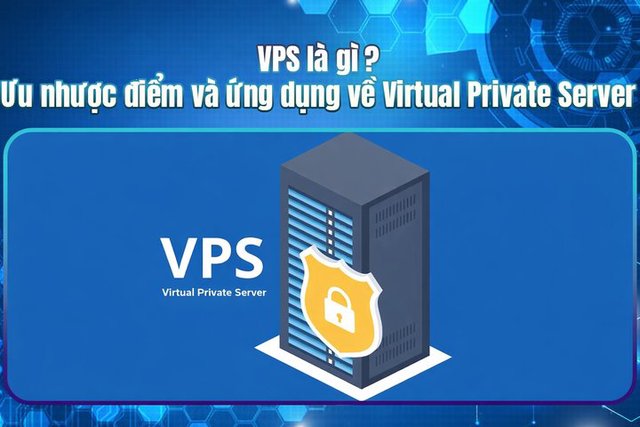
Nguồn tham khảo

Câu hỏi thường gặp

Câu hỏi thường gặpQ&A
VPS Windows là gì?
VPS Windows là máy chủ ảo chạy hệ điều hành Windows Server, được cấp tài nguyên riêng (CPU, RAM, ổ cứng) và cho phép quản lý qua Remote Desktop như một máy tính độc lập.
VPS Windows và VPS Linux khác nhau như thế nào?
VPS Windows tương thích với ứng dụng .NET/ASP.NET, có giao diện đồ họa, nhưng đắt hơn do bản quyền. VPS Linux miễn phí bản quyền, hiệu suất cao hơn, linh hoạt nhưng cần kiến thức command-line.
VPS Windows có đắt không?
VPS Windows thường đắt hơn VPS Linux 20-40% do phí bản quyền Windows Server. Giá khởi điểm khoảng 10-15 USD/tháng cho cấu hình cơ bản.
Khi nào nên chọn VPS Windows thay vì VPS Linux?
Chọn VPS Windows khi cần chạy ứng dụng ASP.NET, MS SQL Server, Active Directory, hoặc khi đội ngũ quen thuộc với môi trường Windows và cần giao diện đồ họa RDP.
VPS Windows miễn phí có đáng dùng không?
Không nên dùng cho dự án quan trọng. VPS Windows miễn phí thường giới hạn tài nguyên, bảo mật kém và không ổn định. Chỉ phù hợp để học tập hoặc thử nghiệm ngắn hạn.

Windows VPS is a virtual server running the Windows Server operating system, ideal for .NET, ASP.NET applications, and enterprise software. This article analyzes the advantages and disadvantages, compares it with Linux VPS, and provides security guidelines.

What is a Windows VPS?

A Windows VPS (Virtual Private Server Windows) is a virtual server service that runs on the Windows operating system. It is a virtualization solution that allows sharing resources from a physical server into multiple independent virtual servers. Each Windows VPS is allocated dedicated resources such as CPU, RAM, and storage, while running the Windows Server operating system, enabling it to function like an independent computer.

What does using a Windows VPS mean? When you use a Windows VPS, you have full control over your server environment, just as if you were managing a regular Windows computer. You can install and configure applications according to your needs, helping optimize your operations and system management.

Windows VPS has many different applications, from hosting websites on Microsoft platforms like ASP.NET, to running enterprise applications that require a Windows environment. Windows VPS is also highly useful for file storage and sharing, software development, or using Remote Desktop, which allows remote server access.

Advantages and Disadvantages of Windows VPS

To determine whether a Windows VPS is right for your needs, understanding its pros and cons is crucial. Below are some notable advantages of Windows VPS:

Advantages

  • Great Compatibility: Windows VPS is compatible with most applications and software developed specifically for the Windows operating system, especially useful for businesses using Windows-specific software.
  • User-Friendly Interface: With an intuitive graphical interface, Windows is very user-friendly, allowing even those without technical expertise to easily manage and operate the server.
  • Remote Desktop Support: Windows VPS allows connecting to and controlling the server remotely via Remote Desktop Protocol (RDP), providing convenience in management and operation from anywhere.
  • Built-in Management Tools: Windows Server comes with integrated management and security tools such as Active Directory, Group Policy, and Windows Defender, making it easy to manage and protect your system.
  • Professional Technical Support: Microsoft provides in-depth technical support for Windows Server, helping resolve technical issues quickly and efficiently.
  • Regular Updates: Microsoft regularly releases security updates and new features for Windows Server, ensuring the system remains safe and operates stably.
  • Flexibility: Windows VPS allows flexible customization of hardware configurations such as CPU, RAM, and storage capacity to match actual usage needs.
  • Scalability: When demand increases, you can easily upgrade resources for your Windows VPS without changing the system architecture, saving time and costs.

Disadvantages

  • Higher Cost: Windows VPS is typically more expensive than Linux VPS due to licensing costs for the Windows operating system.
  • Higher Resource Requirements: Windows requires more resources (CPU, RAM) compared to Unix-based operating systems like Linux, affecting server performance.
  • Security Concerns: Although Microsoft continuously improves, Windows remains a more common target for cyberattacks compared to Linux.
RDP is the most common attack vector on Windows VPS

The RDP port (3389) is continuously auto-scanned by botnets worldwide. Never leave RDP open directly to the internet with a simple password. Solutions: change the default port, only allow specific IPs in the firewall, or use a VPN to access RDP more securely.

  • Vendor Lock-in: Using Windows VPS means depending on Microsoft's licensing, update, and support policies.
  • Less Customizable: Windows Server doesn't provide as many system-level customizations compared to Linux, especially for complex tasks.
  • Restart Requirements: Windows often requires restarts after installing updates, which can cause service disruptions.
  • Complex Management: Some system administration tasks in Windows can be more complex compared to command-line management in Linux.
  • Connection Limits: Windows Server has limits on the number of simultaneous connections, which may not be suitable for applications with high traffic volumes.

When Should You Use Windows VPS?

Choosing to use Windows VPS depends on several different factors. Below are cases where Windows VPS can be the ideal choice:

  • When you need to run Windows-specific applications: If you use applications developed specifically for Windows such as ASP.NET, MS SQL Server, or enterprise software that is only compatible with Windows, then Windows VPS is the best solution.
  • When your team is familiar with the Windows environment: If your team already has experience managing Windows systems, using Windows VPS will reduce learning time and enable quick adaptation.
  • When you need Remote Desktop: Windows VPS supports the Remote Desktop feature, allowing you to manage and access the server remotely through a graphical interface.
  • When you need Active Directory integration: If your organization uses Active Directory for user and access management, Windows VPS will integrate seamlessly.
  • When you need .NET Framework support: For applications built on the .NET Framework, Windows VPS is the natural choice as it comes pre-integrated.
  • When you need Microsoft management tools: Windows Server comes with powerful management tools such as IIS, Exchange Server, and SharePoint, helping you manage these services effectively.
  • When you need a Windows application development and testing environment: Windows VPS provides an ideal environment for developing and testing Windows applications before official deployment.
  • When you need compatibility with specific hardware: Some hardware only has drivers for Windows, making Windows VPS a mandatory choice.
  • When you need to run desktop applications on a server: Windows VPS provides a suitable environment for running Windows desktop applications.
  • When you need integration with Microsoft cloud services: If you are using cloud services like Azure or Office 365, Windows VPS will provide better integration.

What is WinSCP? A Simple Guide to Using WinSCP

However, Windows VPS is not always the best choice. You might consider Linux VPS if:

  • You need a lower-cost solution.
  • You are running web applications that don't depend on Windows (such as PHP, Python, Ruby on Rails).
  • You need a highly customizable and flexible system.
  • You prioritize performance and stability in server-side tasks.

Free Windows VPS: Should You Choose One?

When searching for hosting solutions, you may come across services advertising "free Windows VPS." However, before deciding, consider several important factors:

  • Limited Resources: Free Windows VPS offerings are typically strictly limited in resources (CPU, RAM, storage), insufficient for running applications or websites with high traffic.
  • Short Usage Duration: Many free services only provide access for a short period (e.g., 30 days) as a trial, after which you must switch to a paid plan.
  • Low Security: Free VPS offerings are often not regularly updated or lack necessary security measures, increasing the risk of attacks.
  • Unstable Performance: Due to sharing resources with many other users, free VPS performance is often unstable and unpredictable.
  • Limited Technical Support: Free VPS services typically don't come with quality technical support, making troubleshooting difficult.
  • Unwanted Advertisements: Some providers may display ads on free services, degrading the user experience.
  • Data Loss Risk: Free VPS offerings often lack adequate data protection measures, increasing the risk of losing important data.
  • Feature Limitations: Many important Windows Server features may be locked or unavailable on free VPS.
  • Low Reliability: Free service providers may cease operations at any time, causing service disruptions.
  • Upgrade Difficulties: When needs grow, upgrading from a free VPS to a paid plan can encounter obstacles.

Although free Windows VPS may seem attractive in terms of cost, it is generally not suitable for important or long-term projects. These services are only appropriate for learning, short-term testing, or personal development.

To ensure the best performance, security, and support, you should consider choosing a paid Windows VPS from reputable providers.

Comparison Between Windows VPS and Linux VPS

When choosing a VPS, the two most popular options are Windows VPS and Linux VPS. Each type has its own advantages and limitations. Below is a detailed comparison between these two VPS types:

Criteria Linux VPS Windows VPS
Performance Higher, lower resource requirements Lower, consumes more RAM/CPU
Cost Cheaper, no licensing fees 20-40% more expensive due to licensing
Security Less targeted, large community auditing Common target, Microsoft patches regularly
Flexibility Deep system-level customization Less customizable, good Microsoft ecosystem integration
Applications PHP, Python, Ruby, Node.js .NET, ASP.NET, MS SQL Server
Stability Runs continuously without restarts Requires restarts after updates
Windows VPS vs Linux VPS Performance Comparison
Tested on 2026-01-05 Vultr 2 vCPU / 4GB RAM
Benchmark results on the same hardware configuration (2 vCPU, 4GB RAM, 80GB SSD):
Criteria Linux VPS (Ubuntu 22.04) Windows VPS (Server 2022)
Available RAM after boot 3.6 GB 2.4 GB
Boot time 12s 45s
Nginx/IIS throughput (req/s) 8,500 5,200
Monthly cost $12 $18

Linux VPS delivers higher performance and lower costs on the same configuration. Windows VPS is suitable when Windows-only applications are required.

How to Set Up a Windows VPS

Setting up a Windows VPS is fairly straightforward if you follow these basic steps. Below is a general guide:

  • Choose a VPS Provider: Research and select a reputable VPS provider such as DigitalOcean, Vultr, Linode, AWS, or Azure. Consider pricing, performance, reliability, and technical support quality.
  • Register an Account: Create an account on your chosen provider's website and verify the account (typically via email).
  • Select a VPS Plan: Choose a VPS plan that matches your usage needs for CPU, RAM, and storage. You can always upgrade later if needed.
  • Select the Operating System: Choose the Windows Server version you want, such as Windows Server 2019 or 2022.
  • Choose a Server Location: Select a data center close to your target users to reduce latency.
  • Configure Security: Set a strong password for the administrator account. If available, set up SSH keys to enhance security.
  • Review and Confirm: Carefully check settings and costs. Then confirm and pay for your VPS.
  • Wait for Provisioning: The VPS creation process typically takes a few minutes. You will then receive a confirmation email with login information.
  • Access the VPS: Use Remote Desktop Protocol (RDP) to connect to your Windows VPS. You will need to enter the IP address, username, and password.
  • Initial Configuration: Update the Windows Server operating system to the latest version, install antivirus software and firewall, and configure basic security settings.
  • Install Necessary Software: Install the applications and services you need for your project.
  • Set Up Backups: Ensure you set up automatic backup systems to protect your data.

Note: Specific steps may vary depending on your chosen VPS provider, so refer to the provider's detailed documentation to ensure an accurate process.

Best Places to Rent Windows VPS

When looking for the best places to rent Windows VPS, there are many factors to consider such as performance, reliability, pricing, and technical support. Below are some highly rated Windows VPS providers:

  • Microsoft Azure:
    • Pros: Great integration with other Microsoft services, high reliability, global presence.
    • Cons: Can be complex for beginners, pricing may be higher than some competitors.
    • Amazon Web Services (AWS):
    • Pros: Diverse services, high performance, good scalability.
    • Cons: Complex pricing structure, can be difficult for beginners.
  • Vultr:
    • Pros: Simple user interface, competitive pricing, many server locations.
    • Cons: Technical support may not be as fast as some competitors.
    • DigitalOcean:
    • Pros: Easy to use, reasonable pricing, good performance.
    • Cons: Fewer Windows configuration options compared to Linux.
  • Linode:
    • Pros: Stable performance, competitive pricing, user-friendly interface.
    • Cons: Fewer data centers than some competitors.
    • Kamatera:
    • Pros: Highly customizable, many configuration options, fast deployment.
    • Cons: Can be more expensive for high-end configurations.
  • A2 Hosting:
    • Pros: Good performance, 24/7 customer support, many management options.
    • Cons: Basic plans may have limited resources.
    • Hostinger:
    • Pros: Affordable pricing, user-friendly interface, multilingual support.
    • Cons: Limited number of data centers.
  • InterServer:
    • Pros: Fixed pricing, unlimited bandwidth, good technical support.
    • Cons: Management interface could use improvement.
    • Liquid Web:
    • Pros: High performance, professional 24/7 technical support, high reliability.
    • Cons: Pricing may be higher than some competitors.

Important Considerations When Using Windows VPS

When using Windows VPS, there are several important points to keep in mind to ensure the best performance and highest security for your system:

Static IP Address Cannot Be Changed

  • Stability: A static IP address helps maintain a stable and reliable connection.
  • DNS Configuration: Use the static IP address to configure DNS for your domain.
  • Whitelisting: Many services require IP whitelisting, having a static IP is more convenient.
  • Security Note: Since the IP doesn't change, special attention to security measures is needed.

Firewall Configuration

  • Enable Windows Firewall: Ensure Windows Firewall is always turned on.
  • Inbound/Outbound Rules: Configure appropriate rules to allow and block traffic.
  • Regular Updates: Always update the firewall to the latest version.
  • Monitoring: Regularly check firewall logs to detect unusual activities.
  • Use Additional Software Firewalls: Consider using third-party firewalls for enhanced security.

Avoid Using Easy-to-Guess Passwords

  • Complexity: Use complex passwords that include uppercase letters, lowercase letters, numbers, and special characters.
  • Length: Passwords should be at least 12 characters long.
  • Uniqueness: Use different passwords for each account and service.
  • Regular Changes: Change passwords regularly, at least every 3-6 months.
  • Two-Factor Authentication: Enable two-factor authentication when possible to enhance security.
  • Use a Password Manager: Consider using a secure password manager to store and generate strong passwords.
3 minimum security steps for a new Windows VPS

(1) Change the RDP port from 3389 to a random port (e.g., 47823). (2) Enable NLA (Network Level Authentication) in Remote Desktop settings. (3) Create a Windows Firewall rule that only allows your IP to connect via RDP. These three steps eliminate the majority of automated attacks targeting RDP.

Risk of VPS Shutdown or Restart

  • Automatic Updates: Configure Windows automatic updates to run during times that least affect operations.
  • Monitoring: Use monitoring tools to track VPS uptime.
  • Startup Scripts: Create scripts to automatically restart critical services after VPS reboots.
  • Data Backup: Perform regular data backups to prevent data loss when VPS encounters issues.
  • Redundancy: Consider using redundancy or load balancing solutions to minimize the impact of VPS downtime.
  • Notifications: Set up notification systems to receive alerts when VPS shuts down or restarts.

Conclusion: Windows VPS is a virtual server solution suitable for .NET, ASP.NET applications, and enterprise software that requires a Windows environment. Compared to Linux VPS, it costs more but integrates well with the Microsoft ecosystem. Always ensure RDP security and perform regular updates when using it.

Sources

Frequently Asked Questions

Frequently Asked QuestionsQ&A