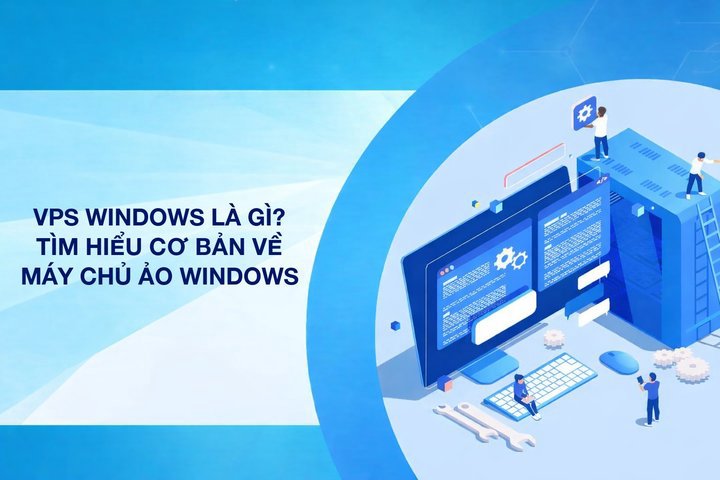
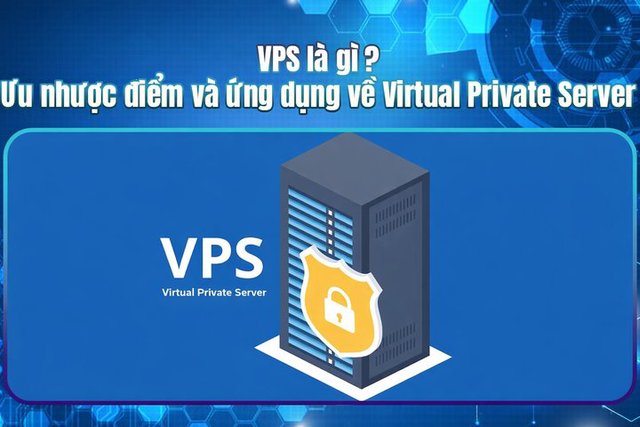
Windows VPS(Virtual Private Server Windows)是一种运行Windows操作系统的虚拟服务器服务。它是一种虚拟化解决方案,允许将一台物理服务器的资源分割成多个独立的虚拟服务器。每个Windows VPS被分配独立的资源,如CPU、RAM和硬盘,同时安装Windows Server操作系统,使其像一台独立计算机一样运行。
Windows VPS is a virtual server running the Windows Server operating system, ideal for .NET, ASP.NET applications, and enterprise software. This article analyzes the advantages and disadvantages, compares it with Linux VPS, and provides security guidelines.
What is a Windows VPS?
2019Trusted since
B2BData solutions
Data·AIExpertise
Need data solutions for your business?
AlgoData has helped businesses with data engineering, analytics & AI since 2019.
A Windows VPS (Virtual Private Server Windows) is a virtual server service that runs on the Windows operating system. It is a virtualization solution that allows sharing resources from a physical server into multiple independent virtual servers. Each Windows VPS is allocated dedicated resources such as CPU, RAM, and storage, while running the Windows Server operating system, enabling it to function like an independent computer.
What does using a Windows VPS mean? When you use a Windows VPS, you have full control over your server environment, just as if you were managing a regular Windows computer. You can install and configure applications according to your needs, helping optimize your operations and system management.
Windows VPS has many different applications, from hosting websites on Microsoft platforms like ASP.NET, to running enterprise applications that require a Windows environment. Windows VPS is also highly useful for file storage and sharing, software development, or using Remote Desktop, which allows remote server access.
Advantages and Disadvantages of Windows VPS
To determine whether a Windows VPS is right for your needs, understanding its pros and cons is crucial. Below are some notable advantages of Windows VPS:
Advantages
Great Compatibility: Windows VPS is compatible with most applications and software developed specifically for the Windows operating system, especially useful for businesses using Windows-specific software.
User-Friendly Interface: With an intuitive graphical interface, Windows is very user-friendly, allowing even those without technical expertise to easily manage and operate the server.
Remote Desktop Support: Windows VPS allows connecting to and controlling the server remotely via Remote Desktop Protocol (RDP), providing convenience in management and operation from anywhere.
Built-in Management Tools: Windows Server comes with integrated management and security tools such as Active Directory, Group Policy, and Windows Defender, making it easy to manage and protect your system.
Professional Technical Support: Microsoft provides in-depth technical support for Windows Server, helping resolve technical issues quickly and efficiently.
Regular Updates: Microsoft regularly releases security updates and new features for Windows Server, ensuring the system remains safe and operates stably.
Flexibility: Windows VPS allows flexible customization of hardware configurations such as CPU, RAM, and storage capacity to match actual usage needs.
Scalability: When demand increases, you can easily upgrade resources for your Windows VPS without changing the system architecture, saving time and costs.
Disadvantages
Higher Cost: Windows VPS is typically more expensive than Linux VPS due to licensing costs for the Windows operating system.
Higher Resource Requirements: Windows requires more resources (CPU, RAM) compared to Unix-based operating systems like Linux, affecting server performance.
Security Concerns: Although Microsoft continuously improves, Windows remains a more common target for cyberattacks compared to Linux.
RDP is the most common attack vector on Windows VPS
The RDP port (3389) is continuously auto-scanned by botnets worldwide. Never leave RDP open directly to the internet with a simple password. Solutions: change the default port, only allow specific IPs in the firewall, or use a VPN to access RDP more securely.
Vendor Lock-in: Using Windows VPS means depending on Microsoft's licensing, update, and support policies.
Less Customizable: Windows Server doesn't provide as many system-level customizations compared to Linux, especially for complex tasks.
Restart Requirements: Windows often requires restarts after installing updates, which can cause service disruptions.
Complex Management: Some system administration tasks in Windows can be more complex compared to command-line management in Linux.
Connection Limits: Windows Server has limits on the number of simultaneous connections, which may not be suitable for applications with high traffic volumes.
When Should You Use Windows VPS?
Choosing to use Windows VPS depends on several different factors. Below are cases where Windows VPS can be the ideal choice:
When you need to run Windows-specific applications: If you use applications developed specifically for Windows such as ASP.NET, MS SQL Server, or enterprise software that is only compatible with Windows, then Windows VPS is the best solution.
When your team is familiar with the Windows environment: If your team already has experience managing Windows systems, using Windows VPS will reduce learning time and enable quick adaptation.
When you need Remote Desktop: Windows VPS supports the Remote Desktop feature, allowing you to manage and access the server remotely through a graphical interface.
When you need Active Directory integration: If your organization uses Active Directory for user and access management, Windows VPS will integrate seamlessly.
When you need .NET Framework support: For applications built on the .NET Framework, Windows VPS is the natural choice as it comes pre-integrated.
When you need Microsoft management tools: Windows Server comes with powerful management tools such as IIS, Exchange Server, and SharePoint, helping you manage these services effectively.
When you need a Windows application development and testing environment: Windows VPS provides an ideal environment for developing and testing Windows applications before official deployment.
When you need compatibility with specific hardware: Some hardware only has drivers for Windows, making Windows VPS a mandatory choice.
When you need to run desktop applications on a server: Windows VPS provides a suitable environment for running Windows desktop applications.
When you need integration with Microsoft cloud services: If you are using cloud services like Azure or Office 365, Windows VPS will provide better integration.
However, Windows VPS is not always the best choice. You might consider Linux VPS if:
You need a lower-cost solution.
You are running web applications that don't depend on Windows (such as PHP, Python, Ruby on Rails).
You need a highly customizable and flexible system.
You prioritize performance and stability in server-side tasks.
Free Windows VPS: Should You Choose One?
When searching for hosting solutions, you may come across services advertising "free Windows VPS." However, before deciding, consider several important factors:
Limited Resources: Free Windows VPS offerings are typically strictly limited in resources (CPU, RAM, storage), insufficient for running applications or websites with high traffic.
Short Usage Duration: Many free services only provide access for a short period (e.g., 30 days) as a trial, after which you must switch to a paid plan.
Low Security: Free VPS offerings are often not regularly updated or lack necessary security measures, increasing the risk of attacks.
Unstable Performance: Due to sharing resources with many other users, free VPS performance is often unstable and unpredictable.
Limited Technical Support: Free VPS services typically don't come with quality technical support, making troubleshooting difficult.
Unwanted Advertisements: Some providers may display ads on free services, degrading the user experience.
Data Loss Risk: Free VPS offerings often lack adequate data protection measures, increasing the risk of losing important data.
Feature Limitations: Many important Windows Server features may be locked or unavailable on free VPS.
Low Reliability: Free service providers may cease operations at any time, causing service disruptions.
Upgrade Difficulties: When needs grow, upgrading from a free VPS to a paid plan can encounter obstacles.
Although free Windows VPS may seem attractive in terms of cost, it is generally not suitable for important or long-term projects. These services are only appropriate for learning, short-term testing, or personal development.
To ensure the best performance, security, and support, you should consider choosing a paid Windows VPS from reputable providers.
Comparison Between Windows VPS and Linux VPS
When choosing a VPS, the two most popular options are Windows VPS and Linux VPS. Each type has its own advantages and limitations. Below is a detailed comparison between these two VPS types:
Criteria
Linux VPS
Windows VPS
Performance
Higher, lower resource requirements
Lower, consumes more RAM/CPU
Cost
Cheaper, no licensing fees
20-40% more expensive due to licensing
Security
Less targeted, large community auditing
Common target, Microsoft patches regularly
Flexibility
Deep system-level customization
Less customizable, good Microsoft ecosystem integration
Applications
PHP, Python, Ruby, Node.js
.NET, ASP.NET, MS SQL Server
Stability
Runs continuously without restarts
Requires restarts after updates
Windows VPS vs Linux VPS Performance Comparison
Tested on 2026-01-05Vultr 2 vCPU / 4GB RAM
Benchmark results on the same hardware configuration (2 vCPU, 4GB RAM, 80GB SSD):
Criteria
Linux VPS (Ubuntu 22.04)
Windows VPS (Server 2022)
Available RAM after boot
3.6 GB
2.4 GB
Boot time
12s
45s
Nginx/IIS throughput (req/s)
8,500
5,200
Monthly cost
$12
$18
Linux VPS delivers higher performance and lower costs on the same configuration. Windows VPS is suitable when Windows-only applications are required.
How to Set Up a Windows VPS
Setting up a Windows VPS is fairly straightforward if you follow these basic steps. Below is a general guide:
Choose a VPS Provider: Research and select a reputable VPS provider such as DigitalOcean, Vultr, Linode, AWS, or Azure. Consider pricing, performance, reliability, and technical support quality.
Register an Account: Create an account on your chosen provider's website and verify the account (typically via email).
Select a VPS Plan: Choose a VPS plan that matches your usage needs for CPU, RAM, and storage. You can always upgrade later if needed.
Select the Operating System: Choose the Windows Server version you want, such as Windows Server 2019 or 2022.
Choose a Server Location: Select a data center close to your target users to reduce latency.
Configure Security: Set a strong password for the administrator account. If available, set up SSH keys to enhance security.
Review and Confirm: Carefully check settings and costs. Then confirm and pay for your VPS.
Wait for Provisioning: The VPS creation process typically takes a few minutes. You will then receive a confirmation email with login information.
Access the VPS: Use Remote Desktop Protocol (RDP) to connect to your Windows VPS. You will need to enter the IP address, username, and password.
Initial Configuration: Update the Windows Server operating system to the latest version, install antivirus software and firewall, and configure basic security settings.
Install Necessary Software: Install the applications and services you need for your project.
Set Up Backups: Ensure you set up automatic backup systems to protect your data.
Note: Specific steps may vary depending on your chosen VPS provider, so refer to the provider's detailed documentation to ensure an accurate process.
Best Places to Rent Windows VPS
When looking for the best places to rent Windows VPS, there are many factors to consider such as performance, reliability, pricing, and technical support. Below are some highly rated Windows VPS providers:
Microsoft Azure:
Pros: Great integration with other Microsoft services, high reliability, global presence.
Cons: Can be complex for beginners, pricing may be higher than some competitors.
Amazon Web Services (AWS):
Pros: Diverse services, high performance, good scalability.
Cons: Complex pricing structure, can be difficult for beginners.
Vultr:
Pros: Simple user interface, competitive pricing, many server locations.
Cons: Technical support may not be as fast as some competitors.
DigitalOcean:
Pros: Easy to use, reasonable pricing, good performance.
Cons: Fewer Windows configuration options compared to Linux.
Pros: Fixed pricing, unlimited bandwidth, good technical support.
Cons: Management interface could use improvement.
Liquid Web:
Pros: High performance, professional 24/7 technical support, high reliability.
Cons: Pricing may be higher than some competitors.
Important Considerations When Using Windows VPS
When using Windows VPS, there are several important points to keep in mind to ensure the best performance and highest security for your system:
Static IP Address Cannot Be Changed
Stability: A static IP address helps maintain a stable and reliable connection.
DNS Configuration: Use the static IP address to configure DNS for your domain.
Whitelisting: Many services require IP whitelisting, having a static IP is more convenient.
Security Note: Since the IP doesn't change, special attention to security measures is needed.
Firewall Configuration
Enable Windows Firewall: Ensure Windows Firewall is always turned on.
Inbound/Outbound Rules: Configure appropriate rules to allow and block traffic.
Regular Updates: Always update the firewall to the latest version.
Monitoring: Regularly check firewall logs to detect unusual activities.
Use Additional Software Firewalls: Consider using third-party firewalls for enhanced security.
Avoid Using Easy-to-Guess Passwords
Complexity: Use complex passwords that include uppercase letters, lowercase letters, numbers, and special characters.
Length: Passwords should be at least 12 characters long.
Uniqueness: Use different passwords for each account and service.
Regular Changes: Change passwords regularly, at least every 3-6 months.
Two-Factor Authentication: Enable two-factor authentication when possible to enhance security.
Use a Password Manager: Consider using a secure password manager to store and generate strong passwords.
3 minimum security steps for a new Windows VPS
(1) Change the RDP port from 3389 to a random port (e.g., 47823). (2) Enable NLA (Network Level Authentication) in Remote Desktop settings. (3) Create a Windows Firewall rule that only allows your IP to connect via RDP. These three steps eliminate the majority of automated attacks targeting RDP.
Risk of VPS Shutdown or Restart
Automatic Updates: Configure Windows automatic updates to run during times that least affect operations.
Monitoring: Use monitoring tools to track VPS uptime.
Startup Scripts: Create scripts to automatically restart critical services after VPS reboots.
Data Backup: Perform regular data backups to prevent data loss when VPS encounters issues.
Redundancy: Consider using redundancy or load balancing solutions to minimize the impact of VPS downtime.
Notifications: Set up notification systems to receive alerts when VPS shuts down or restarts.
Conclusion:Windows VPS is a virtual server solution suitable for .NET, ASP.NET applications, and enterprise software that requires a Windows environment. Compared to Linux VPS, it costs more but integrates well with the Microsoft ecosystem. Always ensure RDP security and perform regular updates when using it.