Linux VPS is a virtual server running the Linux operating system, offering high performance, strong security, and optimized costs. This article explains what Linux VPS is, its advantages and disadvantages, how to connect via SSH, and important tips for using it.
What is Linux VPS?
2019Trusted since
B2BData solutions
Data·AIExpertise
Need data solutions for your business?
AlgoData has helped businesses with data engineering, analytics & AI since 2019.
Linux VPS, short for Virtual Private Server Linux, is a virtual server running on the Linux operating system. It is a portion of a physical server divided through virtualization technology, allowing multiple users to share the resources of a physical server while still ensuring privacy and independence in terms of data and configuration.
Each Linux VPS operates as an independent server with dedicated resources such as CPU, RAM, storage, and bandwidth. Users have root access and can install and configure the system according to their specific needs. This creates high flexibility in managing and using the server.
Applications of Linux VPS
Linux VPS has many diverse applications in the information technology environment:
Website hosting: Linux VPS is a popular choice for hosting websites, from personal blogs to complex web applications and enterprise portals.
Email server: Many businesses use Linux VPS to set up private email servers, ensuring data security and control.
Development and testing environments: Developers often use Linux VPS to create development and testing environments for applications before official deployment.
Data storage and backup: Linux VPS provides secure storage space that can be accessed remotely for storing and backing up important data.
Game servers: Many gamers and game developers use Linux VPS to host game servers for online games.
VPN server: Linux VPS can be configured to function as a VPN server, providing secure and private connections for remote users.
Benefits of Using Linux VPS
Linux VPS offers many significant benefits to users. From high performance to superior security, let's explore the key advantages of this hosting solution.
Outstanding Stability and Performance
Linux VPS is renowned for its high stability. The Linux operating system is known for its ability to run continuously for extended periods without needing restarts. This ensures maximum uptime for your applications and services.
Additionally, Linux is optimized for efficient resource usage, allowing Linux VPS to handle many concurrent tasks without becoming overloaded. This is especially useful for applications requiring high performance, such as databases or web servers with heavy traffic.
High Security
Linux is considered one of the most secure operating systems. Linux VPS inherits this advantage, providing many powerful security features such as:
Built-in firewall (iptables)
Detailed permission system
Regular security updates
Data encryption capabilities
These features help protect your data and applications from online threats.
Management Flexibility
With root access, you have full control over your Linux VPS. This allows you to:
Install any software you need
Customize system configuration
Manage resources according to specific needs
Automate tasks through scripting
This flexibility is especially useful for developers and system administrators who need a highly customizable working environment.
Flexible Scalability
Linux VPS allows you to easily scale resources as your needs grow. You can:
Increase RAM, CPU, or storage capacity
Add IP addresses
Upgrade bandwidth
This scalability ensures Linux VPS can grow with your business without investing in new hardware.
Optimized Costs
Compared to renting a dedicated physical server, Linux VPS typically costs significantly less. You only pay for the resources you use, helping optimize your IT budget. Furthermore, many Linux VPS providers offer flexible service packages, allowing you to choose exactly what you need.
Advantages and Disadvantages of Linux VPS
Like any technology, Linux VPS has both strengths and limitations. Let's evaluate objectively to get a comprehensive view of this solution.
Advantages:
High performance: Linux VPS maximizes hardware resources, providing superior performance compared to shared hosting.
Security: The Linux operating system provides many powerful security features, helping protect your data and applications.
High customization: With root access, you can install any software and customize the system as needed.
Stability: Linux is renowned for its stability, allowing long uptimes without restarts.
Cost savings: Linux VPS is typically more affordable than dedicated physical server or specialized cloud solutions.
Community support: The large Linux community provides many free resources and support.
Requires technical knowledge: Managing Linux VPS requires knowledge of command line and Linux system administration.
User interface: Some users may find the Linux command-line interface more difficult to use compared to the Windows graphical interface.
Software compatibility: Some software is only available for Windows and may not run directly on Linux.
Initial learning curve: For beginners, it may take time to get familiar with managing and using Linux VPS.
Hardware support: Although it has improved significantly, Linux may still encounter issues with some specialized hardware.
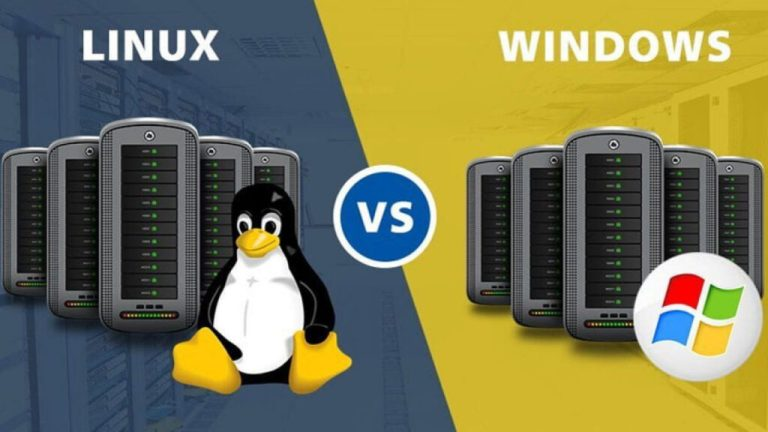
Differences Between Linux VPS and Windows VPS
Choose Linux VPS or Windows?
Choose Linux VPS when: using PHP/Python/Node.js, need low costs, prioritize performance and security. Choose Windows VPS when: must use .NET/ASP.NET/MS SQL, need graphical RDP interface, or Active Directory integration.
Linux VPS and Windows VPS are two popular choices for hosting. Each type has its own characteristics, suitable for different needs.
Operating system: This is the most fundamental difference. Linux VPS uses Linux distributions such as Ubuntu, CentOS, or Debian, while Windows VPS runs on Windows Server operating system.
User interface: Linux VPS is typically managed through the command-line interface (CLI), although a graphical interface can also be installed. Windows VPS primarily uses the familiar graphical user interface (GUI).
Performance: Linux VPS generally has better performance and more efficient resource usage compared to Windows VPS, especially in server tasks.
Security: Linux is considered safer and less vulnerable to attacks compared to Windows. However, both can be well-secured if properly configured.
Cost: Linux VPS is usually cheaper as there are no operating system licensing fees.
Software compatibility: Windows VPS supports many commercial software and .NET applications, while Linux VPS focuses on open-source software.
Remote management: Linux VPS typically uses SSH for remote management, while Windows VPS uses Remote Desktop Protocol (RDP).
Updates and maintenance: Linux usually does not require a restart after updates, unless it's a kernel update. Windows often requires restarts after many types of updates.
Community support: Linux has a large support community and many free resources. Support for Windows typically comes from Microsoft and official channels.
Customization: Linux VPS provides higher customization capabilities, allowing users to control nearly every aspect of the system.
Guide to Logging into Linux VPS via SSH
SSH (Secure Shell) is the most popular method for connecting to and managing Linux VPS remotely. Below are instructions for using three popular tools to connect via SSH:
Using PuTTY
Download and install PuTTY from the official website.
Open PuTTY and enter the IP address of your Linux VPS in the "Host Name (or IP address)" field.
Ensure the SSH port (usually 22) is selected.
Click "Open" to start the connection.
When prompted, enter the username (usually "root") and password.
Using MobaXterm
Download and install MobaXterm from the official website.
Open MobaXterm and click the "Session" button in the upper left corner.
Select "SSH" from the list of session types.
Enter the IP address of your Linux VPS in the "Remote host" field.
Enter the username (usually "root") in the "Specify username" field.
Click "OK" to start the connection.
Enter the password when prompted.
Using Terminal on Linux
Open Terminal on your Linux system.
Use the SSH command with the following syntax: ssh username@ip_address
Replace username with your username (usually "root") and ip_address with the IP address of your Linux VPS.
Press Enter and enter the password when prompted.
Guide to Changing Passwords on Linux VPS
Changing passwords regularly is an important security measure. Below are instructions for changing passwords for different account types on Linux VPS:
Changing the Root User Password
Log into your Linux VPS via SSH with the root account.
Type the following command and press Enter: passwd
Enter the new password when prompted.
Re-enter the new password to confirm.
If successful, you will receive a "password updated successfully" message.
Changing Passwords for Other Users
Log into your Linux VPS via SSH with the root account.
Use the following command, replacing username with the username that needs a password change: passwd username
Enter the new password for that user.
Re-enter the new password to confirm.
Note: Only root or users with sudo privileges can change passwords for other users.
How to Connect Remote Desktop to Linux VPS
Although SSH is the most popular method for managing Linux VPS, sometimes you may want to use a graphical interface. Below are instructions for setting up and using Remote Desktop with Linux VPS:
Using Remote Desktop Connection (RDC) on Windows
First, install a desktop environment and VNC server on your Linux VPS. For example, with Ubuntu: sudo apt update sudo apt install ubuntu-desktop tightvncserver
To make the most of your Linux VPS, mastering basic connection and usage is very important. Below is a detailed guide to help you get started smoothly.
Connecting via PuTTY
PuTTY is a popular tool for SSH connections on Windows. To use it:
Download and install PuTTY from the official website (putty.org).
Launch PuTTY and enter the VPS IP address in the "Host Name (or IP address)" field.
Ensure the SSH port (default is 22) is selected in the "Port" field.
Optional: Save the connection configuration for future use.
Click "Open" to start the SSH session.
First-Time Connection
When connecting to a Linux VPS for the first time, you should note a few things:
You will receive a warning about the server's key fingerprint. This is normal for the first connection. - Select "Yes" to continue and save the key.
Enter the username (usually "root" for the first time) and the password provided by your VPS provider.
For security reasons, change the password immediately using the passwd command. Enter the new password twice when prompted.
Subsequent Connections
For subsequent connections, the process will be simpler:
Open PuTTY and select the saved connection or re-enter the connection information as before.
Click "Open" to start the connection.
Enter the username and the new password you have set.
Managing the Root Directory
After successfully logging in, you will find yourself in the user's root directory. Here are some basic commands for management:
Using the pwd (print working directory) command to view the current path.
Use ls to list files and directories in the current directory. Add the -l option (like ls -l) for more details.
The cd (change directory) command helps navigate between directories.
Creating a New Directory
To create a new directory, use the mkdir (make directory) command: mkdir directory_name
Example: mkdir projects will create a new directory called "projects".
Accessing a Directory
To move into a directory, use the cd command: cd directory_name
Example: cd projects will take you into the "projects" directory you just created.
Exiting a Directory
There are two common ways to exit the current directory:
Use cd .. to go back to the parent directory (the directory containing the current directory).
Use cd ~ or just cd to return to the user's home directory.
Restarting or Shutting Down Linux VPS
Sometimes you need to restart or shut down your VPS. Use the following commands (requires sudo privileges):
To restart the VPS: sudo reboot
To shut down the VPS: sudo shutdown -h now
Note: Be careful when using these commands, especially shutdown, as it will completely power off your VPS.
Where to Rent a Reliable and Affordable Linux VPS?
When choosing a Linux VPS provider, there are many factors to consider. Below are some reputable providers in the market:
DigitalOcean: Known for its simple, user-friendly interface and affordable pricing. They offer many data centers globally and have extensive documentation.
Linode: Provides high-performance VPS with multiple server location options. Linode is highly rated for stability and speed.
Vultr: Offers many flexible configuration options and competitive pricing. Vultr also provides features such as snapshots and automatic backups.
Amazon Web Services (AWS): Although more complex for beginners, AWS provides comprehensive cloud services with many VPS options (EC2) and additional services.
Google Cloud Platform: Similar to AWS, GCP provides high performance and integrates well with other Google services. They also have a generous free trial program.
OVH: A major European provider with competitive pricing and many global data centers. OVH is known for unlimited bandwidth.
Hostinger: Offers VPS at low prices, suitable for beginners or small projects. They also provide an easy-to-use management interface.
When choosing a provider, consider the following factors:
Pricing and service packages
Performance and reliability
Data center locations
Customer support quality
Security and backup features
Future scalability
Don't forget to read reviews from actual users and compare providers before making your final decision.
Tips for Using Linux VPS
When using Linux VPS, there are several important points to keep in mind to ensure good performance and security:
Security: Always update the system and software to patch security vulnerabilities. Use firewalls like UFW (Uncomplicated Firewall) to control traffic. Change passwords regularly and use strong passwords. If possible, enable two-factor authentication (2FA) for administrative accounts.
Backup: Perform regular data backups to prevent loss in case of incidents. Store backups in a different location from your VPS.
Resource monitoring: Use tools like top, htop, or third-party monitoring solutions to track CPU, RAM, and storage usage. Set up alerts when resources approach their limits.
Optimization: Disable or remove unnecessary services to conserve resources. Use caching tools like Redis or Memcached to improve application performance.
Updates: Set up automatic updates or schedule regular updates for the operating system and software. Always test updates before applying them to production environments.
Learning: Learn more about Linux administration through online courses or documentation. Join Linux forums and communities to learn from others.
Use SSH keys: Instead of passwords, use SSH keys for enhanced security. Disable password login after setting up SSH keys.
SWAP configuration: If your VPS has low RAM, consider configuring SWAP to prevent crashes when memory runs out. However, don't overuse SWAP as it can affect performance.
By following these tips, you can ensure your Linux VPS operates stably, securely, and efficiently.
Important Considerations When Renting a Linux VPS
When deciding to rent a Linux VPS, there are several important considerations you need to evaluate:
Choose a reputable provider: Research providers thoroughly, read reviews from other users. Consider how long the provider has been operating in the market. Check their security certifications and compliance (e.g., ISO 27001, SOC 2).
Consider server location: Choose a location close to your target audience to reduce latency. Consider data regulations of the country where the server is located. Test connection speed from your location to different data centers.
Evaluate required resources: Estimate CPU, RAM, and storage needs based on the type of applications you will run. Consider expected traffic and bandwidth requirements. Choose a VPS package that can meet current needs and scale for the future.
Check support policies: Ensure the provider offers 24/7 technical support. Review available support channels (email, live chat, phone). Check the average response time for support requests.
Consider scalability: Choose a provider that allows easy resource upgrades when needed. Check the upgrade process and costs. Review the ability to switch between service packages.
Read the terms of service carefully: Understand the allowed and prohibited usage policies. Check warranty and refund policies. Review resource usage constraints (e.g., CPU limits, I/O limits).
Check security features: Review the security features provided (e.g., firewall, DDoS protection). Check the provider's backup policies and procedures. Learn about available data encryption options.
Consider the management interface: Check if the provider offers an easy-to-use control panel. Review customization and automation capabilities through API.
Evaluate performance: If possible, request a trial or trial period. Run performance tests to ensure the VPS meets your needs.
Consider long-term costs: Compare pricing between providers, including hidden costs. Look for long-term deals or discounts for annual payments. Calculate the total cost of ownership (TCO) including additional services you may need.
Popular Linux VPS Comparison
Tested on 2026-01-03Internal Benchmark
Benchmark results of 4 popular Linux VPS providers (2 vCPU, 4GB RAM configuration):
Provider
Price/month
Nginx throughput
Boot time
Uptime
DigitalOcean
$24
8,200 req/s
15s
99.99%
Vultr
$20
7,800 req/s
12s
99.98%
Linode
$24
8,000 req/s
18s
99.99%
Hostinger
$9
6,500 req/s
20s
99.95%
Vultr and DigitalOcean deliver the best performance. Hostinger is the cheapest but has lower throughput. All providers achieve uptime above 99.95%.
Conclusion:Linux VPS is a powerful hosting solution with high performance, strong security, and optimized costs. It is suitable for web hosting, game servers, VPN, and development environments. Choose a reputable provider, use SSH keys, and keep the system updated regularly to get the most out of your Linux VPS.