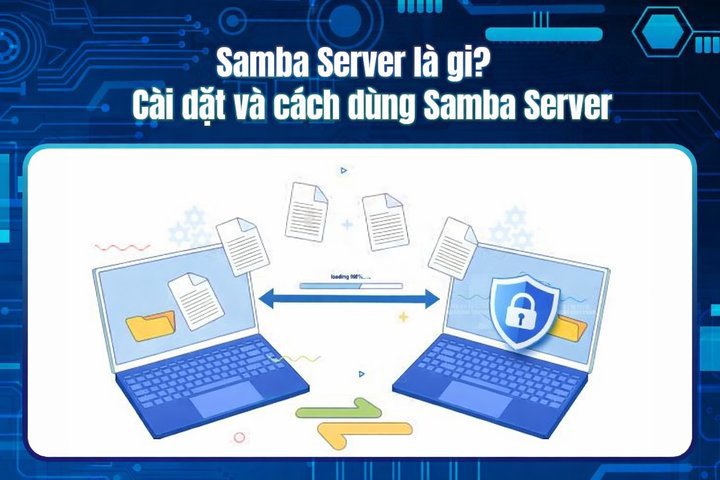
Samba Server là phần mềm mã nguồn mở cho phép chia sẻ tệp tin và máy in giữa các hệ điều hành Windows, macOS và Linux thông qua giao thức SMB. Bài viết hướng dẫn chi tiết cách cài đặt, cấu hình và sử dụng Samba Server trên router.
Cần giải pháp dữ liệu cho doanh nghiệp?
AlgoData đồng hành cùng doanh nghiệp về data engineering, phân tích & AI từ 2019.
Tìm hiểu về Samba Server
Khi nhắc đến samba server, chúng ta đang nói đến một công cụ mạnh mẽ giúp kết nối các thiết bị khác nhau trong một mạng nội bộ. Samba sử dụng giao thức SMB (Server Message Block) để thực hiện việc này. Được phát triển đầu tiên vào những năm 1990, samba server đã trở thành giải pháp tiêu chuẩn cho nhiều tổ chức bởi tính linh hoạt và khả năng tương thích cao của nó.
Samba server đóng vai trò như một cầu nối giữa các hệ thống Unix/Linux với các máy chủ Windows. Nhờ đó, người dùng có thể thực hiện nhiều tác vụ như sao chép tệp tin, truy cập máy in từ xa, và thậm chí là xây dựng các thư mục chia sẻ mà không gặp phải rào cản nào về hệ điều hành.
Nguyên lý hoạt động của Samba Server
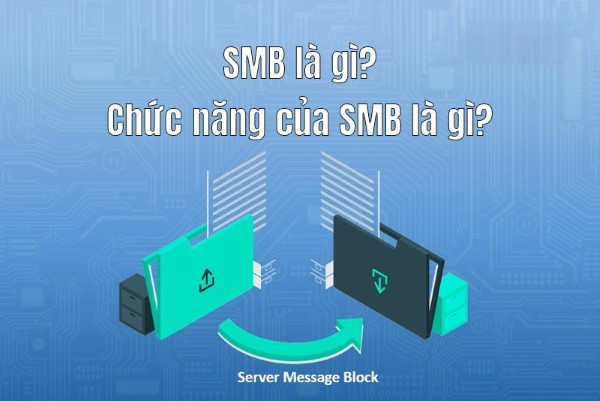
Để hiểu rõ hơn về samba server, trước tiên chúng ta cần biết đến nguyên lý hoạt động của nó. Samba hoạt động dựa trên giao thức SMB để gửi và nhận các yêu cầu giữa máy chủ và máy khách. Khi một máy khách gửi yêu cầu đến máy chủ, phương thức truyền tải dữ liệu sẽ được cấu hình để đảm bảo rằng tất cả các dữ liệu được truyền đi một cách nhanh chóng và hiệu quả nhất.
Mặc dù samba server chủ yếu được sử dụng trong môi trường mạng nội bộ, nhưng nó cũng có thể được cấu hình để vận hành trên Internet. Điều này cho phép người dùng từ xa có thể truy cập tài nguyên một cách dễ dàng, miễn là họ có quyền truy cập hợp lệ.
Các ứng dụng phổ biến của Samba Server
Samba server không chỉ dừng lại ở việc chia sẻ tệp tin và máy in. Nó còn có thể được sử dụng cho nhiều ứng dụng khác nhau, chẳng hạn như:
- Chia sẻ tệp tin: Samba cho phép người dùng chia sẻ tệp tin giữa các hệ điều hành khác nhau mà không gặp phải vấn đề tương thích.
- Quản lý máy in: Người dùng có thể kết nối và chia sẻ máy in qua mạng, giúp tiết kiệm chi phí và dễ dàng hơn trong việc quản lý.
- Tích hợp Active Directory: Samba cũng hỗ trợ tích hợp với Active Directory của Microsoft, giúp quản lý người dùng và quyền truy cập dễ dàng hơn.
Quá trình hình thành và phát triển của Samba Server
Samba server không phải là một sản phẩm ra đời một sớm một chiều. Với nguồn gốc từ những năm 1990, lịch sử phát triển của samba server phản ánh sự tiến bộ không ngừng trong lĩnh vực công nghệ thông tin.
Khởi đầu của Samba Server
Samba được phát triển bởi Andrew Tridgell vào khoảng thời gian mà hệ điều hành UNIX đang rất phổ biến. Ông đã tìm cách để làm cho các hệ thống UNIX có thể giao tiếp với các máy chạy Windows. Ý tưởng này đã tạo ra một cuộc cách mạng trong việc chia sẻ tài nguyên trong môi trường mạng.
Những phiên bản đầu tiên của samba server đơn giản chỉ là một tập hợp các công cụ giúp giao tiếp với giao thức SMB. Tuy nhiên, theo thời gian, samba đã chứng minh được sự cần thiết của nó trong quá trình phát triển công nghệ mạng.
Sự trưởng thành và mở rộng tính năng
Qua từng phiên bản, samba server đã không ngừng cải tiến và mở rộng tính năng. Từ việc chỉ đơn thuần chia sẻ tệp tin và máy in, samba giờ đây đã hỗ trợ nhiều tính năng nâng cao như tích hợp LDAP, Active Directory, và thậm chí là cho phép người dùng xác thực qua Kerberos.
Sự phát triển này cho thấy samba server đã trở thành một công cụ không thể thiếu cho các doanh nghiệp và tổ chức lớn, nơi mà việc chia sẻ dữ liệu và tài nguyên là cực kỳ quan trọng.
Tình hình hiện tại và tương lai của Samba Server
Hiện nay, samba server vẫn được sử dụng rộng rãi trên toàn thế giới. Với sự gia tăng của các công nghệ điện toán đám mây và IoT, samba đã bắt đầu thay đổi để đáp ứng các yêu cầu mới của thị trường. Nhiều nhà phát triển đang làm việc để tối ưu hóa samba cho môi trường đám mây, giúp người dùng dễ dàng truy cập vào dữ liệu của mình từ bất kỳ đâu.
Tương lai của samba server hứa hẹn sẽ đầy tiềm năng khi ngày càng có nhiều tổ chức nhận ra giá trị của việc sử dụng nó trong việc quản lý tài nguyên mạng.
Cách thức hoạt động của Samba Server
Để hiểu rõ hơn về một samba server, chúng ta cần khám phá cách thức hoạt động của nó. Cách thức hoạt động của samba server có thể được chia thành nhiều giai đoạn khác nhau.
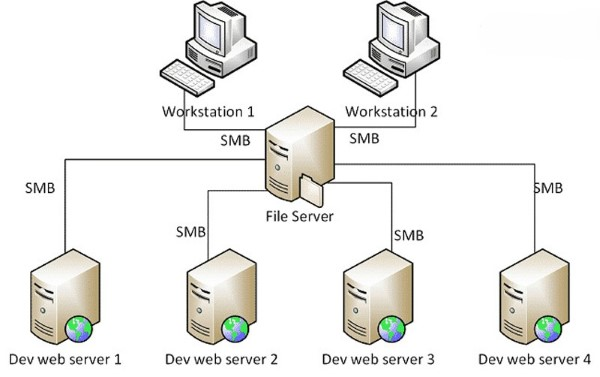
Giao thức SMB
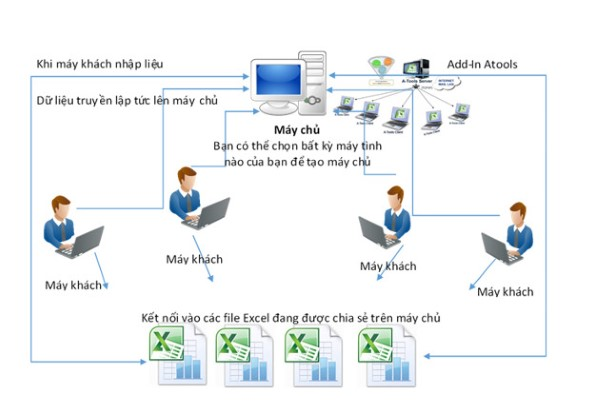
Giao thức SMB là nền tảng chính của samba server. Nó cho phép các máy tính trên mạng trao đổi thông tin và tài nguyên một cách hiệu quả. SMB hoạt động dựa trên mô hình client-server, nghĩa là một máy tính (client) có thể gửi yêu cầu đến máy tính khác (server) để lấy thông tin hoặc tài nguyên.
Khi máy khách gửi yêu cầu tới server, samba server sẽ xử lý yêu cầu đó bằng cách tra cứu các tài nguyên chia sẻ và trả về kết quả cho máy khách. Quá trình này thường diễn ra rất nhanh chóng và được tối ưu hóa để giảm thiểu độ trễ.
Quản lý người dùng và quyền truy cập
Một trong những tính năng quan trọng của samba server là khả năng quản lý người dùng và quyền truy cập. Samba cho phép người quản trị mạng cấu hình quyền truy cập cho từng người dùng, từ đó đảm bảo an ninh cho dữ liệu.
Người quản trị có thể thiết lập các nhóm người dùng, cấp quyền truy cập cho từng thư mục riêng biệt, hoặc thậm chí hạn chế quyền truy cập hoàn toàn đối với một số người dùng. Điều này giúp tạo ra một môi trường mạng an toàn và đáng tin cậy.
Kết nối và truyền tải dữ liệu
Khi người dùng cố gắng truy cập vào tài nguyên chia sẻ trên samba server, quy trình kết nối và truyền tải dữ liệu diễn ra như sau: đầu tiên, một yêu cầu kết nối sẽ được gửi từ máy khách đến samba server. Nếu máy chủ xác thực được yêu cầu, nó sẽ thiết lập một kết nối và cho phép máy khách truy cập vào tài nguyên được chia sẻ.
Sau khi kết nối thành công, samba server sẽ quản lý quá trình truyền tải dữ liệu, đảm bảo rằng mọi tệp tin được chuyển giao một cách nhanh chóng và chính xác. Bên cạnh đó, samba cũng cung cấp các cơ chế hồi phục lỗi, giúp giảm thiểu tình trạng mất dữ liệu trong quá trình truyền tải.
Các tính năng nổi bật của Samba Server
Samba server không chỉ là một phần mềm chia sẻ tệp tin thông thường. Nó mang đến nhiều tính năng nổi bật giúp cải thiện hiệu suất và bảo mật trong môi trường mạng.
Chia sẻ tệp tin hiệu quả
Một trong những tính năng nổi bật nhất của samba server chính là khả năng chia sẻ tệp tin giữa các hệ điều hành khác nhau. Người dùng có thể dễ dàng truy cập các tệp tin nằm trên máy chủ samba từ các thiết bị như máy tính Windows, Mac hay Linux mà không gặp phải vấn đề tương thích. Điều này tạo ra một môi trường làm việc linh hoạt và tiện lợi.
Samba server hỗ trợ đa dạng các định dạng tệp, cho phép người dùng chia sẻ tất cả các loại tài liệu, hình ảnh, video và nhiều loại tệp khác. Nhờ vậy, samba trở thành lựa chọn lý tưởng cho các tổ chức cần truyền tải thông tin một cách nhanh chóng.
Hỗ trợ máy in mạng
Ngoài việc chia sẻ tệp tin, samba server còn cho phép người dùng chia sẻ máy in trong mạng. Điều này giúp tiết kiệm chi phí và tăng tính hiệu quả trong công việc. Ví dụ, một văn phòng có thể sử dụng một máy in chung thông qua samba mà không cần đến mỗi máy tính đều phải kết nối trực tiếp với máy in.
Samba server cũng hỗ trợ nhiều loại máy in khác nhau, bao gồm cả máy in laser và máy in phun. Điều này mang đến sự linh hoạt cho người dùng trong việc lựa chọn thiết bị phù hợp với nhu cầu của mình.
Tích hợp với Active Directory
Một trong những điểm mạnh của samba server là khả năng tích hợp với Active Directory (AD) của Microsoft. Tính năng này cho phép samba server hoạt động như một máy chủ AD, từ đó quản lý người dùng và quyền truy cập một cách dễ dàng.
Người quản trị có thể dễ dàng thêm, xóa và chỉnh sửa thông tin người dùng trong AD mà không cần phải sử dụng giao diện phức tạp của Windows. Điều này giúp tiết kiệm thời gian và công sức cho đội ngũ IT trong các tổ chức lớn.
An ninh và bảo mật
An ninh là một trong những yếu tố quan trọng hàng đầu của samba server. Phần mềm này hỗ trợ nhiều phương pháp xác thực khác nhau, bao gồm xác thực bằng mật khẩu, Kerberos và NTLM. Điều này giúp đảm bảo rằng chỉ những người dùng hợp lệ mới có thể truy cập vào tài nguyên được chia sẻ.
Hệ thống quản lý quyền truy cập mạnh mẽ cho phép người quản trị cấu hình các quyền riêng biệt cho từng người dùng hoặc nhóm người dùng. Nhờ đó, samba server mang đến một môi trường làm việc an toàn và đáng tin cậy.
Hướng dẫn cách cài đặt và sử dụng Samba Server tích hợp trên Router
Việc cài đặt và sử dụng samba server trên router khá đơn giản, nhưng vẫn cần phải tuân thủ một số bước nhất định để đảm bảo mọi thứ hoạt động trơn tru.
Chuẩn bị
Trước hết, bạn cần chuẩn bị một router hỗ trợ samba server. Một số router hiện nay đã tích hợp sẵn tính năng samba, vì vậy hãy kiểm tra thông số kỹ thuật của thiết bị trước khi bắt đầu.
Trackback là gì? Ứng dụng, cài đặt và cách sử dụng Trackback
Tiếp theo, bạn cần đảm bảo rằng router của bạn đã được kết nối với internet và có địa chỉ IP ổn định. Nếu bạn chưa biết cách kiểm tra địa chỉ IP của router, bạn có thể tham khảo tài liệu hướng dẫn điều khiển.
Cài đặt Samba Server trên Router
Bước đầu tiên trong quá trình cài đặt là đăng nhập vào giao diện quản lý của router. Thông thường, bạn sẽ cần nhập địa chỉ IP của router vào trình duyệt web, ví dụ: 192.168.1.1 hoặc 192.168.0.1. Sau đó, nhập thông tin đăng nhập mà bạn đã thiết lập khi cài đặt router.
Khi đã đăng nhập thành công, tìm đến phần "USB" hoặc "Shared Storage" trong giao diện quản lý. Tại đây, bạn sẽ thấy tùy chọn để kích hoạt samba server. Đánh dấu vào ô tương ứng và lưu các thay đổi.
Tiếp theo, bạn cần cấu hình thư mục chia sẻ. Bạn có thể tạo một thư mục riêng trên USB hoặc ổ cứng gắn ngoài đã kết nối với router. Đảm bảo rằng thư mục này có đủ quyền truy cập cho các thiết bị trên mạng.
Truy cập Samba Server từ máy khách
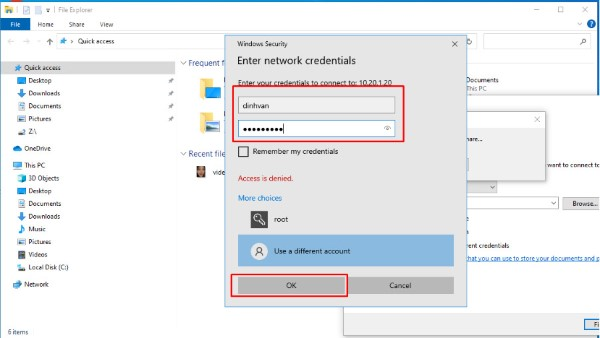
Sau khi đã cài đặt thành công samba server trên router, bước tiếp theo là truy cập tài nguyên chia sẻ từ các thiết bị khác trong mạng. Đối với máy tính Windows, bạn chỉ cần mở File Explorer, sau đó nhập địa chỉ IP của router vào thanh địa chỉ, ví dụ: \192.168.1.1.
Nếu mọi thứ hoạt động bình thường, bạn sẽ thấy danh sách các thư mục chia sẻ. Nhấp vào thư mục bạn muốn truy cập và nhập thông tin đăng nhập nếu được yêu cầu.
Đối với macOS, bạn có thể mở Finder, chọn "Go" -> "Connect to Server", rồi nhập địa chỉ IP giống như trên Windows. Nhấn "Connect" và nhập thông tin đăng nhập để truy cập tài nguyên chia sẻ.
Giải quyết một số vấn đề thường gặp
Trong quá trình cài đặt và sử dụng samba server, bạn có thể gặp một số vấn đề như không thể truy cập vào thư mục chia sẻ, lỗi xác thực, hoặc tốc độ truyền dữ liệu chậm.
Để khắc phục lỗi không thể truy cập, hãy kiểm tra lại địa chỉ IP của router và đảm bảo rằng samba server đã được kích hoạt. Đối với lỗi xác thực, hãy chắc chắn rằng bạn đã nhập đúng thông tin đăng nhập.
Về vấn đề tốc độ, có thể do băng thông mạng không đủ hoặc router đang gặp phải tình trạng quá tải. Thử khởi động lại router và kiểm tra lại tốc độ mạng để xem vấn đề có được khắc phục hay không.
{{< test-result title="So sanh cac giai phap chia se file trong mang" headers="Tieu chi|Samba (SMB)|NFS|FTP|WebDAV" row1="Giao thuc|SMB/CIFS|NFS|FTP/SFTP|HTTP/HTTPS" row2="Ho tro OS|Windows, Linux, Mac|Chu yeu Linux/Unix|Tat ca|Tat ca" row3="Xac thuc|Password, Kerberos, NTLM|UID/GID|Username/Password|HTTP Auth" row4="Tich hop AD|Co|Khong truc tiep|Khong|Khong" row5="Phu hop|Mang hon hop OS|Mang Linux thuan|Truyen file tu xa|Truy cap web" />}}
Samba Server la giai phap ly tuong de chia se tai nguyen giua cac he dieu hanh khac nhau trong mang noi bo. Voi kha nang tich hop Active Directory va ho tro nhieu phuong thuc xac thuc, Samba dap ung tot nhu cau quan ly tap trung cho doanh nghiep.
Ket luan: Samba Server la phan mem ma nguon mo manh me giup chia se tep tin va may in giua Windows, macOS va Linux thong qua giao thuc SMB. Voi kha nang tich hop Active Directory, ho tro nhieu phuong thuc xac thuc va de dang cai dat tren router, Samba la giai phap tieu chuan cho cac to chuc can quan ly tai nguyen mang da nen tang.