Port là gì? Hướng dẫn kiểm tra Port trên Windows
Networking

Port là gì? Hướng dẫn kiểm tra Port trên Windows

Port (cổng mạng) là điểm kết nối logic xác định dịch vụ trên máy tính. Tìm hiểu phân loại port, tính năng bảo mật và cách kiểm tra port trên Windows.

✦ Tóm tắt nhanh
Port (cổng mạng) là điểm kết nối logic xác định dịch vụ trên máy tính. Tìm hiểu phân loại port, tính năng bảo mật và cách kiểm tra port trên Windows.
Bài này thế nào?

Port (cổng mạng) là điểm kết nối logic xác định dịch vụ cụ thể trên máy tính trong mạng. Bài viết giải thích chi tiết các loại port phổ biến (HTTP, HTTPS, FTP, SSH), tính năng bảo mật và hướng dẫn kiểm tra port trên Windows.

Port là gì?

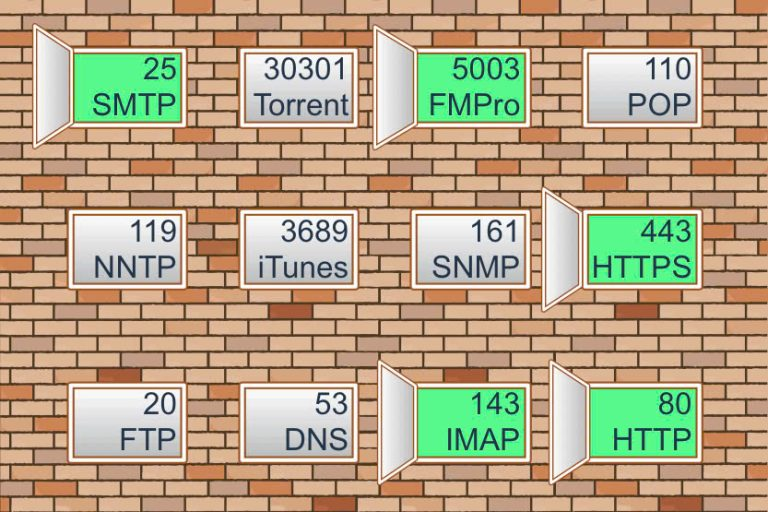
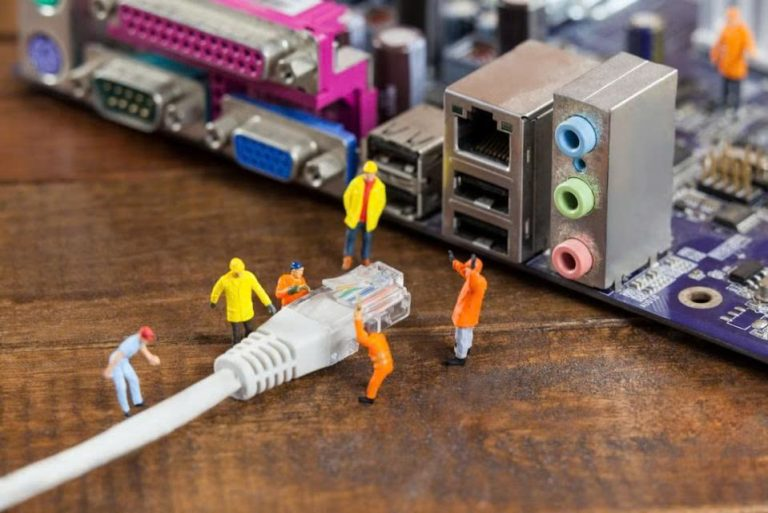
Port, hay còn gọi là cổng, là một điểm kết nối logic được sử dụng trong mạng máy tính để xác định một quá trình hoặc dịch vụ cụ thể trên một máy tính. Nó đóng vai trò như một "cửa sổ" cho phép dữ liệu đi vào và ra khỏi máy tính thông qua các kết nối mạng.

Mỗi port được đại diện bằng một số nguyên 16-bit, có nghĩa là có tổng cộng 65.536 port có sẵn (từ 0 đến 65.535). Các port này được chia thành ba loại chính:

  • Well-known ports (0-1023): Được sử dụng cho các dịch vụ phổ biến như HTTP (80), HTTPS (443), FTP (21), SSH (22), v.v.
  • Registered ports (1024-49151): Được đăng ký bởi các công ty hoặc tổ chức cho các ứng dụng cụ thể.
  • Dynamic/Private ports (49152-65535): Có thể được sử dụng tự do cho bất kỳ mục đích nào.

Port làm việc cùng với địa chỉ IP để xác định chính xác điểm đến của dữ liệu trong mạng. Ví dụ, khi bạn truy cập một trang web, trình duyệt của bạn thường kết nối đến port 80 (cho HTTP) hoặc 443 (cho HTTPS) trên máy chủ web.
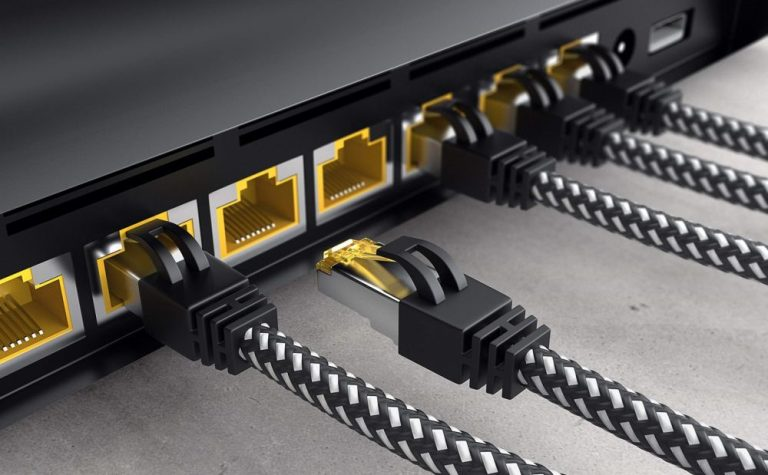
Các loại Port phổ biến hiện nay

Để hiểu rõ hơn về port, chúng ta cần phân loại chúng theo chức năng cụ thể và phiên bản. Việc này giúp chúng ta nắm bắt được vai trò đa dạng của port trong hệ thống mạng.

Phân loại Port theo chức năng cụ thể

Port được phân loại dựa trên chức năng cụ thể mà chúng phục vụ trong hệ thống mạng. Mỗi loại port đảm nhận một vai trò riêng biệt:

  • HTTP Port (80): Đây là port tiêu chuẩn cho giao thức HTTP, được sử dụng để truyền tải các trang web không mã hóa.
  • HTTPS Port (443): Port này dùng cho giao thức HTTPS, cung cấp kết nối an toàn và mã hóa cho các trang web.
  • FTP Port (21): File Transfer Protocol sử dụng port này để truyền tải file giữa máy chủ và máy khách.
  • SSH Port (22): Secure Shell sử dụng port này để cung cấp kết nối từ xa an toàn đến máy chủ.
  • SMTP Port (25): Simple Mail Transfer Protocol sử dụng port này để gửi email.
  • DNS Port (53): Domain Name System sử dụng port này để phân giải tên miền thành địa chỉ IP.
  • POP3 Port (110): Post Office Protocol version 3 sử dụng port này để nhận email từ máy chủ.
  • IMAP Port (143): Internet Message Access Protocol sử dụng port này để truy cập email từ xa.
  • SQL Server Port (1433): Microsoft SQL Server sử dụng port này cho các kết nối cơ sở dữ liệu.
  • MySQL Port (3306): MySQL sử dụng port này cho các kết nối cơ sở dữ liệu.

Phân loại Port theo phiên bản

Ngoài việc phân loại theo chức năng, port còn được chia theo phiên bản giao thức sử dụng. Mỗi phiên bản có đặc điểm và ưu điểm riêng, phù hợp với các nhu cầu khác nhau trong mạng:

  • TCP Ports: Transmission Control Protocol (TCP) sử dụng các port này để thiết lập kết nối ổn định, đảm bảo dữ liệu được truyền tải đầy đủ và theo đúng thứ tự.
  • UDP Ports: User Datagram Protocol (UDP) sử dụng các port này cho việc truyền tải dữ liệu nhanh hơn nhưng không đảm bảo về thứ tự hoặc việc nhận đầy đủ gói tin.
  • SCTP Ports: Stream Control Transmission Protocol (SCTP) sử dụng các port này, kết hợp các ưu điểm của cả TCP và UDP.

Việc hiểu rõ về các loại port này giúp người dùng và quản trị viên hệ thống có thể cấu hình và bảo mật mạng hiệu quả hơn, đồng thời tối ưu hóa hiệu suất truyền tải dữ liệu.
Các tính năng nổi bật của Port

Port không chỉ đơn thuần là một con số, mà còn mang trong mình nhiều tính năng quan trọng góp phần vào việc quản lý và bảo mật hệ thống mạng. Dưới đây là các tính năng nổi bật của port.

Xác định địa chỉ truy cập cho tập tin và dịch vụ

Port đóng vai trò then chốt trong việc xác định chính xác địa chỉ truy cập cho các tập tin và dịch vụ trên mạng. Khi kết hợp với địa chỉ IP, port tạo nên một "địa chỉ" duy nhất cho mỗi dịch vụ hoặc ứng dụng trên một máy tính.

Ví dụ, khi bạn truy cập một trang web thông qua trình duyệt, máy tính của bạn không chỉ kết nối đến địa chỉ IP của máy chủ web mà còn đến một port cụ thể (thường là 80 cho HTTP hoặc 443 cho HTTPS). Điều này cho phép máy chủ web biết rằng yêu cầu đến là để truy cập trang web, chứ không phải một dịch vụ khác như email hay FTP.

Tính năng này giúp các hệ thống mạng có thể chạy nhiều dịch vụ cùng một lúc trên cùng một địa chỉ IP mà không bị xung đột. Mỗi dịch vụ sẽ "lắng nghe" trên một port riêng biệt, cho phép hệ thống phân biệt và xử lý các yêu cầu một cách chính xác.

Lọc gói tin vào và ra khỏi thiết bị

Port cũng đóng vai trò quan trọng trong việc lọc gói tin đi vào và ra khỏi thiết bị. Tính năng này đặc biệt hữu ích trong việc quản lý bảo mật mạng và kiểm soát luồng dữ liệu.

Các tường lửa (firewall) thường sử dụng thông tin về port để quyết định liệu một gói tin có được phép đi qua hay không. Ví dụ, một quản trị viên mạng có thể cấu hình tường lửa để chỉ cho phép lưu lượng truy cập web (port 80 và 443) đi qua, trong khi chặn tất cả các kết nối đến các port khác.

Ngoài ra, việc lọc gói tin dựa trên port cũng giúp trong việc phân phối tải và điều hướng lưu lượng. Ví dụ, một cân bằng tải (load balancer) có thể sử dụng thông tin về port để điều hướng các yêu cầu đến các máy chủ khác nhau dựa trên loại dịch vụ được yêu cầu.
Ngăn chặn truy cập không mong muốn

Port đóng vai trò quan trọng trong việc ngăn chặn truy cập không mong muốn vào hệ thống. Bằng cách kiểm soát các port nào được mở và đóng, quản trị viên có thể giới hạn các điểm truy cập tiềm năng vào hệ thống.

Ví dụ, nếu một máy chủ web chỉ cần cung cấp dịch vụ web, quản trị viên có thể chỉ mở port 80 (HTTP) và 443 (HTTPS), đồng thời đóng tất cả các port khác. Điều này giảm thiểu "bề mặt tấn công" của hệ thống, làm cho việc xâm nhập trái phép trở nên khó khăn hơn.

Nhiều phần mềm bảo mật và tường lửa cũng sử dụng thông tin về port để phát hiện và ngăn chặn các hoạt động đáng ngờ. Ví dụ, nếu có nhiều kết nối đến một port không thường được sử dụng, điều này có thể là dấu hiệu của một cuộc tấn công và hệ thống có thể tự động chặn lưu lượng đó.

Một số tính năng khác

Ngoài những tính năng chính đã đề cập, port còn có một số tính năng khác đáng chú ý:

  • Quản lý băng thông: Port có thể được sử dụng để quản lý và ưu tiên băng thông cho các dịch vụ khác nhau. Ví dụ, một ISP có thể ưu tiên lưu lượng truy cập web (port 80 và 443) so với lưu lượng torrent.
  • Giám sát và phân tích mạng: Thông tin về port được sử dụng rộng rãi trong các công cụ giám sát và phân tích mạng để hiểu rõ hơn về lưu lượng truy cập và hiệu suất của hệ thống.
  • Kết nối P2P: Trong các ứng dụng peer-to-peer, port được sử dụng để thiết lập kết nối trực tiếp giữa các thiết bị, bỏ qua nhu cầu về một máy chủ trung tâm.
  • Chuyển tiếp port (Port Forwarding): Kỹ thuật này cho phép các kết nối từ bên ngoài mạng đến một port cụ thể được chuyển tiếp đến một thiết bị hoặc port khác trong mạng nội bộ.
  • Đa luồng (Multiplexing): Port cho phép nhiều kết nối hoặc phiên làm việc đồng thời trên cùng một kênh truyền thông, tăng hiệu quả sử dụng tài nguyên mạng.

Cách kiểm tra Port mạng trên hệ điều hành Windows

Kiểm tra port mạng là một kỹ năng quan trọng đối với bất kỳ ai làm việc với máy tính và mạng. Trên hệ điều hành Windows, có nhiều cách để thực hiện việc này. Dưới đây là hướng dẫn chi tiết về cách kiểm tra port mạng trên Windows:

  • Sử dụng Command Prompt:
    • Mở Command Prompt bằng cách nhấn Windows + R, gõ "cmd" và nhấn Enter.
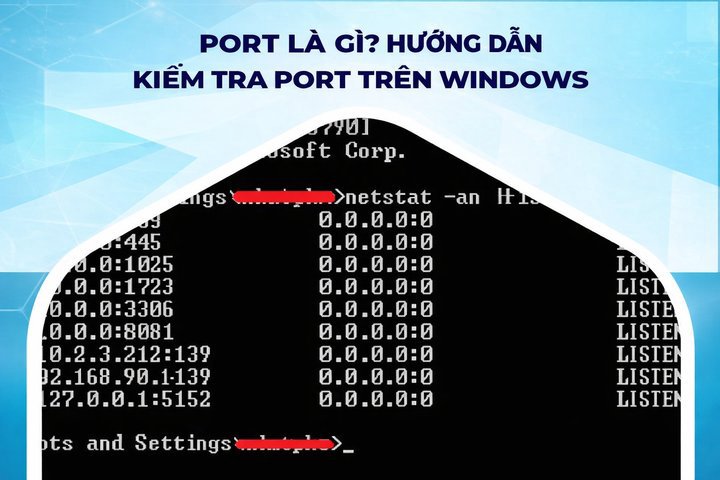
    • Để xem tất cả các kết nối và port đang mở, gõ lệnh: netstat -an
    • Để xem các kết nối và port cùng với tên chương trình sử dụng chúng, gõ: netstat -ab
  • Sử dụng PowerShell:
    • Mở PowerShell bằng cách nhấn Windows + X và chọn "Windows PowerShell".
    • Để xem các kết nối TCP đang hoạt động, gõ: Get-NetTCPConnection
    • Để lọc kết quả theo một port cụ thể, ví dụ port 80, gõ: Get-NetTCPConnection -LocalPort 80
  • Sử dụng Task Manager:
    • Mở Task Manager bằng cách nhấn Ctrl + Shift + Esc.
    • Chuyển đến tab "Performance".
    • Chọn "Open Resource Monitor" ở cuối cửa sổ.
    • Trong Resource Monitor, chuyển đến tab "Network" để xem các kết nối mạng và port đang sử dụng.
  • Sử dụng công cụ bên thứ ba:
    • Có nhiều công cụ miễn phí như TCPView từ Microsoft Sysinternals có thể cung cấp giao diện đồ họa để xem và quản lý các kết nối mạng và port.
    • Kiểm tra một port cụ thể:
    • Để kiểm tra xem một port cụ thể có đang mở hay không, bạn có thể sử dụng lệnh telnet trong Command Prompt.
    • Ví dụ, để kiểm tra port 80 trên google.com, gõ: telnet google.com 80
    • Nếu kết nối được thiết lập, port đang mở. Nếu không, port có thể đang đóng hoặc bị chặn.
  • Kiểm tra port từ xa:
    • Để kiểm tra xem một port có mở trên một máy tính từ xa, bạn có thể sử dụng công cụ như nmap.
    • Cài đặt nmap và sử dụng lệnh: nmap -p [số port] [địa chỉ IP hoặc tên miền] Lưu ý rằng một số phần mềm bảo mật hoặc tường lửa có thể chặn các nỗ lực quét port, vì vậy hãy đảm bảo bạn có quyền thích hợp trước khi thực hiện các thao tác này.

Các yếu tố cần cân nhắc khi đăng ký Port

Khi đăng ký và sử dụng port, có một số yếu tố quan trọng cần được cân nhắc để đảm bảo hiệu suất và bảo mật tối ưu cho hệ thống của bạn.

Dựa trên thông số phần cứng của máy

Việc xem xét thông số phần cứng của máy tính khi sử dụng port là rất quan trọng. Điều này đảm bảo hệ thống có đủ khả năng xử lý lưu lượng truy cập qua các port.

  • CPU và RAM: Đảm bảo máy tính có đủ tài nguyên để xử lý lưu lượng truy cập qua các port đã mở.
  • Băng thông mạng: Xem xét khả năng xử lý của kết nối mạng khi mở nhiều port cùng lúc.
  • Khả năng xử lý đồng thời: Đánh giá số lượng kết nối đồng thời mà hệ thống có thể xử lý qua các port.

Kho lưu trữ và khả năng chứa tập tin

Việc đảm bảo đủ không gian và hiệu suất lưu trữ sẽ giúp tối ưu hóa hoạt động của hệ thống:

  • Dung lượng ổ cứng: Đảm bảo có đủ không gian lưu trữ cho dữ liệu truyền qua các port.
  • Tốc độ đọc/ghi: Xem xét tốc độ ổ cứng để đảm bảo không trở thành nút thắt cổ chai khi xử lý dữ liệu.
  • Khả năng mở rộng: Dự tính nhu cầu lưu trữ trong tương lai khi sử dụng nhiều port hơn.
{{< test-result title="So sanh cac port pho bien" headers="Port|Giao thuc|Chuc nang|Bao mat" row1="80|HTTP|Truyen tai web|Khong ma hoa" row2="443|HTTPS|Truyen tai web an toan|Ma hoa SSL/TLS" row3="21|FTP|Truyen tai file|Khong ma hoa" row4="22|SSH|Ket noi tu xa an toan|Ma hoa" row5="25|SMTP|Gui email|Tuy chon ma hoa" />}}

Ghi chú

Port la thanh phan quan trong trong quan ly va bao mat mang. Chi mo nhung port can thiet, dong tat ca port khong su dung va su dung tuong lua de kiem soat luu luong truy cap.

Ket luan: Port dong vai tro then chot trong viec xac dinh dich vu, loc goi tin va bao mat he thong mang. Viec hieu ro cac loai port, cach kiem tra tren Windows va quan ly port hieu qua giup toi uu hoa hieu suat va an ninh cho he thong.

Nguồn tham khảo
Câu hỏi thường gặpQ&A

A port (network port) is a logical connection point that identifies a specific service on a computer within a network. This article explains in detail the common port types (HTTP, HTTPS, FTP, SSH), security features, and how to check ports on Windows.

What is a Port?

A port, also known as a network port, is a logical connection point used in computer networking to identify a specific process or service on a computer. It acts as a "window" that allows data to enter and leave the computer through network connections.

Each port is represented by a 16-bit integer, meaning there are a total of 65,536 available ports (from 0 to 65,535). These ports are divided into three main categories:

  • Well-known ports (0-1023): Used for common services such as HTTP (80), HTTPS (443), FTP (21), SSH (22), etc.
  • Registered ports (1024-49151): Registered by companies or organizations for specific applications.
  • Dynamic/Private ports (49152-65535): Can be freely used for any purpose.

Ports work together with IP addresses to precisely identify the destination of data in a network. For example, when you visit a website, your browser typically connects to port 80 (for HTTP) or 443 (for HTTPS) on the web server.

Common Types of Ports Today

To better understand ports, we need to classify them by specific function and version. This helps us grasp the diverse roles of ports in network systems.

Port Classification by Specific Function

Ports are classified based on the specific function they serve in the network system. Each type of port assumes a distinct role:

  • HTTP Port (80): This is the standard port for the HTTP protocol, used to transmit unencrypted web pages.
  • HTTPS Port (443): This port is used for the HTTPS protocol, providing secure and encrypted connections for websites.
  • FTP Port (21): File Transfer Protocol uses this port to transfer files between servers and clients.
  • SSH Port (22): Secure Shell uses this port to provide secure remote connections to servers.
  • SMTP Port (25): Simple Mail Transfer Protocol uses this port to send emails.
  • DNS Port (53): Domain Name System uses this port to resolve domain names into IP addresses.
  • POP3 Port (110): Post Office Protocol version 3 uses this port to receive emails from servers.
  • IMAP Port (143): Internet Message Access Protocol uses this port to access emails remotely.
  • SQL Server Port (1433): Microsoft SQL Server uses this port for database connections.
  • MySQL Port (3306): MySQL uses this port for database connections.

What is a Reverse Proxy? Benefits, usage, and how Reverse Proxy works

Port Classification by Version

In addition to classification by function, ports are also categorized by the protocol version they use. Each version has its own characteristics and advantages, suited to different networking needs:

  • TCP Ports: Transmission Control Protocol (TCP) uses these ports to establish stable connections, ensuring data is transmitted completely and in the correct order.
  • UDP Ports: User Datagram Protocol (UDP) uses these ports for faster data transmission but without guaranteeing order or complete packet delivery.
  • SCTP Ports: Stream Control Transmission Protocol (SCTP) uses these ports, combining the advantages of both TCP and UDP.

Understanding these port types helps users and system administrators configure and secure networks more effectively while optimizing data transmission performance.

Key Features of Ports

Ports are not merely numbers — they carry many important features that contribute to network management and security. Below are the key features of ports.

Identifying Access Addresses for Files and Services

Ports play a crucial role in precisely identifying access addresses for files and services on the network. When combined with an IP address, a port creates a unique "address" for each service or application on a computer.

For example, when you access a website through a browser, your computer connects not only to the IP address of the web server but also to a specific port (usually 80 for HTTP or 443 for HTTPS). This allows the web server to know that the incoming request is for web access, not another service like email or FTP.

This feature allows network systems to run multiple services simultaneously on the same IP address without conflicts. Each service "listens" on a separate port, allowing the system to distinguish and process requests accurately.

Filtering Packets In and Out of Devices

Ports also play an important role in filtering packets entering and leaving devices. This feature is particularly useful for network security management and data flow control.

Firewalls typically use port information to decide whether a packet is allowed through or not. For example, a network administrator can configure a firewall to only allow web traffic (ports 80 and 443) through while blocking all connections to other ports.

Additionally, port-based packet filtering helps with load distribution and traffic routing. For example, a load balancer can use port information to route requests to different servers based on the type of service requested.

Preventing Unwanted Access

Ports play a vital role in preventing unwanted access to systems. By controlling which ports are open and closed, administrators can limit potential access points into the system.

For example, if a web server only needs to provide web services, the administrator can open only port 80 (HTTP) and 443 (HTTPS) while closing all other ports. This minimizes the system's "attack surface," making unauthorized intrusion more difficult.

Many security software programs and firewalls also use port information to detect and prevent suspicious activities. For example, if there are many connections to a port that is not commonly used, this could be a sign of an attack, and the system can automatically block that traffic.

Other Features

Beyond the main features mentioned above, ports have several other noteworthy features:

  • Bandwidth Management: Ports can be used to manage and prioritize bandwidth for different services. For example, an ISP may prioritize web traffic (ports 80 and 443) over torrent traffic.
  • Network Monitoring and Analysis: Port information is widely used in network monitoring and analysis tools to better understand traffic patterns and system performance.
  • P2P Connections: In peer-to-peer applications, ports are used to establish direct connections between devices, bypassing the need for a central server.
  • Port Forwarding: This technique allows connections from outside the network to a specific port to be forwarded to a different device or port within the internal network.
  • Multiplexing: Ports allow multiple simultaneous connections or sessions over the same communication channel, increasing the efficiency of network resource usage.

How to Check Network Ports on Windows

Checking network ports is an important skill for anyone working with computers and networks. On the Windows operating system, there are many ways to do this. Below is a detailed guide on how to check network ports on Windows:

  • Using Command Prompt:
    • Open Command Prompt by pressing Windows + R, typing "cmd," and pressing Enter.
    • To view all connections and open ports, type the command: netstat -an
    • To view connections and ports along with the program names using them, type: netstat -ab
  • Using PowerShell:
    • Open PowerShell by pressing Windows + X and selecting "Windows PowerShell."
    • To view active TCP connections, type: Get-NetTCPConnection
    • To filter results for a specific port, such as port 80, type: Get-NetTCPConnection -LocalPort 80
  • Using Task Manager:
    • Open Task Manager by pressing Ctrl + Shift + Esc.
    • Navigate to the "Performance" tab.
    • Select "Open Resource Monitor" at the bottom of the window.
    • In Resource Monitor, go to the "Network" tab to view network connections and ports in use.
  • Using Third-Party Tools:
    • Many free tools like TCPView from Microsoft Sysinternals provide a graphical interface for viewing and managing network connections and ports.
    • Checking a specific port:
    • To check if a specific port is open, you can use the telnet command in Command Prompt.
    • For example, to check port 80 on google.com, type: telnet google.com 80
    • If the connection is established, the port is open. If not, the port may be closed or blocked.
  • Checking remote ports:
    • To check if a port is open on a remote computer, you can use tools like nmap.
    • Install nmap and use the command: nmap -p [port number] [IP address or domain name]

Where to buy reliable, high-quality Viettel proxy at a good price?

Note that some security software or firewalls may block port scanning attempts, so make sure you have the appropriate permissions before performing these operations.

Factors to Consider When Registering Ports

When registering and using ports, there are several important factors to consider to ensure optimal performance and security for your system.

Based on Hardware Specifications

Considering the computer's hardware specifications when using ports is very important. This ensures the system has sufficient capacity to handle traffic through the ports.

  • CPU and RAM: Ensure the computer has enough resources to handle traffic through the opened ports.
  • Network Bandwidth: Consider the processing capacity of the network connection when opening many ports simultaneously.
  • Concurrent Processing Capability: Evaluate the number of simultaneous connections the system can handle through the ports.

Storage and File Capacity

Ensuring sufficient storage space and performance will help optimize system operations:

  • Hard Drive Capacity: Ensure there is enough storage space for data transmitted through the ports.
  • Read/Write Speed: Consider the hard drive speed to ensure it does not become a bottleneck when processing data.
  • Scalability: Estimate future storage needs when using more ports.

{{< test-result title="Comparison of Common Ports" headers="Port|Protocol|Function|Security" row1="80|HTTP|Web transmission|Not encrypted" row2="443|HTTPS|Secure web transmission|SSL/TLS encrypted" row3="21|FTP|File transfer|Not encrypted" row4="22|SSH|Secure remote connection|Encrypted" row5="25|SMTP|Send email|Optional encryption" />}}

Note

Ports are critical components in network management and security. Only open the ports you need, close all unused ports, and use firewalls to control traffic.

Conclusion: Ports play a crucial role in identifying services, filtering packets, and securing network systems. Understanding the different types of ports, how to check them on Windows, and managing ports effectively helps optimize performance and security for your system.

Sources
Frequently Asked QuestionsQ&A