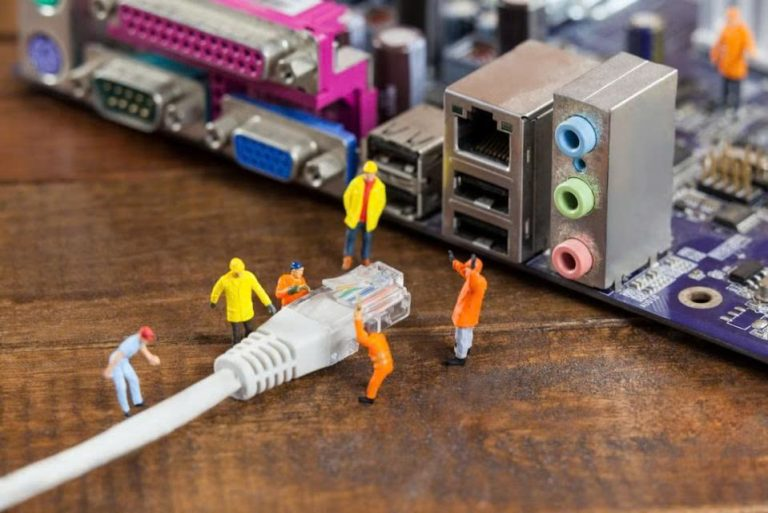
{{< test-result title="常见端口比较" headers="Port|Giao thuc|Chuc nang|Bao mat" row1="80|HTTP|Truyen tai web|Khong ma hoa" row2="443|HTTPS|Truyen tai web an toan|Ma hoa SSL/TLS" row3="21|FTP|Truyen tai file|Khong ma hoa" row4="22|SSH|Ket noi tu xa an toan|Ma hoa" row5="25|SMTP|Gui email|Tuy chon ma hoa" />}}
注意
Port la thanh phan quan trong trong quan ly va bao mat mang. Chi mo nhung port can thiet, dong tat ca port khong su dung va su dung tuong lua de kiem soat luu luong truy cap.
A port (network port) is a logical connection point that identifies a specific service on a computer within a network. This article explains in detail the common port types (HTTP, HTTPS, FTP, SSH), security features, and how to check ports on Windows.
2019Trusted since
B2BData solutions
Data·AIExpertise
Need data solutions for your business?
AlgoData has helped businesses with data engineering, analytics & AI since 2019.
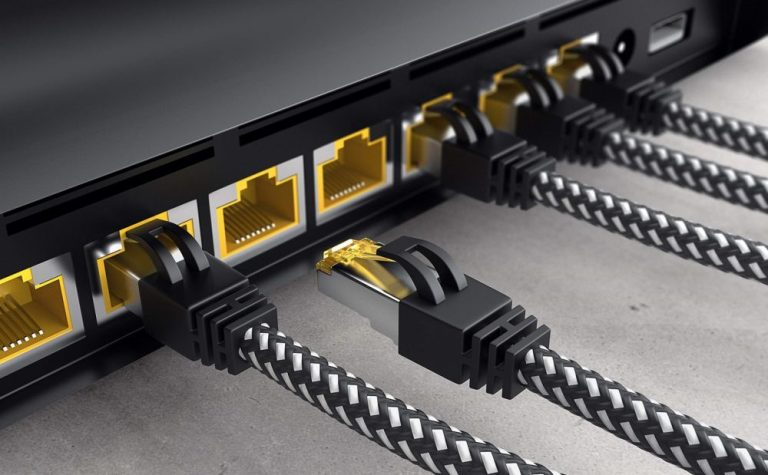
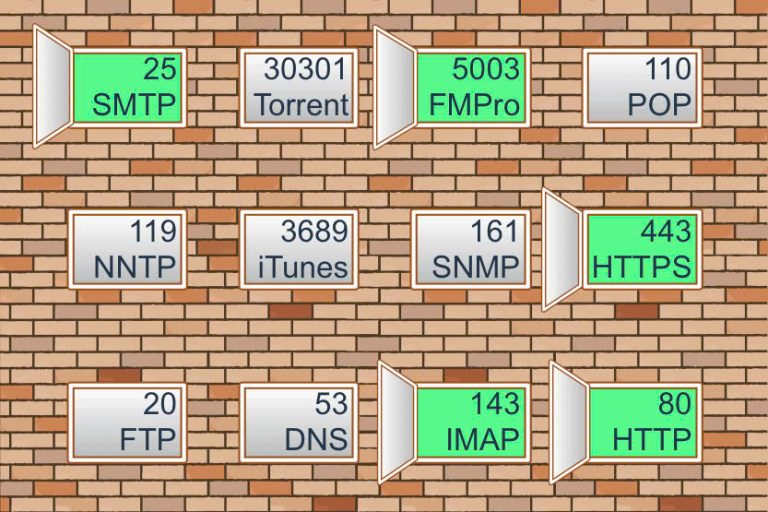
A port, also known as a network port, is a logical connection point used in computer networking to identify a specific process or service on a computer. It acts as a "window" that allows data to enter and leave the computer through network connections.
Each port is represented by a 16-bit integer, meaning there are a total of 65,536 available ports (from 0 to 65,535). These ports are divided into three main categories:
Well-known ports (0-1023): Used for common services such as HTTP (80), HTTPS (443), FTP (21), SSH (22), etc.
Registered ports (1024-49151): Registered by companies or organizations for specific applications.
Dynamic/Private ports (49152-65535): Can be freely used for any purpose.
Ports work together with IP addresses to precisely identify the destination of data in a network. For example, when you visit a website, your browser typically connects to port 80 (for HTTP) or 443 (for HTTPS) on the web server.
Common Types of Ports Today
To better understand ports, we need to classify them by specific function and version. This helps us grasp the diverse roles of ports in network systems.
Port Classification by Specific Function
Ports are classified based on the specific function they serve in the network system. Each type of port assumes a distinct role:
HTTP Port (80): This is the standard port for the HTTP protocol, used to transmit unencrypted web pages.
HTTPS Port (443): This port is used for the HTTPS protocol, providing secure and encrypted connections for websites.
FTP Port (21): File Transfer Protocol uses this port to transfer files between servers and clients.
SSH Port (22): Secure Shell uses this port to provide secure remote connections to servers.
SMTP Port (25): Simple Mail Transfer Protocol uses this port to send emails.
DNS Port (53): Domain Name System uses this port to resolve domain names into IP addresses.
POP3 Port (110): Post Office Protocol version 3 uses this port to receive emails from servers.
IMAP Port (143): Internet Message Access Protocol uses this port to access emails remotely.
SQL Server Port (1433): Microsoft SQL Server uses this port for database connections.
MySQL Port (3306): MySQL uses this port for database connections.
In addition to classification by function, ports are also categorized by the protocol version they use. Each version has its own characteristics and advantages, suited to different networking needs:
TCP Ports: Transmission Control Protocol (TCP) uses these ports to establish stable connections, ensuring data is transmitted completely and in the correct order.
UDP Ports: User Datagram Protocol (UDP) uses these ports for faster data transmission but without guaranteeing order or complete packet delivery.
SCTP Ports: Stream Control Transmission Protocol (SCTP) uses these ports, combining the advantages of both TCP and UDP.
Understanding these port types helps users and system administrators configure and secure networks more effectively while optimizing data transmission performance.
Key Features of Ports
Ports are not merely numbers — they carry many important features that contribute to network management and security. Below are the key features of ports.
Identifying Access Addresses for Files and Services
Ports play a crucial role in precisely identifying access addresses for files and services on the network. When combined with an IP address, a port creates a unique "address" for each service or application on a computer.
For example, when you access a website through a browser, your computer connects not only to the IP address of the web server but also to a specific port (usually 80 for HTTP or 443 for HTTPS). This allows the web server to know that the incoming request is for web access, not another service like email or FTP.
This feature allows network systems to run multiple services simultaneously on the same IP address without conflicts. Each service "listens" on a separate port, allowing the system to distinguish and process requests accurately.
Filtering Packets In and Out of Devices
Ports also play an important role in filtering packets entering and leaving devices. This feature is particularly useful for network security management and data flow control.
Firewalls typically use port information to decide whether a packet is allowed through or not. For example, a network administrator can configure a firewall to only allow web traffic (ports 80 and 443) through while blocking all connections to other ports.
Additionally, port-based packet filtering helps with load distribution and traffic routing. For example, a load balancer can use port information to route requests to different servers based on the type of service requested.
Preventing Unwanted Access
Ports play a vital role in preventing unwanted access to systems. By controlling which ports are open and closed, administrators can limit potential access points into the system.
For example, if a web server only needs to provide web services, the administrator can open only port 80 (HTTP) and 443 (HTTPS) while closing all other ports. This minimizes the system's "attack surface," making unauthorized intrusion more difficult.
Many security software programs and firewalls also use port information to detect and prevent suspicious activities. For example, if there are many connections to a port that is not commonly used, this could be a sign of an attack, and the system can automatically block that traffic.
Other Features
Beyond the main features mentioned above, ports have several other noteworthy features:
Bandwidth Management: Ports can be used to manage and prioritize bandwidth for different services. For example, an ISP may prioritize web traffic (ports 80 and 443) over torrent traffic.
Network Monitoring and Analysis: Port information is widely used in network monitoring and analysis tools to better understand traffic patterns and system performance.
P2P Connections: In peer-to-peer applications, ports are used to establish direct connections between devices, bypassing the need for a central server.
Port Forwarding: This technique allows connections from outside the network to a specific port to be forwarded to a different device or port within the internal network.
Multiplexing: Ports allow multiple simultaneous connections or sessions over the same communication channel, increasing the efficiency of network resource usage.
How to Check Network Ports on Windows
Checking network ports is an important skill for anyone working with computers and networks. On the Windows operating system, there are many ways to do this. Below is a detailed guide on how to check network ports on Windows:
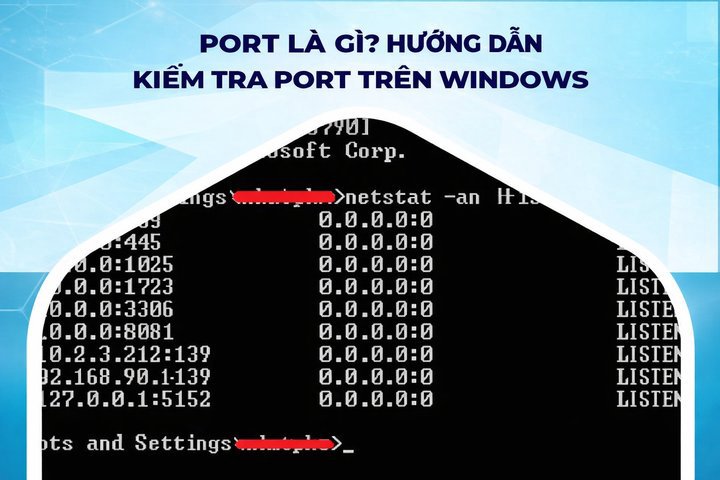
Using Command Prompt:
Open Command Prompt by pressing Windows + R, typing "cmd," and pressing Enter.
To view all connections and open ports, type the command: netstat -an
To view connections and ports along with the program names using them, type: netstat -ab
Using PowerShell:
Open PowerShell by pressing Windows + X and selecting "Windows PowerShell."
To view active TCP connections, type: Get-NetTCPConnection
To filter results for a specific port, such as port 80, type: Get-NetTCPConnection -LocalPort 80
Using Task Manager:
Open Task Manager by pressing Ctrl + Shift + Esc.
Navigate to the "Performance" tab.
Select "Open Resource Monitor" at the bottom of the window.
In Resource Monitor, go to the "Network" tab to view network connections and ports in use.
Using Third-Party Tools:
Many free tools like TCPView from Microsoft Sysinternals provide a graphical interface for viewing and managing network connections and ports.
Checking a specific port:
To check if a specific port is open, you can use the telnet command in Command Prompt.
For example, to check port 80 on google.com, type: telnet google.com 80
If the connection is established, the port is open. If not, the port may be closed or blocked.
Checking remote ports:
To check if a port is open on a remote computer, you can use tools like nmap.
Install nmap and use the command: nmap -p [port number] [IP address or domain name]
Note that some security software or firewalls may block port scanning attempts, so make sure you have the appropriate permissions before performing these operations.
Factors to Consider When Registering Ports
When registering and using ports, there are several important factors to consider to ensure optimal performance and security for your system.
Based on Hardware Specifications
Considering the computer's hardware specifications when using ports is very important. This ensures the system has sufficient capacity to handle traffic through the ports.
CPU and RAM: Ensure the computer has enough resources to handle traffic through the opened ports.
Network Bandwidth: Consider the processing capacity of the network connection when opening many ports simultaneously.
Concurrent Processing Capability: Evaluate the number of simultaneous connections the system can handle through the ports.
Storage and File Capacity
Ensuring sufficient storage space and performance will help optimize system operations:
Hard Drive Capacity: Ensure there is enough storage space for data transmitted through the ports.
Read/Write Speed: Consider the hard drive speed to ensure it does not become a bottleneck when processing data.
Scalability: Estimate future storage needs when using more ports.
{{< test-result title="Comparison of Common Ports" headers="Port|Protocol|Function|Security" row1="80|HTTP|Web transmission|Not encrypted" row2="443|HTTPS|Secure web transmission|SSL/TLS encrypted" row3="21|FTP|File transfer|Not encrypted" row4="22|SSH|Secure remote connection|Encrypted" row5="25|SMTP|Send email|Optional encryption" />}}
Note
Ports are critical components in network management and security. Only open the ports you need, close all unused ports, and use firewalls to control traffic.
Conclusion: Ports play a crucial role in identifying services, filtering packets, and securing network systems. Understanding the different types of ports, how to check them on Windows, and managing ports effectively helps optimize performance and security for your system.