PHPMyAdmin là công cụ mã nguồn mở cho phép quản lý cơ sở dữ liệu MySQL và MariaDB thông qua giao diện web trực quan. Bài viết hướng dẫn chi tiết cách cài đặt, sử dụng và các thao tác quản lý database cơ bản trên PHPMyAdmin.
Cần giải pháp dữ liệu cho doanh nghiệp?
AlgoData đồng hành cùng doanh nghiệp về data engineering, phân tích & AI từ 2019.
Khái niệm PHPMyAdmin
Khi nói đến quản lý cơ sở dữ liệu, PHPMyAdmin thường xuất hiện như một giải pháp tối ưu cho nhiều lập trình viên và quản trị viên. Được phát triển bằng ngôn ngữ PHP, PHPMyAdmin giúp người dùng tương tác với MySQL một cách trực quan thông qua giao diện web.
Quản lý cơ sở dữ liệu thông qua PHPMyAdmin giúp đơn giản hóa nhiều tác vụ phức tạp. Thay vì phải sử dụng dòng lệnh MySQL, người dùng có thể sử dụng các biểu mẫu và menu để thực hiện thao tác mong muốn. Điều này không chỉ giúp tiết kiệm thời gian mà còn giảm thiểu khả năng xảy ra lỗi khi nhập lệnh.
Hệ thống hỗ trợ đa ngôn ngữ và cung cấp nhiều tính năng mạnh mẽ, từ việc thực hiện các truy vấn SQL đơn giản đến việc quản lý các bảng dữ liệu phức tạp. Đây chính là lý do khiến PHPMyAdmin trở thành một công cụ được ưa chuộng cho cả những người mới bắt đầu và những chuyên gia trong lĩnh vực quản lý cơ sở dữ liệu.
Lịch sử phát triển của PHPMyAdmin
PHPMyAdmin lần đầu tiên được phát hành vào năm 1998 bởi Tobias Ratschiller. Ngày nay, nó đã trở thành một phần mềm mã nguồn mở, thu hút sự đóng góp từ nhiều lập trình viên trên toàn thế giới. Qua thời gian, PHPMyAdmin liên tục nhận được các bản cập nhật cải tiến về tính năng và bảo mật, giúp người dùng có trải nghiệm tốt hơn.
Mục đích sử dụng PHPMyAdmin
Mục tiêu chính của PHPMyAdmin là cung cấp một giao diện quản lý MySQL thuận tiện cho người dùng. Điều này làm cho việc quản lý cơ sở dữ liệu trở nên dễ dàng hơn, đặc biệt là với những người không quen thuộc với ngôn ngữ SQL. Các tác vụ thường gặp như tạo, sửa, xóa cơ sở dữ liệu và bảng đều có thể thực hiện chỉ bằng vài cú nhấp chuột.
Cộng đồng và hỗ trợ
Cộng đồng PHPMyAdmin rất đông đảo và sôi nổi. Người dùng có thể tìm thấy rất nhiều tài liệu, video hướng dẫn và forum thảo luận để giúp họ giải quyết các vấn đề trong quá trình sử dụng. Điều này không chỉ tạo điều kiện thuận lợi cho việc học hỏi mà còn giúp nâng cao hiệu quả làm việc.
Các tính năng nổi bật của PHPMyAdmin

PHPMyAdmin không chỉ là một công cụ quản lý cơ sở dữ liệu đơn thuần. Nó còn tích hợp nhiều tính năng mạnh mẽ giúp người dùng xử lý dữ liệu một cách dễ dàng và hiệu quả hơn.
Hỗ trợ nhiều loại cơ sở dữ liệu
Ngoài MySQL, PHPMyAdmin còn hỗ trợ MariaDB, một nhánh phát triển từ MySQL. Điều này cho phép người dùng có nhiều tùy chọn hơn trong việc lựa chọn hệ quản trị cơ sở dữ liệu phù hợp với nhu cầu của mình.
Giao diện thân thiện
Giao diện người dùng của PHPMyAdmin rất trực quan, dễ sử dụng. Người dùng có thể dễ dàng tìm kiếm các chức năng cần thiết mà không gặp khó khăn. Các menu rõ ràng và các biểu mẫu điền thông tin cũng giúp trải nghiệm người dùng trở nên tốt hơn.
Quản lý người dùng
Một trong những tính năng quan trọng của PHPMyAdmin là khả năng quản lý người dùng. Admin có thể tạo, chỉnh sửa và xóa tài khoản người dùng, phân quyền truy cập cho từng tài khoản, đảm bảo rằng chỉ những người có quyền hạn mới có thể thực hiện các thao tác nhạy cảm trên cơ sở dữ liệu.
Tính năng xuất và nhập dữ liệu
PHPMyAdmin hỗ trợ xuất và nhập dữ liệu dưới nhiều định dạng khác nhau như CSV, SQL, XML, và Excel. Điều này giúp người dùng chuyển đổi và chia sẻ dữ liệu giữa các hệ thống dễ hơn bao giờ hết.
Ưu điểm và nhược điểm của PHPMyAdmin
Như bất kỳ công cụ nào khác, PHPMyAdmin cũng có những ưu điểm và nhược điểm riêng, người dùng cần cân nhắc kỹ trước khi quyết định sử dụng.
Ưu điểm của PHPMyAdmin
Một trong những ưu điểm lớn nhất của PHPMyAdmin là tính dễ sử dụng. Giao diện đồ họa giúp người dùng không cần phải biết nhiều về lệnh SQL vẫn có thể quản lý cơ sở dữ liệu một cách hiệu quả.
Thêm vào đó, khả năng tương thích với nhiều phiên bản MySQL và MariaDB là một lợi thế lớn. PHPMyAdmin cũng liên tục được cập nhật, mang lại nhiều tính năng mới và cải tiến bảo mật để đáp ứng nhu cầu thay đổi của người dùng.
Cuối cùng, cộng đồng hỗ trợ đông đảo cũng là một điểm mạnh của PHPMyAdmin. Người dùng có thể dễ dàng tìm thấy các tài liệu và forum để giải quyết vấn đề gặp phải.
Nhược điểm của PHPMyAdmin
Dù có nhiều ưu điểm, PHPMyAdmin không phải là công cụ hoàn hảo. Một trong những nhược điểm lớn là khả năng xử lý các cơ sở dữ liệu lớn. Khi kích thước cơ sở dữ liệu tăng lên, tốc độ hoạt động của PHPMyAdmin có thể bị ảnh hưởng, gây khó khăn cho người dùng trong việc quản lý.
Ngoài ra, PHPMyAdmin cũng có nguy cơ gặp phải các vấn đề bảo mật nếu không được cấu hình đúng cách. Nếu không bảo vệ cẩn thận, cơ sở dữ liệu có thể trở thành mục tiêu cho các cuộc tấn công.
Cuối cùng, mặc dù PHPMyAdmin rất phong phú về tính năng, nhưng một số người dùng vẫn cảm thấy cần một công cụ mạnh mẽ hơn với khả năng tùy chỉnh cao hơn, như dòng lệnh MySQL.
Các yếu tố bắt buộc có để sử dụng được PHPMyAdmin
Trước khi có thể sử dụng PHPMyAdmin, có một số yêu cầu cơ bản mà người dùng cần lưu ý để đảm bảo rằng quá trình cài đặt và sử dụng diễn ra suôn sẻ.
Máy chủ web
Để chạy PHPMyAdmin, bạn cần có một máy chủ web hỗ trợ PHP, chẳng hạn như Apache hoặc Nginx. Máy chủ này sẽ chịu trách nhiệm phục vụ các tập tin PHP và xử lý các yêu cầu từ người dùng.
PHP
Bên cạnh việc cần có một máy chủ web, PHPMyAdmin còn yêu cầu phiên bản PHP nhất định. Bạn nên kiểm tra tài liệu chính thức để xác định phiên bản PHP phù hợp với phiên bản PHPMyAdmin mà bạn đang sử dụng.
MySQL hoặc MariaDB
Dĩ nhiên, để quản lý cơ sở dữ liệu bằng PHPMyAdmin, bạn cần có một server MySQL hoặc MariaDB chạy trên máy của mình. Việc cài đặt và cấu hình hệ quản trị cơ sở dữ liệu này là bước đầu tiên cần thực hiện.
Các quyền truy cập cần thiết
Cuối cùng, bạn cần có quyền truy cập vào máy chủ MySQL hoặc MariaDB mà bạn muốn quản lý. Điều này có nghĩa là bạn cần tài khoản quản trị viên hoặc tài khoản người dùng với đủ quyền hạn để thực hiện các thao tác mà bạn mong muốn.
Hướng dẫn cách cài đặt PHPMyAdmin chi tiết
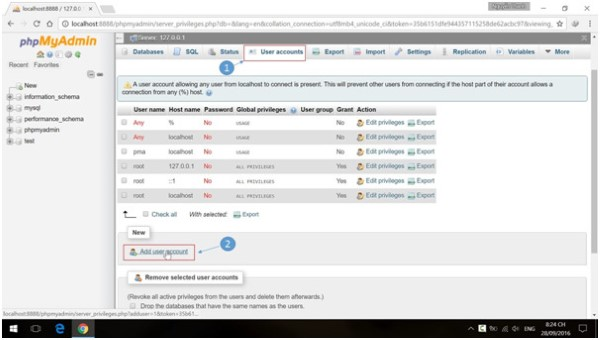
Cài đặt PHPMyAdmin có thể hơi phức tạp đối với những người mới bắt đầu. Tuy nhiên, nếu làm theo từng bước một, bạn sẽ dễ dàng hoàn thành quá trình này.
Danh sách 27 proxy miễn phí được sử dụng phổ biến nhất hiện nay
Cài đặt Database Operations
Trước tiên, bạn cần tải xuống PHPMyAdmin từ trang web chính thức. Sau khi tải về, bạn sẽ có một tập tin nén chứa mã nguồn PHPMyAdmin. Giải nén tập tin này vào thư mục mà máy chủ web của bạn đang chạy.
Sau đó, bạn cần cấu hình tập tin config.inc.php. Tập tin này chứa các thông tin kết nối tới cơ sở dữ liệu MySQL của bạn. Bạn sẽ cần ghi rõ tên máy chủ, tên người dùng, và mật khẩu.
Nếu bạn không thấy tập tin này, hãy sao chép và đổi tên tập tin config.sample.inc.php thành config.inc.php, sau đó mở nó bằng một trình soạn thảo văn bản và điền thông tin cần thiết.
Cài đặt Database Table Operations
Tiếp theo, bạn cần tạo một cơ sở dữ liệu để PHPMyAdmin có thể sử dụng. Bạn có thể thực hiện điều này bằng cách sử dụng lệnh SQL hoặc thông qua giao diện dòng lệnh MySQL. Sau khi tạo xong, hãy chắc chắn rằng tài khoản mà bạn đang sử dụng có đủ quyền truy cập vào cơ sở dữ liệu đó.
Sau khi đã hoàn tất các bước này, hãy khởi động lại máy chủ web và thử truy cập vào URL mà bạn đã cài đặt PHPMyAdmin. Bạn nên thấy màn hình đăng nhập hiện ra.
Cài đặt trên hệ điều hành Windows
Nếu bạn đang sử dụng hệ điều hành Windows, quy trình cài đặt có thể hơi khác một chút. Bạn cần cài đặt WAMP hoặc XAMPP, đây là các gói phần mềm bao gồm Apache, PHP và MySQL. Sau khi cài đặt, bạn có thể thêm PHPMyAdmin vào thư mục www của WAMP/XAMPP.
Bạn cũng cần thực hiện các bước cấu hình tương tự như đã mô tả ở trên. Một khi mọi thứ đã sẵn sàng, bạn chỉ cần mở trình duyệt và truy cập vào địa chỉ localhost/phpmyadmin để sử dụng.
Hướng dẫn cách sử dụng PHPMyAdmin dễ dàng, hiệu quả
Sau khi đã cài đặt PHPMyAdmin, điều quan trọng tiếp theo là làm quen với cách sử dụng nó. Dưới đây là hướng dẫn chi tiết về các thao tác cơ bản mà bạn sẽ thường xuyên thực hiện.
Truy cập vào PHPMyAdmin
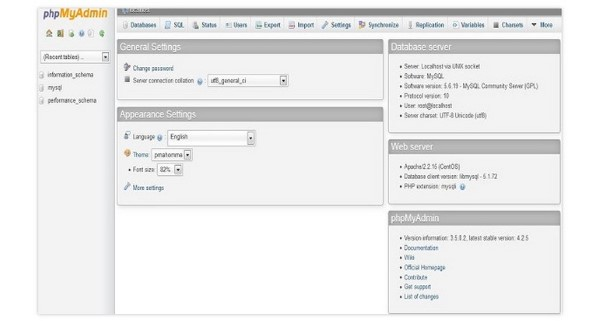
Để sử dụng PHPMyAdmin, bạn cần truy cập vào giao diện web của nó thông qua trình duyệt. Địa chỉ thường gặp là http://localhost/phpmyadmin. Bạn cần chắc chắn rằng máy chủ web đang chạy trước khi thực hiện bước này.
Đăng nhập tài khoản vào PHPMyAdmin
Sau khi truy cập vào trang chính của PHPMyAdmin, bạn sẽ thấy một màn hình đăng nhập. Tại đây, bạn cần nhập tên người dùng và mật khẩu của tài khoản MySQL mà bạn đã cấu hình trước đó. Nếu bạn chưa tạo tài khoản, bạn có thể sử dụng tài khoản root nhưng hãy nhớ rằng việc này không an toàn.
Quản lý cơ sở dữ liệu trên PHPMyAdmin
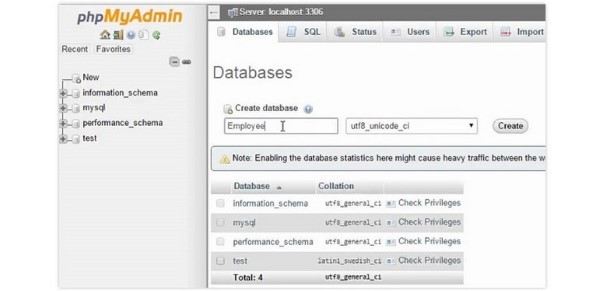
Sau khi đăng nhập thành công, bạn sẽ được chuyển đến giao diện chính của PHPMyAdmin. Tại đây, bạn sẽ thấy danh sách các cơ sở dữ liệu hiện có. Bạn có thể tạo cơ sở dữ liệu mới bằng cách nhấn vào tab "Databases" và nhập tên cơ sở dữ liệu mới vào ô trống rồi nhấn "Create".
Tạo bảng và quản lý dữ liệu bảng
Khi đã tạo xong cơ sở dữ liệu, bạn có thể bắt đầu tạo bảng. Chọn cơ sở dữ liệu mà bạn vừa tạo và nhấn vào tab "Structure". Tại đây, bạn sẽ thấy tùy chọn để tạo bảng mới. Bạn cần nhập tên bảng và số lượng cột mà bạn muốn tạo.
Sau khi tạo bảng, bạn có thể thêm dữ liệu vào bảng bằng cách chọn tab "Insert". Điền thông tin vào các trường và nhấn "Go" để lưu lại. Giao diện của PHPMyAdmin sẽ giúp bạn xem và chỉnh sửa dữ liệu một cách dễ dàng.
Truy vấn dữ liệu trong PHPMyAdmin
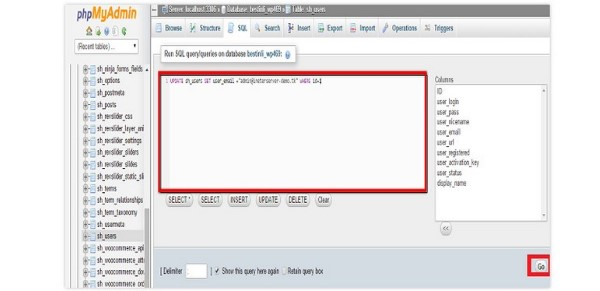
Một trong những tính năng mạnh mẽ nhất của PHPMyAdmin là khả năng thực hiện các truy vấn SQL. Bạn có thể chọn tab "SQL" tại giao diện chính và nhập lệnh SQL mà bạn muốn thực hiện. Việc này đặc biệt hữu ích khi bạn cần thực hiện các thao tác phức tạp hoặc truy vấn dữ liệu cụ thể từ bảng.
Cách sao lưu cơ sở dữ liệu trên PHPMyAdmin
Sao lưu cơ sở dữ liệu là rất quan trọng trong quản lý dữ liệu. Để sao lưu cơ sở dữ liệu trên PHPMyAdmin, bạn chỉ cần chọn cơ sở dữ liệu mà bạn muốn sao lưu, sau đó chọn tab "Export". Tại đây, bạn sẽ thấy nhiều tùy chọn cho việc xuất dữ liệu, hãy chọn định dạng mà bạn mong muốn và nhấn "Go" để tải xuống tệp sao lưu.
Cách khôi phục cơ sở dữ liệu đã mất
Trong trường hợp bạn cần khôi phục một cơ sở dữ liệu đã sao lưu, quy trình rất đơn giản. Vào tab "Import", chọn tệp sao lưu mà bạn đã lưu trước đó và nhấn "Go". PHPMyAdmin sẽ phục hồi cơ sở dữ liệu của bạn từ tệp sao lưu này.
Bảo mật cơ sở dữ liệu trên PHPMyAdmin
Bảo mật là một yếu tố quan trọng khi sử dụng PHPMyAdmin. Hãy đảm bảo rằng bạn sử dụng mật khẩu mạnh cho tài khoản MySQL và không sử dụng tài khoản root cho các tác vụ hàng ngày. Ngoài ra, thiết lập SSL cho kết nối giữa máy chủ và client cũng là một phương pháp tốt để bảo mật dữ liệu.
Vấn đề thường gặp trong quá trình sao lưu dữ liệu trên PHPMyAdmin
Khi thực hiện sao lưu dữ liệu trên PHPMyAdmin, bạn có thể gặp phải một số vấn đề. Dưới đây là một số vấn đề thường gặp và cách khắc phục.
Kết nối bị gián đoạn
Một trong những vấn đề phổ biến là kết nối tới cơ sở dữ liệu bị gián đoạn trong quá trình sao lưu. Điều này có thể xảy ra nếu cơ sở dữ liệu quá lớn hoặc mạng không ổn định. Để khắc phục, hãy thử lại nhiều lần hoặc chia nhỏ cơ sở dữ liệu thành nhiều phần trước khi sao lưu.
Thiếu quyền truy cập
Nếu bạn không có đủ quyền truy cập, bạn có thể gặp thông báo lỗi khi cố gắng sao lưu dữ liệu. Hãy chắc chắn rằng tài khoản mà bạn đang sử dụng có đủ quyền để thực hiện thao tác này.
Lỗi định dạng tệp
Đôi khi, tệp sao lưu mà bạn tải xuống có thể gặp lỗi định dạng. Hãy kiểm tra lại các tùy chọn xuất trước khi thực hiện sao lưu để đảm bảo rằng bạn đang sử dụng định dạng phù hợp như SQL, CSV hay XML.
Sự khác biệt giữa PHPMyAdmin và MySQL Console
Khi nói đến việc quản lý cơ sở dữ liệu MySQL, PHPMyAdmin và MySQL Console đều là những công cụ phổ biến nhưng có những điểm khác biệt nhất định.
Giao diện người dùng
Điểm khác biệt lớn nhất giữa hai công cụ này là giao diện người dùng. PHPMyAdmin cung cấp giao diện đồ họa thân thiện, giúp người dùng dễ dàng thao tác mà không cần biết quá nhiều về SQL. Trong khi đó, MySQL Console yêu cầu người dùng phải nhập lệnh SQL bằng tay, điều này có thể khó khăn hơn cho những người mới bắt đầu.
Tính linh hoạt
MySQL Console mang lại cho người dùng tính linh hoạt cao hơn trong việc thực hiện các lệnh và truy vấn phức tạp. Người dùng có thể dễ dàng viết các script SQL để tự động hóa nhiều tác vụ, trong khi PHPMyAdmin có thể bị giới hạn bởi giao diện của nó.
Tốc độ
Về hiệu suất, MySQL Console thường nhanh hơn PHPMyAdmin, đặc biệt khi làm việc với cơ sở dữ liệu lớn. PHPMyAdmin có thể gặp phải một số vấn đề với tốc độ khi xử lý một lượng lớn dữ liệu.
{{< test-result title="So sanh cac cong cu quan ly MySQL" headers="Tieu chi|PHPMyAdmin|MySQL Console|HeidiSQL|DBeaver" row1="Giao dien|Web GUI|Dong lenh|Desktop GUI|Desktop GUI" row2="De su dung|Cao|Thap|Trung binh|Trung binh" row3="Toc do|Trung binh|Nhanh|Nhanh|Trung binh" row4="Ho tro DB|MySQL, MariaDB|MySQL|MySQL, PostgreSQL|Da DB" row5="Phu hop|Nguoi moi, hosting|Dev kinh nghiem|Dev Windows|Dev da nen tang" />}}
PHPMyAdmin la cong cu quan ly MySQL/MariaDB pho bien nhat qua giao dien web. Phu hop cho nguoi moi bat dau va quan tri vien hosting, nhung can chu y bao mat va hieu suat khi lam viec voi co so du lieu lon.
Ket luan: PHPMyAdmin la cong cu ma nguon mo giup quan ly co so du lieu MySQL va MariaDB thong qua giao dien web truc quan. Voi kha nang tao, sua, xoa database, xuat nhap du lieu da dinh dang va quan ly nguoi dung, day la lua chon ly tuong cho nguoi moi bat dau. Tuy nhien, can luu y bao mat bang mat khau manh, SSL va han che dung tai khoan root.