An IP address is a unique string of numbers assigned to each network-connected device, helping identify and locate it within the network. This article explains what an IP is, the structure of IPv4/IPv6, how it works, how to check your IP, hide your IP, and resolve conflicts.
2019Trusted since
B2BData solutions
Data·AIExpertise
Need data solutions for your business?
AlgoData has helped businesses with data engineering, analytics & AI since 2019.
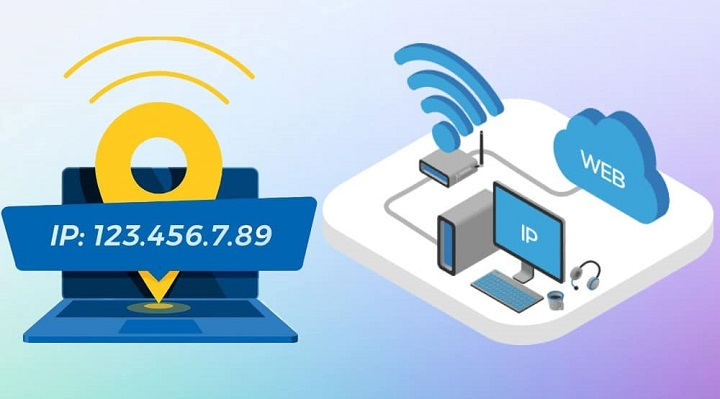
An IP (Internet Protocol) address is a unique string of numbers assigned to each network-connected device to identify and locate that device within the network. It works similarly to your home address, allowing data to be sent to the correct destination across the vast internet.
An IP address has two main functions:
Network location identification: Helps determine the device's position in the network.
Routing: Allows data to be delivered to the correct destination.
Each IP address is unique within a specific network scope, enabling devices to recognize and communicate with each other accurately. This ensures that information is transmitted to and received by the correct device without confusion.
To better understand, imagine the internet as a massive postal system. Each internet-connected device is like a house in this system. The IP address is the house number and street name, helping the "mail carrier" (in this case, data packets) find the right address to deliver the "mail" (information).
Key Applications of IP Addresses
IP addresses play a crucial role in many aspects of information technology and communications:
Internet connectivity: IP addresses allow devices to connect and transmit data over the internet. Every time you visit a website, send an email, or use any internet service, the IP address of your device and the destination server are used to establish the connection.
Packet routing: Supports delivering packets to the correct destination in the network. Routers use IP addresses to determine the best path for forwarding data from source to destination.
Authentication and security: Helps identify the source of traffic and prevent unauthorized access. Many security systems use IP addresses to monitor and block suspicious activities.
Geolocation: Allows determining the approximate location of a device based on its IP address. This is used in many applications such as providing local content, location-based advertising, and complying with geographic legal regulations.
Network management: Assists administrators in monitoring and managing network systems. IP addresses help identify and isolate network issues, as well as distribute network resources efficiently.
Service delivery: Many online services use IP addresses to provide content tailored to the user's location. For example, streaming services can use IP addresses to determine a user's country and provide content that complies with local licensing.
Data analytics: IP addresses are used in traffic analysis and user behavior tracking. Companies can use this information to optimize user experience and improve business strategies.
Remote control: In IoT (Internet of Things) applications, IP addresses allow remote monitoring and control of devices.
Resource sharing: In local networks, IP addresses help identify and access shared resources such as printers, file servers, and network storage devices.
Load balancing: In large distributed systems, IP addresses are used to distribute traffic across multiple servers, ensuring performance and reliability.
Advantages and Disadvantages of IP Addresses
IP addresses offer many benefits but also have certain limitations:
Advantages
Unique identification: Each device has its own IP address, enabling precise identification within the network. This ensures information is sent to the right place without confusion between devices.
Efficient routing: Allows data to be transmitted quickly and accurately. Routers can rapidly determine the best path for data based on IP addresses.
Scalability: Supports connecting billions of devices worldwide. Especially with the introduction of IPv6, the number of available IP addresses is virtually unlimited.
Flexibility: Can be assigned statically or dynamically depending on usage needs. This enables efficient network management and resource conservation.
Security support: Helps control access and monitor network activity. Security systems can use IP addresses to detect and prevent suspicious activities.
Easy network management: IP addresses allow administrators to easily configure, monitor, and troubleshoot network issues.
Location-based service support: IP addresses can be used to determine the approximate location of users, supporting services like local advertising or legal compliance.
Limited IPv4 addresses: The finite number of IPv4 addresses necessitates the transition to IPv6. This creates challenges in the migration process and backward compatibility.
Security concerns: IP addresses can be spoofed or stolen. Attacks such as IP spoofing can cause serious security problems.
Privacy issues: Can be used to track users' online activities. This raises privacy concerns and may lead to the use of anonymization tools.
Management complexity: Requires specialized knowledge for effective management, especially in large networks. Configuring and maintaining IP address systems can become complex in enterprise environments.
Address conflicts: Conflicts can occur if two devices are assigned the same IP address on the same network. This can cause service disruptions and require manual intervention to resolve.
Changes when moving: IP addresses can change when devices move between different networks, creating difficulties for some applications that require a fixed address.
Infrastructure dependency: The effectiveness of the IP address system depends on the global network infrastructure, which can be affected by major network outages.
Structure of an IP Address
IP addresses have distinct structures depending on the version used (IPv4 or IPv6). Below is the basic structure of each type:
IPv4 Address Structure
Consists of 32 bits, divided into 4 octets (each octet is 8 bits).
Each octet is represented by a number from 0 to 255.
Octets are separated by dots (.).
Example: 192.168.1.1
Detailed structure of IPv4:
Network ID: The first part of the address, identifying the network to which the device belongs.
Host ID: The remaining part, identifying the specific device within that network.
The length of the Network ID and Host ID can vary depending on the IP address class or subnet mask used.
IPv6 Address Structure
Consists of 128 bits, divided into 8 groups of 16 bits.
Each group is represented by 4 hexadecimal digits.
Groups are separated by colons (:).
Example: 2001:0db8:85a3:0000:0000:8a2e:0370:7334
Detailed structure of IPv6:
Global Routing Prefix: The first 48 bits, identifying the global network.
Subnet ID: The next 16 bits, identifying the subnet.
Interface ID: The last 64 bits, identifying the specific interface.
IPv6 allows address abbreviation by omitting consecutive groups of zeros, replacing them with ::. Example: 2001:0db8:85a3::8a2e:0370:7334
How IP Addresses Work
IP addresses operate based on the following principles:
Address assignment: Each device is assigned a unique IP address when connecting to the network. This can be done automatically via DHCP (Dynamic Host Configuration Protocol) or configured manually.
Data encapsulation: When sending data, the source device encapsulates the information with source and destination IP addresses. This process occurs at the network layer in the OSI model.
Routing: Routers use the destination IP address to determine the optimal path for the packet. The router checks its routing table to decide where to forward the packet.
Forwarding: The packet is forwarded through multiple routers until it reaches its destination. Each router along the way checks the destination IP address and determines the next step.
Unpacking: The destination device receives the packet, checks the destination IP address, and unpacks the data. If the destination IP address matches the device's address, the packet is processed.
Response: If needed, the destination device sends a response back to the source device using the same process.
This process occurs continuously, allowing devices on the network to communicate efficiently with each other. Every packet traveling through the network carries information about its source and destination, ensuring data is delivered to the correct location.
Different Versions of IP Addresses
Currently, there are two main versions of IP addresses in use:
IPv4 Addresses
IPv4 (Internet Protocol version 4) is the most widely used IP address version today:
Length: 32 bits
Number of addresses: Approximately 4.3 billion unique addresses
Format: Four groups of numbers from 0 to 255, separated by dots
Example: 192.168.1.1
Advantages of IPv4:
Widely supported by most devices and software
Easy to read and remember due to the use of decimal numbers
Backward compatible with most existing network infrastructure
Disadvantages of IPv4:
Limited number of addresses, leading to address exhaustion
Lacks built-in security features
Complex configuration and management in large networks
IPv6 Addresses
IPv6 (Internet Protocol version 6) is the newer version, developed to address IPv4's address exhaustion issue:
Length: 128 bits
Number of addresses: Approximately 340 undecillion (3.4 x 10^38) unique addresses
Format: Eight groups of hexadecimal digits, separated by colons
Example: 2001:0db8:85a3:0000:0000:8a2e:0370:7334
Advantages of IPv6:
Virtually unlimited number of addresses, meeting future demands
Better integrated security and network management features
Higher routing efficiency due to a more efficient address structure
Better support for real-time and mobile applications
Disadvantages of IPv6:
Harder to read and remember compared to IPv4 due to hexadecimal notation
Not yet fully supported by all devices and service providers
The transition from IPv4 to IPv6 can be complex and costly
The transition from IPv4 to IPv6 is gradually taking place globally to meet the growing demand for IP addresses in the era of the Internet of Things (IoT) and the increasing number of connected devices.
Classification of IP Addresses
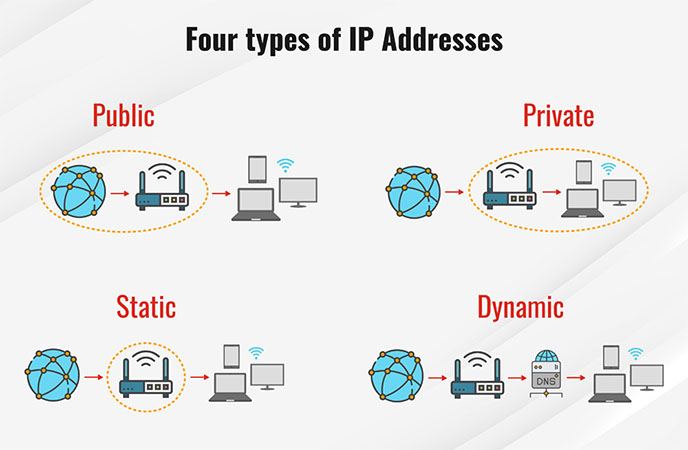
IP addresses are classified into several groups based on their scope of use and assignment method:
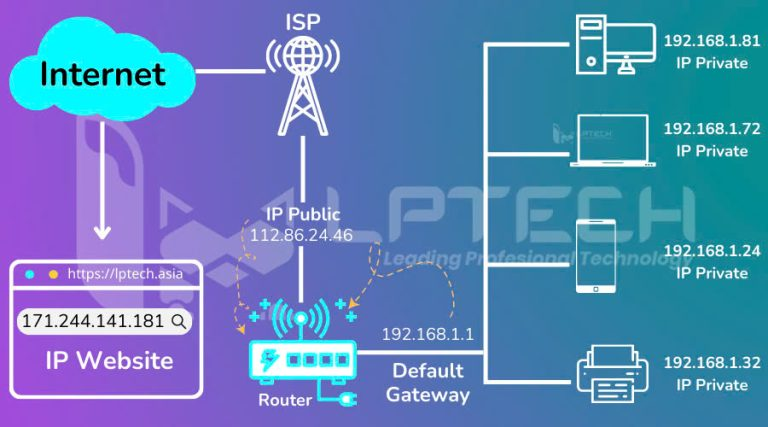
Public IP Addresses
A public IP address is an address that can be directly accessed from the internet:
Assigned by the Internet Service Provider (ISP)
Globally unique
Used to identify devices or networks on the internet
Commonly used by web servers, email servers, and other online services
Advantages:
Allows direct access from the internet
Supports services requiring direct connections like website hosting
Disadvantages:
Can be tracked or attacked from the internet
Typically more expensive to maintain
Private IP Addresses
Private IP addresses are used within local area networks (LANs):
Enhanced security as they cannot be directly accessed from the internet
Conserves public IP addresses
Easy to manage within internal networks
Disadvantages:
Requires Network Address Translation (NAT) for internet connectivity
Cannot be used for services requiring direct internet connections
Static IP Addresses
A static IP address is a fixed address that does not change and is permanently assigned to a device:
Commonly used for servers and critical network devices
Can be either a public or private address
Advantages:
Stable, suitable for services requiring a fixed address
Easy DNS configuration and management
Disadvantages:
More expensive than dynamic addresses
Can be wasteful if not used continuously
Dynamic IP Addresses
Dynamic IP addresses are automatically assigned and can change over time:
Assigned by a DHCP server
Commonly used for end-user devices such as personal computers and phones
Advantages:
Efficient use of IP address space
Easy to manage in large networks
Disadvantages:
Not suitable for services requiring a fixed address
Can make device tracking and management more difficult
What is a Subnet Mask?
A Subnet Mask is a 32-bit number used to divide an IP address into its network and host portions. It defines the boundary between the network ID and host ID within an IP address.
How it works:
The subnet mask uses 1 bits to represent the network portion and 0 bits for the host portion.
When the subnet mask is applied to an IP address (using a bitwise AND operation), the network ID can be determined.
Example:
IP Address: 192.168.1.1
Subnet Mask: 255.255.255.0
Network ID: 192.168.1.0
Host ID: 0.0.0.1
Importance of the Subnet Mask:
Network division: Allows a large network to be divided into smaller subnets.
Efficient routing: Helps routers quickly determine whether an IP address belongs to the local network.
Network performance optimization: By reducing the size of broadcast domains.
Enhanced security: Allows isolation and control of traffic between subnets.
How to Check Your IP Address on a Mobile Phone
Checking your IP address on a mobile phone is a simple operation. Let's explore how to do it on both iPhone and Android.
Viewing Public IP Address on iPhone and Android
To view your public IP address on a phone, follow these steps:
On iPhone:
Open the Safari browser
Visit a website like whatismyip.com or ipleak.net
The website will display your public IP address
On Android:
Open Chrome or the default browser
Visit the same websites as on iPhone
Your public IP address will be displayed
Viewing Private IP Address on iPhone and Android
Viewing your private IP address on a phone is also very easy. Follow these steps:
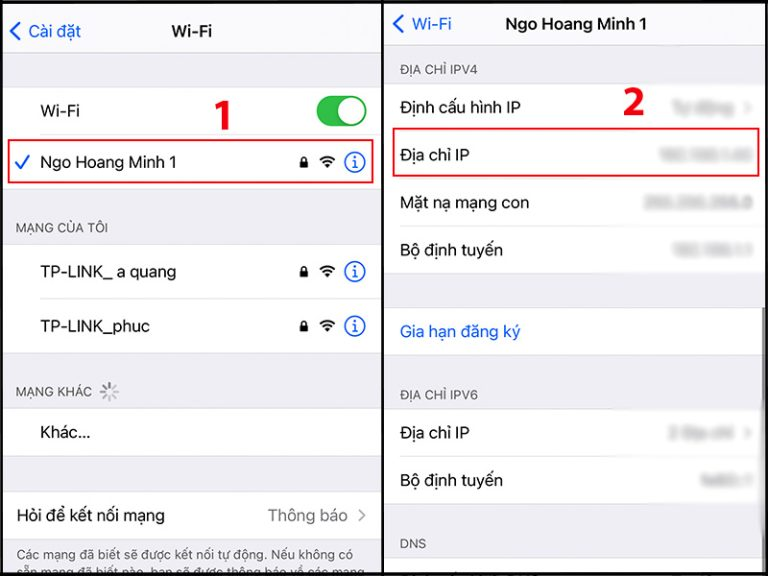
On iPhone:
Go to Settings > Wi-Fi
Tap the (i) icon next to the connected Wi-Fi network
Your private IP address will be displayed under "IP Address"
On Android:
Go to Settings > Network & Internet > Wi-Fi
Tap the connected Wi-Fi network
Scroll down to view your private IP address
How to Check Your IP Address on a Computer
Checking your IP address on a computer can be done on both Windows and MacBook. Here are detailed instructions:
Viewing IP Address on Windows
On Windows, you can view your IP address through:
Viewing your public IP address:
Open a web browser
Visit a website like whatismyip.com
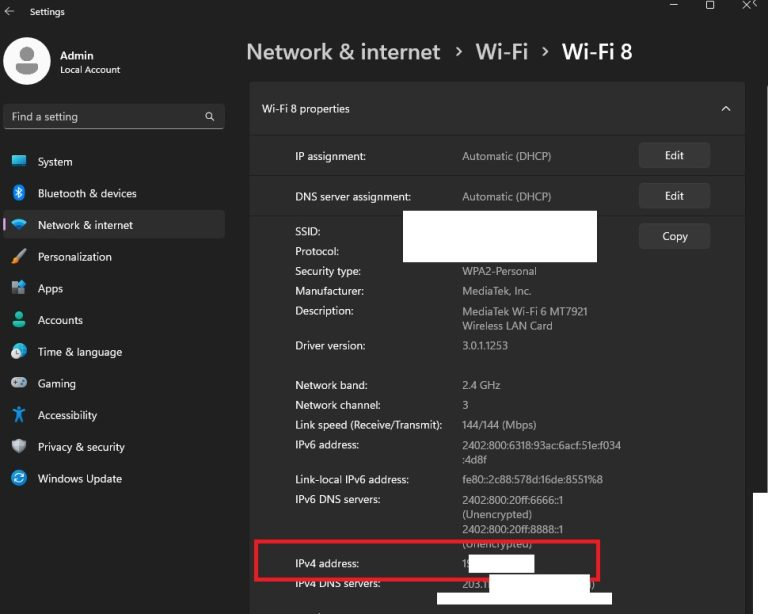
Viewing your private IP address:
Press Windows + R, type "cmd" and press Enter
In the Command Prompt window, type "ipconfig" and press Enter
Look for the "IPv4 Address" line to see your private IP address
Viewing IP Address on MacBook
On MacBook, the process of viewing your IP address is also quite simple:
Viewing your public IP address:
Open the Safari browser
Visit a website like whatismyip.com
Viewing your private IP address:
Click the Apple icon > System Preferences > Network
Select the network connection you are using (Wi-Fi or Ethernet)
Your private IP address will be displayed under "IP Address"
How to Hide Your IP Address
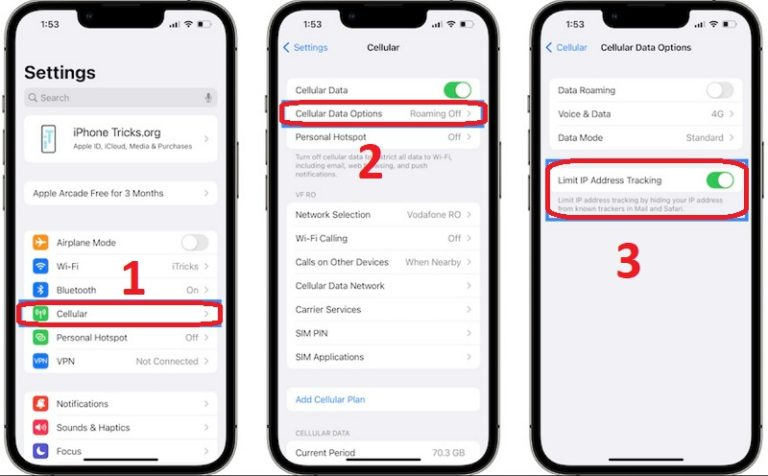
Hiding your IP address is a measure to protect your online privacy. Below are some effective methods:
Why Should You Hide Your IP Address?
Hiding your IP address can bring many benefits:
Protect privacy: Prevent tracking of your online activities.
Enhance security: Reduce the risk of cyberattacks or data theft.
Bypass geographic restrictions: Access content blocked in certain countries.
Avoid censorship: In some cases, hiding your IP can help you access censored information.
Safe downloading: Reduce the risk of detection when downloading torrent files.
Using a Proxy Server to Hide Your IP Address
A Proxy server acts as an intermediary between your device and the internet:
How it works:
Requests from your device are sent to the Proxy server.
The Proxy server forwards the request to the destination using its own IP address.
The response is sent back to the Proxy server, which then forwards it to your device.
A VPN (Virtual Private Network) provides a more comprehensive solution for hiding your IP address:
How it works:
The VPN creates an encrypted tunnel between your device and the VPN server.
All traffic passes through this tunnel, hiding your real IP address.
Advantages:
Encrypts data, providing higher security
Hides all traffic, not just web browsing
Can choose server locations in many different countries
Disadvantages:
May reduce connection speed
Usually requires payment for high-quality service
Some websites may block traffic from VPN IP addresses
How to Check Geographic Location via IP Address
IP addresses can be used to determine the approximate geographic location of a device:
How it works:
GeoIP databases store information about IP address ranges and their corresponding geographic locations.
When an IP address is entered, the system queries this database to determine the location.
Accuracy:
Usually accurate at the country and major city level
Accuracy may decrease for rural areas or mobile networks
Applications:
Providing local content
Market analysis
Compliance with location-based legal regulations
Online fraud detection
Limitations:
Not always 100% accurate
Can be affected by the use of VPN or Proxy
How to Identify Computer Locations in a LAN Using IP Addresses
Identifying computer locations in a LAN can be accomplished through IP addresses. Here's how:
Using Advanced IP Scanner Software
Advanced IP Scanner is a free tool for scanning and analyzing LANs:
How to use:
Download and install Advanced IP Scanner
Launch the software and click "Scan"
The software will scan the network and display a list of devices with their IP addresses
Information displayed:
IP address
Computer name
Device manufacturer
Running services (e.g., HTTP, FTP)
Advantages:
Fast and easy to use
Provides detailed information
Can save scan results for later comparison
Using Home Network Mode
Many modern operating systems have built-in features to view devices on the home network:
On Windows 10/11:
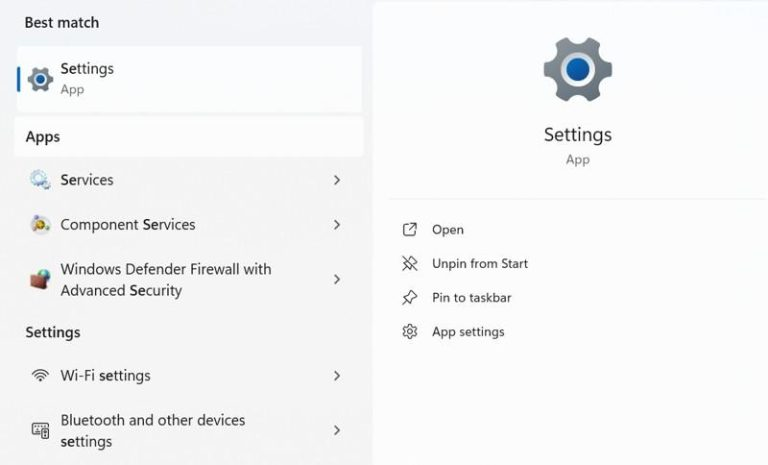
Open Settings > Network & Internet > Status
Click "View your network properties"
Scroll down to view the list of devices on the network
On MacOS:
Open Finder > Go > Utilities > Network Utility
Select the "Netstat" tab to view network connection information
Advantages:
No additional software installation required
Built into the operating system
Provides a user-friendly interface
How to Fix IP Address Conflicts
IP address conflicts are a common network issue. Here's how to identify and resolve them:
Signs of an IP Address Conflict
An IP address conflict occurs when two or more devices on the same network share the same IP address. Signs include:
Sudden loss of internet connection
Error messages such as "Address Already in Use" or "IP Address Conflict"
Unstable network connection
Some network applications not working properly
Causes of IP Address Conflicts
There are many possible causes of IP address conflicts:
Incorrect DHCP configuration: The DHCP server may assign the same IP address to multiple devices.
Duplicate static IP addresses: When configuring manually, the same IP address may accidentally be assigned to multiple devices.
Returning to the network after a long absence: A device may retain an old IP address that has been assigned to another device.
Software bugs: Sometimes, bugs in the operating system or network drivers can cause IP conflicts.
How to Fix IP Address Conflicts
To fix IP address conflicts, follow these steps:
Renew the IP address:
On Windows: Open Command Prompt and type "ipconfig /release" then "ipconfig /renew"
On MacOS: Go to System Preferences > Network, select the network connection and click "Renew DHCP Lease"
Check DHCP settings:
Ensure all devices are configured to receive IP addresses automatically (DHCP)
Check the router to ensure DHCP is enabled and the IP address pool is sufficient
Identify and modify static IP addresses:
Check if any devices are configured with static IP addresses
If necessary, change the static IP address to avoid conflicts
Restart network devices:
Turn Wi-Fi or Ethernet connection off and on
Restart the router or modem
Update network drivers:
Check and update the network card driver if necessary
Use network diagnostic tools:
On Windows: Run the Network Troubleshooter
On MacOS: Use Wireless Diagnostics
Check for malware:
Scan the device to ensure no malicious software is interfering with network settings
{{< test-result
title="IPv4 vs IPv6 Comparison"
headers="Criteria|IPv4|IPv6"
rows="Length|32 bits|128 bits;Number of addresses|4.3 billion|3.4 x 10^38;Format|Decimal (192.168.1.1)|Hexadecimal (2001:0db8::1);Built-in security|No|Yes (IPSec);Configuration|Manual or DHCP|Automatic (SLAAC);Header|Complex, 12 fields|Simple, 8 fields"
/>}}
Note
IP addresses are the foundation of every network connection. IPv4 remains the most popular but is running out, while IPv6 is the future with a virtually unlimited number of addresses and built-in security. Understanding how to check, hide your IP, and resolve conflicts helps protect your privacy.
Conclusion: IP addresses are an essential component for every network-connected device. From IPv4 to IPv6, from public IP to private IP, understanding the structure and operating principles helps you manage your network more effectively. Use a Proxy or VPN to hide your IP and protect your privacy when needed.