IIS là gì? Ưu điểm, cài đặt và cấu hình IIS Server chi tiết
Cloud and Server

IIS là gì? Ưu điểm, cài đặt và cấu hình IIS Server chi tiết

Internet Information Services (IIS) là máy chủ web do Microsoft phát triển, hỗ trợ lưu trữ và quản lý ứng dụng web trên Windows. Tìm hiểu ưu điểm, cài đặt và cấu hình IIS.

✦ Tóm tắt nhanh
Internet Information Services (IIS) là máy chủ web do Microsoft phát triển, hỗ trợ lưu trữ và quản lý ứng dụng web trên Windows. Tìm hiểu ưu điểm, cài đặt và cấu hình IIS.
Bài này thế nào?

IIS (Internet Information Services) là máy chủ web mạnh mẽ do Microsoft phát triển, được sử dụng rộng rãi để lưu trữ và quản lý ứng dụng web trên nền tảng Windows. Bài viết giúp bạn hiểu rõ ưu điểm, cách cài đặt và cấu hình IIS Server.

IIS là gì?

Internet Information Services là một trong những nền tảng phổ biến và mạnh mẽ nhất dùng để lưu trữ và phục vụ các ứng dụng web và trang web. IIS hỗ trợ nhiều giao thức như HTTP, HTTPS, FTP, FTPS, SMTP và NNTP, giúp đáp ứng các nhu cầu đa dạng trong việc triển khai và quản lý nội dung trực tuyến.

Với IIS, người dùng có thể chạy các ứng dụng được xây dựng bằng các ngôn ngữ và công nghệ như ASP.NET, PHP, và thậm chí cả các ứng dụng viết bằng ngôn ngữ khác thông qua các module mở rộng. IIS cũng tích hợp chặt chẽ với hệ sinh thái của Microsoft, bao gồm Windows Server và các công nghệ như .NET Framework, mang lại hiệu suất cao và khả năng bảo mật tốt.

Ngoài ra, IIS cung cấp giao diện quản lý đồ họa dễ sử dụng (IIS Manager), cho phép người dùng quản lý các cài đặt và tính năng của máy chủ một cách hiệu quả.

Nguyên lý hoạt động của IIS
IIS được sử dụng rộng rãi để lưu trữ các trang web và cung cấp dịch vụ trực tuyến cho các ứng dụng web trên nền tảng Windows. Hiểu rõ nguyên lý hoạt động của IIS giúp bạn quản lý và vận hành máy chủ web hiệu quả hơn.

  • Khởi tạo và quản lý ứng dụng: IIS hoạt động như một nền tảng trung gian tiếp nhận các yêu cầu HTTP từ trình duyệt web và phản hồi với dữ liệu từ máy chủ.

  • Module xử lý: IIS có cấu trúc module bao gồm HTTP.sys – thành phần quản lý yêu cầu HTTP cấp hệ thống, định tuyến chúng tới ứng dụng phù hợp thông qua ISAPI hoặc ASP.NET.

  • Pipeline xử lý yêu cầu: IIS sử dụng pipeline để xử lý yêu cầu qua các tác vụ xác thực, mã hóa, xử lý dữ liệu ứng dụng và trả về phản hồi.

  • Hosting ứng dụng: IIS cho phép cấu hình các application pool, mỗi pool hoạt động độc lập giúp tăng cường bảo mật và độ ổn định.

  • Hỗ trợ bảo mật: IIS cung cấp SSL/TLS để mã hóa kết nối và các cơ chế xác thực như Windows Authentication hay Basic Authentication.

Cách IIS tương tác với ASP.NET Core
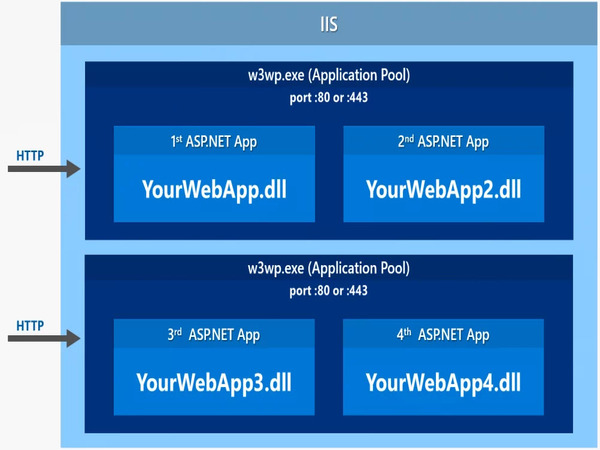
ASP.NET Core có thể được triển khai và chạy trên IIS, mang lại hiệu suất và tính mở rộng cao.

  • Mô hình hosting: IIS sử dụng ASP.NET Core Module (ANCM) làm bộ điều hợp. Khi yêu cầu HTTP đến, IIS sử dụng ANCM để khởi động ứng dụng hoặc gửi yêu cầu đến ứng dụng đã chạy.
  • Kestrel và IIS: Kestrel là máy chủ web tích hợp của ASP.NET Core. IIS đóng vai trò proxy ngược, xử lý xác thực, nén và mã hóa SSL, trong khi Kestrel xử lý logic ứng dụng.
  • Quản lý tài nguyên: Mỗi ứng dụng ASP.NET Core chạy trong application pool riêng biệt, giúp cô lập và tối ưu hóa hiệu suất.
  • Logging và giám sát: IIS hỗ trợ ghi log và theo dõi ứng dụng ASP.NET Core thông qua Application Insights.

Các tính năng nổi bật của IIS
  • Tích hợp với Windows Server: IIS được tích hợp sẵn với hệ điều hành Windows Server, hỗ trợ PowerShell và Active Directory.
  • Bảo mật mạnh mẽ: Xác thực đa dạng (Basic, Digest, Windows Authentication), SSL/TLS và IP Restrictions.
  • Khả năng mở rộng module: Kiến trúc module hóa cho phép thêm/loại bỏ tính năng tùy nhu cầu (Logging Module, URL Rewrite, ARR).
  • Quản lý dễ dàng: IIS Manager cung cấp giao diện đồ họa trực quan, Logging và Diagnostics giám sát hoạt động máy chủ.
  • Hỗ trợ nhiều ngôn ngữ: ASP.NET, PHP, Python, Node.js thông qua phần mở rộng.
  • Hỗ trợ FTP: Tích hợp máy chủ FTP giúp quản lý và chia sẻ nội dung.
Mẹo tối ưu IIS

Sử dụng Application Pool riêng cho mỗi ứng dụng web để cô lập sự cố. Khi một ứng dụng gặp lỗi, các ứng dụng khác vẫn hoạt động bình thường. Cấu hình Idle Timeout phù hợp để tối ưu tài nguyên.

Mục đích sử dụng của IIS

  • Lưu trữ và phân phối ứng dụng web: IIS xử lý yêu cầu HTTP và phản hồi nội dung HTML, ASP.NET hoặc file tĩnh.
  • Hỗ trợ nhiều công nghệ: ASP.NET, PHP, Node.js, REST API đều có thể triển khai trên IIS.
  • Quản lý nhiều website: Tính năng Multiple Site Hosting cho phép lưu trữ nhiều website trên cùng một máy chủ.
  • Tối ưu SEO: Module URL Rewrite cấu hình URL thân thiện cho công cụ tìm kiếm.
  • Tích hợp đám mây: IIS có thể tích hợp với Microsoft Azure cho triển khai đám mây.

Các phiên bản của IIS Server
IIS đã trải qua nhiều phiên bản với các cải tiến đáng kể:

  • IIS 1.0-3.0 (1995-1997): Từ máy chủ web cơ bản đến hỗ trợ Active Server Pages (ASP).
  • IIS 4.0-5.0 (1998-2000): Giao diện MMC, SSL, Application Isolation và WebDAV.
  • IIS 6.0 (2003): Worker Process Isolation Mode và Application Pools, tăng ổn định đáng kể.
  • IIS 7.0-7.5 (2008-2009): Kiến trúc module hóa hoàn toàn mới, FTP 7.5 và Best Practices Analyzer.
  • IIS 8.0-8.5 (2012-2013): Application Initialization, Logging Enhancements và quản lý cấu hình động.
  • IIS 10.0 (2016+): Hỗ trợ HTTP/2, Windows Containers và cải thiện hiệu suất tổng thể.

HeidiSQL là gì? Hướng dẫn sử dụng và cài đặt HeidiSQL hiệu quả

Thiết lập bảo mật cho IIS
Cập nhật IIS và hệ điều hành: Luôn cập nhật các bản vá bảo mật mới nhất qua Windows Update.

Cấu hình SSL/TLS: Cài đặt chứng chỉ SSL từ tổ chức chứng nhận uy tín, chỉ cho phép TLS 1.2 hoặc TLS 1.3. Vô hiệu hóa SSL 3.0 và TLS 1.0.

Thiết lập quyền hạn tối thiểu: Sử dụng tài khoản ứng dụng riêng biệt với quyền hạn thấp thay vì tài khoản quản trị.

Cấu hình tường lửa: Chỉ mở các cổng cần thiết, thiết lập tường lửa lọc lưu lượng mạng từ IP đáng tin cậy.

Vô hiệu hóa tính năng không sử dụng: Tắt WebDAV hoặc FTP nếu không cần thiết để giảm bề mặt tấn công.

Hướng dẫn cài đặt IIS qua Server Manager
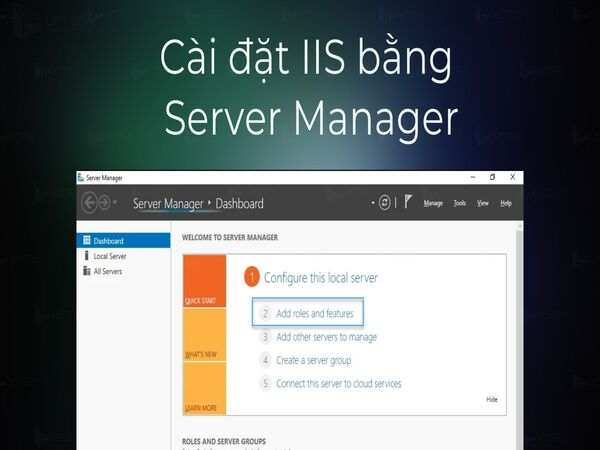
  • Bước 1: Đăng nhập vào Windows Server với quyền admin, mở Server Manager.
  • Bước 2: Nhấp Manage > Add Roles and Features, nhấn Next.
  • Bước 3: Chọn Role-based or feature-based installation, nhấn Next.
  • Bước 4: Chọn máy chủ đích, nhấn Next.
  • Bước 5: Chọn Web Server (IIS), nhấn Add Features > Next.
  • Bước 6: Chọn các Feature bổ sung (nếu cần), nhấn Next.
  • Bước 7: Chọn role services cần thiết (HTTP Logging, Request Filtering, ASP.NET...).
  • Bước 8: Xác nhận và nhấn Install.
  • Bước 9: Hoàn tất, nhấn Close.

Cài đặt IIS bằng PowerShell
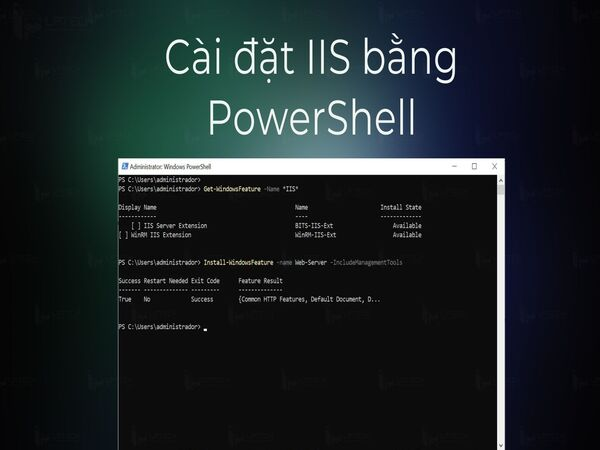
  • Bước 1: Mở PowerShell với quyền admin (Windows + X > Windows PowerShell Admin).
  • Bước 2: Kiểm tra trạng thái: Get-WindowsFeature -Name Web-Server
  • Bước 3: Cài đặt: Install-WindowsFeature -Name Web-Server -IncludeManagementTools
  • Bước 4: Kiểm tra kết quả Success.
  • Bước 5: Mở trình duyệt, nhập http://localhost để xem trang IIS Welcome.

So sánh IIS và Apache
Tiêu chí IIS Apache HTTP Server
Hệ điều hành Chủ yếu Windows Đa nền tảng: Windows, Linux, macOS
Cấp phép Tích hợp sẵn Windows Server Mã nguồn mở, miễn phí
Hiệu suất Tối ưu cho hệ sinh thái Windows, ASP.NET Tối ưu cho Linux
Khả năng mở rộng Module Microsoft và bên thứ ba Hàng nghìn module từ cộng đồng
Tích hợp .NET, MSSQL, Active Directory MySQL, PHP, công nghệ mã nguồn mở
Cấu hình Giao diện đồ họa (IIS Manager) hoặc PowerShell File văn bản (httpd.conf)
Bảo mật Cập nhật thường xuyên từ Microsoft Cộng đồng cung cấp bản vá nhanh
Giá thành Chi phí Windows Server Miễn phí hoàn toàn
Lưu ý khi chọn IIS hay Apache

IIS phù hợp nhất khi bạn sử dụng hệ sinh thái Microsoft (.NET, MSSQL, Active Directory). Nếu ưu tiên chi phí thấp và linh hoạt đa nền tảng, Apache trên Linux là lựa chọn tốt hơn.

Kết luận: IIS là máy chủ web mạnh mẽ tích hợp sâu với Windows, phù hợp cho doanh nghiệp sử dụng hệ sinh thái Microsoft. Với giao diện quản lý trực quan và bảo mật tốt, IIS là giải pháp đáng tin cậy để triển khai ứng dụng web.

Nguồn tham khảo

Câu hỏi thường gặp

Câu hỏi thường gặpQ&A
IIS là gì?
IIS (Internet Information Services) là máy chủ web do Microsoft phát triển, được sử dụng để lưu trữ và quản lý các ứng dụng web trên hệ điều hành Windows, hỗ trợ HTTP, HTTPS, FTP và nhiều giao thức khác.
IIS và Apache khác nhau thế nào?
IIS chạy trên Windows, tích hợp tốt với .NET và có giao diện quản lý đồ họa. Apache là mã nguồn mở, đa nền tảng, cấu hình qua file text và linh hoạt hơn với module cộng đồng.
IIS hỗ trợ những ngôn ngữ lập trình nào?
IIS hỗ trợ ASP.NET, C#, PHP, Python và Node.js thông qua các module mở rộng. Đặc biệt mạnh với các công nghệ Microsoft như .NET Framework và .NET Core.
Làm thế nào để cài đặt IIS trên Windows Server?
Có 2 cách: qua Server Manager (Add Roles and Features → Web Server IIS) hoặc qua PowerShell với lệnh Install-WindowsFeature -Name Web-Server -IncludeManagementTools.
IIS có miễn phí không?
IIS được tích hợp sẵn trong Windows Server và Windows 10/11, không cần trả thêm phí bản quyền riêng. Tuy nhiên, chi phí nằm ở giấy phép Windows Server.

IIS (Internet Information Services) is a powerful web server developed by Microsoft, widely used to host and manage web applications on the Windows platform. This article covers its features, installation and configuration.

What is IIS?

Internet Information Services is one of the most popular and powerful platforms for hosting and serving web applications and websites. IIS supports multiple protocols including HTTP, HTTPS, FTP, FTPS, SMTP and NNTP, meeting diverse needs for online content deployment and management.

With IIS, users can run applications built with ASP.NET, PHP, and other languages through extension modules. IIS integrates closely with the Microsoft ecosystem including Windows Server and .NET Framework, delivering high performance and strong security.

IIS also provides an easy-to-use graphical management interface (IIS Manager) for efficiently managing server settings and features.

How IIS Works

  • Application initialization and management: IIS acts as an intermediary platform, receiving HTTP requests from web browsers and responding with data from the server.
  • Processing modules: IIS has a modular structure including HTTP.sys — the system-level HTTP request manager that routes requests to appropriate applications through ISAPI or ASP.NET.
  • Request processing pipeline: IIS uses a pipeline to process requests through authentication, encryption, application data processing and response delivery.
  • Application hosting: IIS allows configuring application pools, each operating independently for enhanced security and stability.
  • Security support: IIS provides SSL/TLS for connection encryption and authentication mechanisms like Windows Authentication or Basic Authentication.

How IIS Interacts with ASP.NET Core

ASP.NET Core can be deployed and run on IIS, providing high performance and scalability.

  • Hosting model: IIS uses the ASP.NET Core Module (ANCM) as an adapter. When HTTP requests arrive, IIS uses ANCM to start the application or forward requests to the running application.
  • Kestrel and IIS: Kestrel is ASP.NET Core's built-in web server. IIS acts as a reverse proxy handling authentication, compression and SSL encryption, while Kestrel handles application logic.
  • Resource management: Each ASP.NET Core application runs in a separate application pool for isolation and performance optimization.
  • Logging and monitoring: IIS supports logging and monitoring ASP.NET Core applications through Application Insights.

What is Google Cloud? Features and How It Works

Key Features of IIS

  • Windows Server integration: IIS is built into Windows Server with PowerShell and Active Directory support.
  • Strong security: Multiple authentication methods (Basic, Digest, Windows Authentication), SSL/TLS and IP Restrictions.
  • Module extensibility: Modular architecture allows adding/removing features as needed (Logging Module, URL Rewrite, ARR).
  • Easy management: IIS Manager provides an intuitive GUI; Logging and Diagnostics monitor server activity.
  • Multi-language support: ASP.NET, PHP, Python, Node.js through extensions.
  • FTP support: Integrated FTP server for content management and sharing.
IIS Optimization Tips

Use separate Application Pools for each web application to isolate failures. When one application crashes, others continue running normally. Configure appropriate Idle Timeout to optimize resources.

IIS Use Cases

  • Web application hosting: IIS processes HTTP requests and serves HTML, ASP.NET content or static files.
  • Multi-technology support: ASP.NET, PHP, Node.js, REST APIs can all be deployed on IIS.
  • Multiple website management: Multiple Site Hosting allows hosting multiple websites on a single server.
  • SEO optimization: URL Rewrite module configures search engine-friendly URLs.
  • Cloud integration: IIS can integrate with Microsoft Azure for cloud deployment.

IIS Server Versions

IIS has gone through many versions with significant improvements:

  • IIS 1.0-3.0 (1995-1997): From basic web server to Active Server Pages (ASP) support.
  • IIS 4.0-5.0 (1998-2000): MMC interface, SSL, Application Isolation and WebDAV.
  • IIS 6.0 (2003): Worker Process Isolation Mode and Application Pools, significantly improved stability.
  • IIS 7.0-7.5 (2008-2009): Completely new modular architecture, FTP 7.5 and Best Practices Analyzer.
  • IIS 8.0-8.5 (2012-2013): Application Initialization, Logging Enhancements and dynamic configuration management.
  • IIS 10.0 (2016+): HTTP/2 support, Windows Containers and overall performance improvements.

What is HeidiSQL? Guide to Using HeidiSQL Effectively

IIS Security Setup

Update IIS and OS: Always install the latest security patches via Windows Update.

Configure SSL/TLS: Install SSL certificates from trusted CAs, only allow TLS 1.2 or TLS 1.3. Disable SSL 3.0 and TLS 1.0.

Set minimum permissions: Use separate application accounts with low privileges instead of admin accounts.

Configure firewall: Only open necessary ports, set up firewall to filter traffic from trusted IPs.

Disable unused features: Turn off WebDAV or FTP if not needed to reduce attack surface.

Installing IIS via Server Manager

  • Step 1: Log in to Windows Server with admin rights, open Server Manager.
  • Step 2: Click Manage > Add Roles and Features, click Next.
  • Step 3: Select Role-based or feature-based installation, click Next.
  • Step 4: Select the target server, click Next.
  • Step 5: Select Web Server (IIS), click Add Features > Next.
  • Step 6: Select additional Features (if needed), click Next.
  • Step 7: Select required role services (HTTP Logging, Request Filtering, ASP.NET...).
  • Step 8: Confirm and click Install.
  • Step 9: Complete, click Close.

Installing IIS via PowerShell

  • Step 1: Open PowerShell as admin (Windows + X > Windows PowerShell Admin).
  • Step 2: Check status: Get-WindowsFeature -Name Web-Server
  • Step 3: Install: Install-WindowsFeature -Name Web-Server -IncludeManagementTools
  • Step 4: Verify Success result.
  • Step 5: Open browser, enter http://localhost to see the IIS Welcome page.

How to Create a Proxy Online in Minutes

IIS vs Apache Comparison

Criteria IIS Apache HTTP Server
OS Primarily Windows Cross-platform: Windows, Linux, macOS
Licensing Built into Windows Server Open-source, free
Performance Optimized for Windows ecosystem, ASP.NET Optimized for Linux
Extensibility Microsoft and third-party modules Thousands of community modules
Integration .NET, MSSQL, Active Directory MySQL, PHP, open-source technologies
Configuration GUI (IIS Manager) or PowerShell Text files (httpd.conf)
Security Regular updates from Microsoft Fast community patches
Cost Windows Server license cost Completely free
Choosing IIS or Apache

IIS is best suited when using the Microsoft ecosystem (.NET, MSSQL, Active Directory). If you prioritize low cost and cross-platform flexibility, Apache on Linux is the better choice.

Conclusion: IIS is a powerful web server deeply integrated with Windows, ideal for enterprises using the Microsoft ecosystem. With its intuitive management interface and strong security, IIS is a reliable solution for deploying web applications.

Sources

Frequently Asked Questions

Frequently Asked QuestionsQ&A
What is IIS?
IIS (Internet Information Services) is a web server developed by Microsoft for hosting and managing web applications on Windows, supporting HTTP, HTTPS, FTP and other protocols.
How is IIS different from Apache?
IIS runs on Windows, integrates well with .NET and has a GUI management interface. Apache is open-source, cross-platform, configured via text files and more flexible with community modules.
What programming languages does IIS support?
IIS supports ASP.NET, C#, PHP, Python and Node.js through extension modules. It's particularly strong with Microsoft technologies like .NET Framework and .NET Core.
How to install IIS on Windows Server?
Two methods: via Server Manager (Add Roles and Features → Web Server IIS) or via PowerShell with Install-WindowsFeature -Name Web-Server -IncludeManagementTools.
Is IIS free?
IIS is built into Windows Server and Windows 10/11 with no separate license fee. However, the cost lies in the Windows Server license itself.