什么是IIS?功能特点、安装和配置指南
Cloud and Server

什么是IIS?功能特点、安装和配置指南

Internet Information Services(IIS)是微软开发的Web服务器,用于在Windows上托管和管理Web应用。了解其功能、安装和配置。

✦ 快速摘要
Internet Information Services(IIS)是微软开发的Web服务器,用于在Windows上托管和管理Web应用。了解其功能、安装和配置。
这篇文章怎么样?

IIS(Internet Information Services)是微软开发的强大Web服务器,广泛用于在Windows平台上托管和管理Web应用程序。本文介绍其功能特点、安装和配置方法。

什么是IIS?

Internet Information Services是最流行和强大的Web应用和网站托管平台之一。IIS支持HTTP、HTTPS、FTP、FTPS、SMTP和NNTP等多种协议,满足在线内容部署和管理的多样化需求。

用户可以使用IIS运行ASP.NET、PHP等语言构建的应用程序,也可通过扩展模块支持其他语言。IIS与微软生态系统紧密集成,包括Windows Server和.NET Framework,提供高性能和强大的安全性。

IIS还提供了易于使用的图形管理界面(IIS Manager),可高效管理服务器设置和功能。

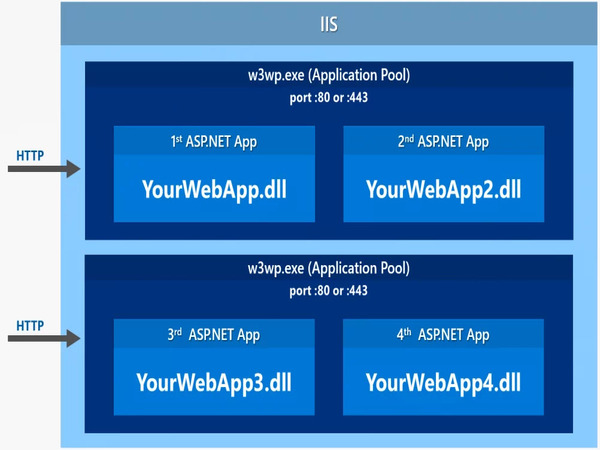
IIS工作原理

  • 应用初始化和管理: IIS作为中间平台,接收浏览器的HTTP请求并返回服务器数据。
  • 处理模块: IIS采用模块化结构,包含HTTP.sys——系统级HTTP请求管理器,通过ISAPI或ASP.NET将请求路由到相应应用。
  • 请求处理管道: IIS使用管道通过认证、加密、应用数据处理和响应返回等步骤处理请求。
  • 应用托管: IIS允许配置应用程序池,每个池独立运行以增强安全性和稳定性。
  • 安全支持: IIS提供SSL/TLS连接加密和Windows Authentication、Basic Authentication等认证机制。

IIS与ASP.NET Core的交互

ASP.NET Core可以部署在IIS上运行,提供高性能和可扩展性。

  • 托管模型: IIS使用ASP.NET Core Module(ANCM)作为适配器。当HTTP请求到达时,IIS使用ANCM启动应用或将请求转发给运行中的应用。
  • Kestrel和IIS: Kestrel是ASP.NET Core的内置Web服务器。IIS充当反向代理处理认证、压缩和SSL加密,Kestrel处理应用逻辑。
  • 资源管理: 每个ASP.NET Core应用在独立的应用程序池中运行,实现隔离和性能优化。
  • 日志和监控: IIS通过Application Insights支持ASP.NET Core应用的日志记录和监控。

什么是Google Cloud?功能和工作原理

IIS核心功能

  • Windows Server集成: IIS内置于Windows Server,支持PowerShell和Active Directory。
  • 强大的安全性: 多种认证方式(Basic、Digest、Windows Authentication)、SSL/TLS和IP限制。
  • 模块可扩展性: 模块化架构允许按需添加/移除功能(Logging Module、URL Rewrite、ARR)。
  • 易于管理: IIS Manager提供直观的图形界面;日志和诊断监控服务器活动。
  • 多语言支持: 通过扩展支持ASP.NET、PHP、Python、Node.js。
  • FTP支持: 集成FTP服务器用于内容管理和共享。
IIS优化技巧

为每个Web应用使用独立的应用程序池以隔离故障。当一个应用崩溃时,其他应用继续正常运行。配置适当的空闲超时以优化资源。

IIS使用场景

  • Web应用托管: IIS处理HTTP请求并提供HTML、ASP.NET内容或静态文件。
  • 多技术支持: ASP.NET、PHP、Node.js、REST API都可以部署在IIS上。
  • 多网站管理: 多站点托管功能允许在单台服务器上托管多个网站。
  • SEO优化: URL Rewrite模块配置对搜索引擎友好的URL。
  • 云集成: IIS可与Microsoft Azure集成进行云部署。

IIS Server版本历史

IIS经历了多个版本的重大改进:

  • IIS 1.0-3.0(1995-1997): 从基础Web服务器到支持Active Server Pages(ASP)。
  • IIS 4.0-5.0(1998-2000): MMC界面、SSL、应用隔离和WebDAV。
  • IIS 6.0(2003): 工作进程隔离模式和应用程序池,显著提高稳定性。
  • IIS 7.0-7.5(2008-2009): 全新模块化架构、FTP 7.5和最佳实践分析器。
  • IIS 8.0-8.5(2012-2013): 应用初始化、日志增强和动态配置管理。
  • IIS 10.0(2016+): HTTP/2支持、Windows容器和整体性能提升。

什么是HeidiSQL?高效使用HeidiSQL指南

IIS安全配置

更新IIS和操作系统: 始终通过Windows Update安装最新安全补丁。

配置SSL/TLS: 从可信CA安装SSL证书,仅允许TLS 1.2或TLS 1.3。禁用SSL 3.0和TLS 1.0。

设置最小权限: 使用低权限的独立应用账户而非管理员账户。

配置防火墙: 仅开放必要端口,设置防火墙从可信IP过滤流量。

禁用未使用的功能: 如不需要,关闭WebDAV或FTP以减少攻击面。

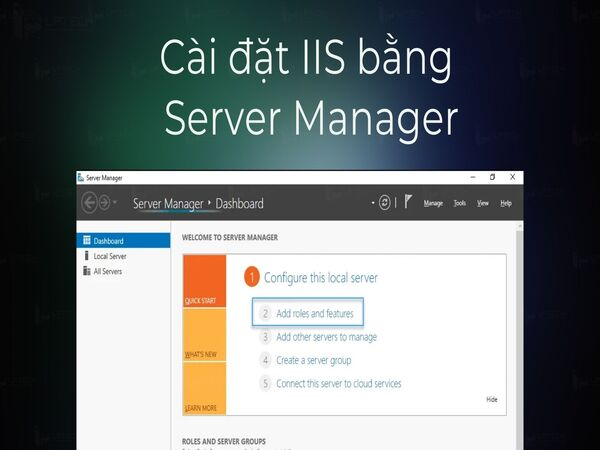
通过Server Manager安装IIS

  • 步骤1: 以管理员身份登录Windows Server,打开Server Manager。
  • 步骤2: 点击Manage > Add Roles and Features,点击Next。
  • 步骤3: 选择Role-based or feature-based installation,点击Next。
  • 步骤4: 选择目标服务器,点击Next。
  • 步骤5: 选择Web Server(IIS),点击Add Features > Next。
  • 步骤6: 选择额外Features(如需要),点击Next。
  • 步骤7: 选择所需角色服务(HTTP Logging、Request Filtering、ASP.NET...)。
  • 步骤8: 确认并点击Install。
  • 步骤9: 完成,点击Close。

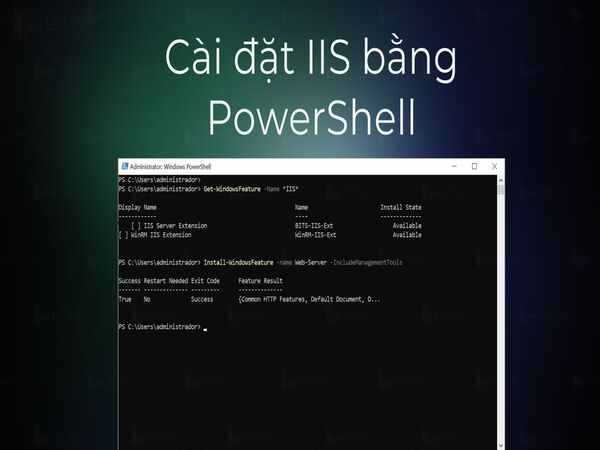
通过PowerShell安装IIS

  • 步骤1: 以管理员身份打开PowerShell(Windows + X > Windows PowerShell Admin)。
  • 步骤2: 检查状态:Get-WindowsFeature -Name Web-Server
  • 步骤3: 安装:Install-WindowsFeature -Name Web-Server -IncludeManagementTools
  • 步骤4: 验证Success结果。
  • 步骤5: 打开浏览器,输入http://localhost查看IIS欢迎页面。

如何在几分钟内创建在线代理

IIS vs Apache对比

标准 IIS Apache HTTP Server
操作系统 主要Windows 跨平台:Windows、Linux、macOS
许可 内置于Windows Server 开源免费
性能 针对Windows生态系统和ASP.NET优化 针对Linux优化
可扩展性 微软和第三方模块 数千个社区模块
集成 .NET、MSSQL、Active Directory MySQL、PHP、开源技术
配置 图形界面(IIS Manager)或PowerShell 文本文件(httpd.conf)
安全 微软定期更新 社区快速提供补丁
成本 Windows Server许可成本 完全免费
选择IIS还是Apache

使用微软生态系统(.NET、MSSQL、Active Directory)时IIS最合适。如果优先考虑低成本和跨平台灵活性,Linux上的Apache是更好的选择。

总结: IIS是与Windows深度集成的强大Web服务器,适合使用微软生态系统的企业。凭借直观的管理界面和强大的安全性,IIS是部署Web应用的可靠方案。

参考资料

常见问题

常见问题Q&A
什么是IIS?
IIS(Internet Information Services)是微软开发的Web服务器,用于在Windows操作系统上托管和管理Web应用程序,支持HTTP、HTTPS、FTP等多种协议。
IIS和Apache有什么区别?
IIS运行在Windows上,与.NET深度集成并有图形管理界面。Apache是开源的,跨平台,通过文本文件配置,社区模块更灵活。
IIS支持哪些编程语言?
IIS支持ASP.NET、C#、PHP、Python和Node.js(通过扩展模块)。特别擅长微软技术栈如.NET Framework和.NET Core。
如何在Windows Server上安装IIS?
两种方式:通过Server Manager(添加角色和功能 → Web Server IIS)或通过PowerShell运行Install-WindowsFeature -Name Web-Server -IncludeManagementTools。
IIS是免费的吗?
IIS内置于Windows Server和Windows 10/11中,无需额外的许可费用。但成本在于Windows Server的许可证本身。

IIS (Internet Information Services) is a powerful web server developed by Microsoft, widely used to host and manage web applications on the Windows platform. This article covers its features, installation and configuration.

What is IIS?

Internet Information Services is one of the most popular and powerful platforms for hosting and serving web applications and websites. IIS supports multiple protocols including HTTP, HTTPS, FTP, FTPS, SMTP and NNTP, meeting diverse needs for online content deployment and management.

With IIS, users can run applications built with ASP.NET, PHP, and other languages through extension modules. IIS integrates closely with the Microsoft ecosystem including Windows Server and .NET Framework, delivering high performance and strong security.

IIS also provides an easy-to-use graphical management interface (IIS Manager) for efficiently managing server settings and features.

How IIS Works

  • Application initialization and management: IIS acts as an intermediary platform, receiving HTTP requests from web browsers and responding with data from the server.
  • Processing modules: IIS has a modular structure including HTTP.sys — the system-level HTTP request manager that routes requests to appropriate applications through ISAPI or ASP.NET.
  • Request processing pipeline: IIS uses a pipeline to process requests through authentication, encryption, application data processing and response delivery.
  • Application hosting: IIS allows configuring application pools, each operating independently for enhanced security and stability.
  • Security support: IIS provides SSL/TLS for connection encryption and authentication mechanisms like Windows Authentication or Basic Authentication.

How IIS Interacts with ASP.NET Core

ASP.NET Core can be deployed and run on IIS, providing high performance and scalability.

  • Hosting model: IIS uses the ASP.NET Core Module (ANCM) as an adapter. When HTTP requests arrive, IIS uses ANCM to start the application or forward requests to the running application.
  • Kestrel and IIS: Kestrel is ASP.NET Core's built-in web server. IIS acts as a reverse proxy handling authentication, compression and SSL encryption, while Kestrel handles application logic.
  • Resource management: Each ASP.NET Core application runs in a separate application pool for isolation and performance optimization.
  • Logging and monitoring: IIS supports logging and monitoring ASP.NET Core applications through Application Insights.

What is Google Cloud? Features and How It Works

Key Features of IIS

  • Windows Server integration: IIS is built into Windows Server with PowerShell and Active Directory support.
  • Strong security: Multiple authentication methods (Basic, Digest, Windows Authentication), SSL/TLS and IP Restrictions.
  • Module extensibility: Modular architecture allows adding/removing features as needed (Logging Module, URL Rewrite, ARR).
  • Easy management: IIS Manager provides an intuitive GUI; Logging and Diagnostics monitor server activity.
  • Multi-language support: ASP.NET, PHP, Python, Node.js through extensions.
  • FTP support: Integrated FTP server for content management and sharing.
IIS Optimization Tips

Use separate Application Pools for each web application to isolate failures. When one application crashes, others continue running normally. Configure appropriate Idle Timeout to optimize resources.

IIS Use Cases

  • Web application hosting: IIS processes HTTP requests and serves HTML, ASP.NET content or static files.
  • Multi-technology support: ASP.NET, PHP, Node.js, REST APIs can all be deployed on IIS.
  • Multiple website management: Multiple Site Hosting allows hosting multiple websites on a single server.
  • SEO optimization: URL Rewrite module configures search engine-friendly URLs.
  • Cloud integration: IIS can integrate with Microsoft Azure for cloud deployment.

IIS Server Versions

IIS has gone through many versions with significant improvements:

  • IIS 1.0-3.0 (1995-1997): From basic web server to Active Server Pages (ASP) support.
  • IIS 4.0-5.0 (1998-2000): MMC interface, SSL, Application Isolation and WebDAV.
  • IIS 6.0 (2003): Worker Process Isolation Mode and Application Pools, significantly improved stability.
  • IIS 7.0-7.5 (2008-2009): Completely new modular architecture, FTP 7.5 and Best Practices Analyzer.
  • IIS 8.0-8.5 (2012-2013): Application Initialization, Logging Enhancements and dynamic configuration management.
  • IIS 10.0 (2016+): HTTP/2 support, Windows Containers and overall performance improvements.

What is HeidiSQL? Guide to Using HeidiSQL Effectively

IIS Security Setup

Update IIS and OS: Always install the latest security patches via Windows Update.

Configure SSL/TLS: Install SSL certificates from trusted CAs, only allow TLS 1.2 or TLS 1.3. Disable SSL 3.0 and TLS 1.0.

Set minimum permissions: Use separate application accounts with low privileges instead of admin accounts.

Configure firewall: Only open necessary ports, set up firewall to filter traffic from trusted IPs.

Disable unused features: Turn off WebDAV or FTP if not needed to reduce attack surface.

Installing IIS via Server Manager

  • Step 1: Log in to Windows Server with admin rights, open Server Manager.
  • Step 2: Click Manage > Add Roles and Features, click Next.
  • Step 3: Select Role-based or feature-based installation, click Next.
  • Step 4: Select the target server, click Next.
  • Step 5: Select Web Server (IIS), click Add Features > Next.
  • Step 6: Select additional Features (if needed), click Next.
  • Step 7: Select required role services (HTTP Logging, Request Filtering, ASP.NET...).
  • Step 8: Confirm and click Install.
  • Step 9: Complete, click Close.

Installing IIS via PowerShell

  • Step 1: Open PowerShell as admin (Windows + X > Windows PowerShell Admin).
  • Step 2: Check status: Get-WindowsFeature -Name Web-Server
  • Step 3: Install: Install-WindowsFeature -Name Web-Server -IncludeManagementTools
  • Step 4: Verify Success result.
  • Step 5: Open browser, enter http://localhost to see the IIS Welcome page.

How to Create a Proxy Online in Minutes

IIS vs Apache Comparison

Criteria IIS Apache HTTP Server
OS Primarily Windows Cross-platform: Windows, Linux, macOS
Licensing Built into Windows Server Open-source, free
Performance Optimized for Windows ecosystem, ASP.NET Optimized for Linux
Extensibility Microsoft and third-party modules Thousands of community modules
Integration .NET, MSSQL, Active Directory MySQL, PHP, open-source technologies
Configuration GUI (IIS Manager) or PowerShell Text files (httpd.conf)
Security Regular updates from Microsoft Fast community patches
Cost Windows Server license cost Completely free
Choosing IIS or Apache

IIS is best suited when using the Microsoft ecosystem (.NET, MSSQL, Active Directory). If you prioritize low cost and cross-platform flexibility, Apache on Linux is the better choice.

Conclusion: IIS is a powerful web server deeply integrated with Windows, ideal for enterprises using the Microsoft ecosystem. With its intuitive management interface and strong security, IIS is a reliable solution for deploying web applications.

Sources

Frequently Asked Questions

Frequently Asked QuestionsQ&A
What is IIS?
IIS (Internet Information Services) is a web server developed by Microsoft for hosting and managing web applications on Windows, supporting HTTP, HTTPS, FTP and other protocols.
How is IIS different from Apache?
IIS runs on Windows, integrates well with .NET and has a GUI management interface. Apache is open-source, cross-platform, configured via text files and more flexible with community modules.
What programming languages does IIS support?
IIS supports ASP.NET, C#, PHP, Python and Node.js through extension modules. It's particularly strong with Microsoft technologies like .NET Framework and .NET Core.
How to install IIS on Windows Server?
Two methods: via Server Manager (Add Roles and Features → Web Server IIS) or via PowerShell with Install-WindowsFeature -Name Web-Server -IncludeManagementTools.
Is IIS free?
IIS is built into Windows Server and Windows 10/11 with no separate license fee. However, the cost lies in the Windows Server license itself.