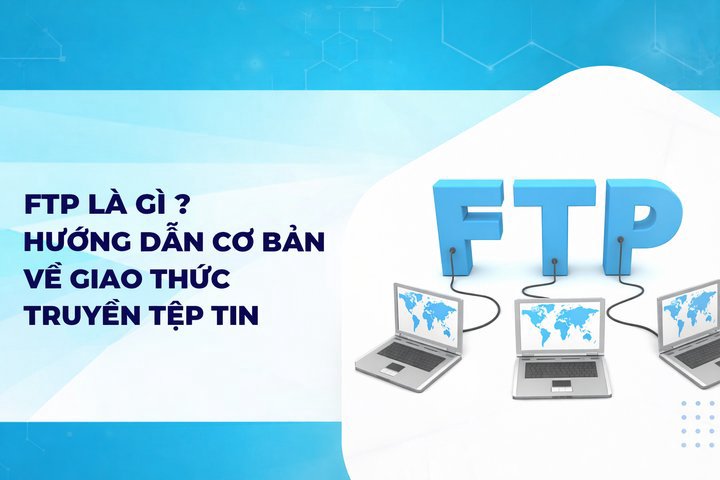
FTP là gì? Hướng dẫn cơ bản về giao thức truyền tệp tin
Networking

FTP là gì? Hướng dẫn cơ bản về giao thức truyền tệp tin

Tìm hiểu FTP (File Transfer Protocol) là gì, nguyên lý hoạt động, so sánh Active vs Passive Mode, cách thiết lập máy chủ FTP trên Windows và Linux, các giao thức FTPS/FTPES.

Trong series: Giao thức mạng
  1. 1 SMTP là gì? Cách hoạt động của máy chủ SMTP trong mạng
  2. 2 TCP/IP là gì? Chức năng và nguyên lý hoạt động của TCP/IP
  3. 3 Telnet là gì? Tổng quan về Telnet và ứng dụng của nó
  4. 4 SSH là gì? Chức năng và nguyên lý hoạt động của giao thức SSH
  5. 5 FTP là gì? Hướng dẫn cơ bản về giao thức truyền tệp tin
  6. 6 RTP là gì? Tìm hiểu chi tiết về giao thức RTP
  7. 7 UDP là gì? Tính năng và ứng dụng của giao thức UDP
✦ Tóm tắt nhanh
Tìm hiểu FTP (File Transfer Protocol) là gì, nguyên lý hoạt động, so sánh Active vs Passive Mode, cách thiết lập máy chủ FTP trên Windows và Linux, các giao thức FTPS/FTPES.
Bài này thế nào?

FTP (File Transfer Protocol) là giao thức mạng chuẩn dùng để truyền tải tệp tin giữa máy khách và máy chủ qua Internet. Bài viết giải thích chi tiết nguyên lý hoạt động, so sánh Active/Passive Mode, hướng dẫn thiết lập FTP server trên Windows và Linux, cùng các giao thức bảo mật FTPS/FTPES.

FTP là gì?

FTP là gì? FTP (File Transfer Protocol) là một giao thức truyền tải tệp tin được sử dụng để chuyển dữ liệu giữa một máy khách (client) và một máy chủ (server) thông qua mạng internet. Giao thức này cho phép người dùng tải lên (upload) và tải xuống (download) các tệp tin từ máy chủ, quản lý dữ liệu trên máy chủ như sao chép, đổi tên, hoặc xóa tệp. FTP thường được sử dụng trong các môi trường cần chuyển lượng lớn dữ liệu hoặc khi người dùng muốn truy cập từ xa vào các tệp trên máy chủ.

Mục đích sử dụng của giao thức FTP
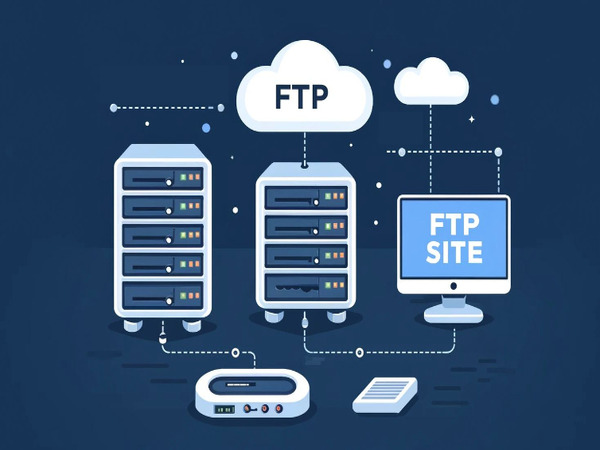
Mục đích sử dụng của FTP là gì? FTP được thiết kế để phục vụ mục đích chính là truyền tải tệp giữa máy khách và máy chủ một cách nhanh chóng và hiệu quả. Một số mục đích cụ thể của việc sử dụng giao thức FTP bao gồm:

  • Chia sẻ tệp tin: FTP cho phép người dùng tải lên và chia sẻ tệp tin trên máy chủ cho nhiều người dùng khác có thể truy cập từ xa.

  • Sao lưu dữ liệu: Người dùng có thể sử dụng FTP để sao lưu dữ liệu quan trọng từ máy tính cá nhân lên máy chủ để đảm bảo an toàn và dễ dàng khôi phục khi cần.

  • Quản lý website: Các nhà phát triển web thường sử dụng FTP để tải lên các tệp tin HTML, hình ảnh, và các tài liệu khác cần thiết cho việc xây dựng và quản lý trang web.

  • Truy cập từ xa: FTP cho phép người dùng truy cập từ xa vào hệ thống tệp của máy chủ, giúp dễ dàng quản lý dữ liệu mà không cần phải có mặt trực tiếp tại máy chủ.

  • Chuyển dữ liệu giữa các hệ thống khác nhau: FTP giúp chuyển tệp tin giữa các hệ điều hành khác nhau (Windows, Linux, macOS), đảm bảo khả năng tương thích và dễ dàng trao đổi dữ liệu.

Tóm lại, FTP giúp người dùng dễ dàng tải lên hoặc tải xuống các tệp từ máy chủ, thực hiện quản lý dữ liệu như đổi tên, xóa hoặc di chuyển tệp mà không cần truy cập trực tiếp vào hệ thống. Đây là một công cụ hữu ích cho việc chia sẻ và phân phối dữ liệu trong cả môi trường cá nhân lẫn doanh nghiệp.

Những lợi ích và hạn chế của giao thức FTP

Lợi ích và hạn chế của giao thức FTP là gì? FTP (File Transfer Protocol) mang đến nhiều lợi ích trong việc truyền tải và quản lý dữ liệu qua mạng internet. Tuy nhiên, nó cũng tồn tại một số hạn chế nhất định cần được lưu ý khi triển khai và sử dụng. Việc hiểu rõ cả mặt lợi ích và hạn chế sẽ giúp người dùng đưa ra quyết định tốt hơn khi lựa chọn FTP cho công việc của mình.

Lợi ích
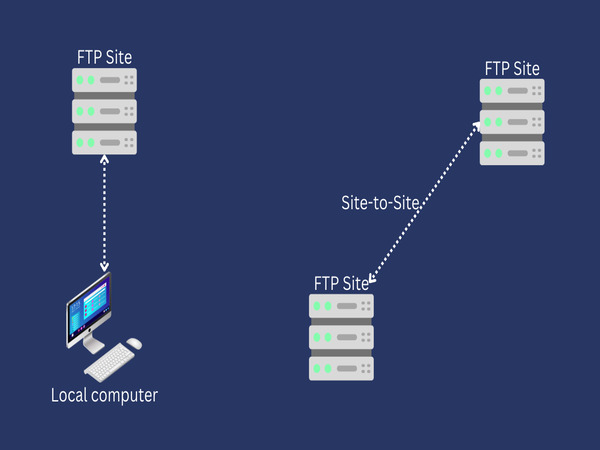
Lợi ích của giao thức FTP là gì? Giao thức Truyền tập tin (FTP) đã trở thành một công cụ không thể thiếu trong việc truyền tải dữ liệu qua mạng kể từ khi ra đời vào những năm 1970. Với lịch sử lâu đời và sự phổ biến rộng rãi, FTP mang đến nhiều lợi ích đáng kể cho người dùng cá nhân và doanh nghiệp.

  • Truyền tải tệp tin nhanh chóng: FTP được thiết kế để tối ưu hóa việc truyền tải tệp tin, đặc biệt là các tệp lớn hoặc nhiều tệp cùng một lúc. So với việc gửi qua email hoặc các phương thức khác, FTP có tốc độ nhanh và hiệu quả hơn trong các mạng tốc độ cao.

  • Hỗ trợ truyền tải tệp tin dung lượng lớn: FTP không giới hạn dung lượng tệp tin như một số dịch vụ email hoặc lưu trữ đám mây. Người dùng có thể truyền tải các tệp tin có kích thước lớn mà không gặp khó khăn.

  • Khả năng truyền tải song song: FTP cho phép người dùng tải lên và tải xuống nhiều tệp tin cùng lúc. Điều này giúp tiết kiệm thời gian và tăng hiệu quả làm việc, đặc biệt khi cần xử lý lượng dữ liệu lớn.

  • Quản lý và sắp xếp tệp dễ dàng: FTP cho phép người dùng thực hiện các thao tác quản lý tệp tin trực tiếp trên máy chủ, như sao chép, di chuyển, đổi tên, xóa tệp tin và thư mục mà không cần tải về máy cá nhân. Điều này rất thuận tiện cho việc quản lý dữ liệu từ xa.

  • Khả năng truy cập từ xa: Người dùng có thể kết nối và truy cập vào máy chủ FTP từ bất kỳ đâu thông qua mạng internet, giúp việc quản lý tệp tin từ xa trở nên linh hoạt và tiện lợi.

Tóm lại, giao thức FTP vẫn giữ vững vị trí quan trọng trong lĩnh vực truyền tải dữ liệu nhờ những lợi ích đa dạng mà nó mang lại. Mặc dù có những thách thức về bảo mật, với việc áp dụng các biện pháp bảo vệ phù hợp, FTP vẫn là một công cụ mạnh mẽ và đáng tin cậy trong thế giới kỹ thuật số hiện đại.

Hạn chế
Hạn chế của giao thức FTP là gì? Trong thời đại số hóa với những yêu cầu ngày càng cao về bảo mật và hiệu suất, FTP bộc lộ một số hạn chế đáng kể. Những hạn chế này không chỉ ảnh hưởng đến tính bảo mật của dữ liệu mà còn tác động đến hiệu quả sử dụng trong một số môi trường cụ thể.

  • Thiếu tính bảo mật: FTP truyền tải dữ liệu dưới dạng văn bản thuần (plain text), bao gồm cả thông tin đăng nhập (username, password). Điều này khiến nó dễ bị tấn công như nghe trộm dữ liệu (data sniffing) và chiếm quyền đăng nhập. SFTP (Secure FTP) và FTPS (FTP Secure) ra đời để khắc phục nhược điểm này, nhưng FTP thông thường vẫn thiếu tính bảo mật cao.
  • Khó cấu hình tường lửa: Do sử dụng nhiều cổng khác nhau, việc cấu hình tường lửa và thiết lập bảo mật mạng cho FTP có thể phức tạp. Điều này khiến việc triển khai FTP trong các mạng bảo mật cao gặp khó khăn.
  • Thiếu tính năng kiểm soát phiên bản: FTP không hỗ trợ tính năng kiểm soát phiên bản tệp, điều này khiến việc theo dõi các thay đổi trên tệp tin và khôi phục phiên bản cũ trở nên khó khăn nếu không có sự hỗ trợ từ phần mềm khác.
  • Phụ thuộc vào kết nối mạng: FTP yêu cầu kết nối mạng ổn định và tốc độ cao để hoạt động hiệu quả. Nếu mạng chậm hoặc không ổn định, quá trình truyền tải tệp có thể bị gián đoạn, gây ra lỗi.
  • Giao diện dòng lệnh khó sử dụng: Nhiều người dùng có thể thấy khó khăn khi làm việc với FTP qua giao diện dòng lệnh, đặc biệt là những người không có nhiều kinh nghiệm với công nghệ. Mặc dù có các phần mềm FTP với giao diện người dùng thân thiện (như FileZilla), FTP cơ bản vẫn đòi hỏi một số hiểu biết về kỹ thuật. Các vấn đề về bảo mật, hiệu suất và tính phức tạp trong cấu hình đặt ra thách thức đáng kể cho người dùng và quản trị viên hệ thống. Điều này đã thúc đẩy sự phát triển và áp dụng các giải pháp thay thế an toàn hơn như SFTP, FTPS, hoặc các dịch vụ truyền tải dữ liệu dựa trên đám mây.

Nguyên lý hoạt động của giao thức FTP
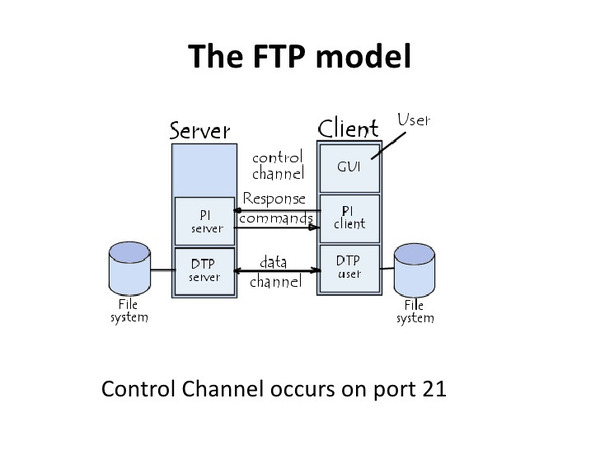
Nguyên lý hoạt động của FTP là gì? FTP hoạt động theo mô hình client-server, trong đó có một máy khách (client) và một máy chủ (server). Máy khách là thiết bị hoặc phần mềm mà người dùng sử dụng để truy cập vào máy chủ FTP. Nguyên lý hoạt động của FTP được mô tả chi tiết như sau:

  • Kết nối giữa máy khách và máy chủ: Đầu tiên, máy khách sẽ khởi tạo kết nối tới máy chủ FTP thông qua cổng 21 (cổng mặc định cho kết nối điều khiển). Sau đó, máy khách sẽ gửi thông tin đăng nhập bao gồm tên người dùng và mật khẩu để xác thực. Nếu thông tin đăng nhập hợp lệ, máy chủ sẽ cho phép máy khách truy cập.

  • Thiết lập kênh điều khiển và kênh dữ liệu: FTP sử dụng hai kênh riêng biệt để hoạt động:

    • Kênh điều khiển: Dùng để gửi các lệnh từ máy khách tới máy chủ và nhận phản hồi (acknowledgment). Kênh này thường sử dụng cổng 21.
    • Kênh dữ liệu: Dùng để truyền tải tệp tin giữa máy khách và máy chủ. FTP có thể sử dụng cổng khác nhau cho kênh dữ liệu, tùy thuộc vào chế độ hoạt động (Active Mode hoặc Passive Mode).
  • Truyền tải dữ liệu:

    • Trong chế độ Active Mode: Máy khách mở một cổng và đợi máy chủ kết nối lại qua cổng đó để truyền dữ liệu.
    • Trong chế độ Passive Mode: Máy khách yêu cầu máy chủ mở một cổng để nhận dữ liệu, sau đó máy khách kết nối tới cổng đó để truyền tải dữ liệu.
  • Gửi và nhận tệp tin: Sau khi kênh dữ liệu được thiết lập, máy khách có thể bắt đầu gửi yêu cầu tải lên hoặc tải xuống tệp tin. Dữ liệu sẽ được truyền tải qua kênh dữ liệu này. Máy khách cũng có thể thực hiện các thao tác khác như đổi tên, xóa tệp, tạo thư mục, hoặc di chuyển tệp tin trên máy chủ.

  • Kết thúc phiên làm việc: Khi hoàn tất việc truyền tải hoặc quản lý tệp tin, máy khách sẽ gửi lệnh để ngắt kết nối và đóng kênh điều khiển với máy chủ.

FTP hoạt động dựa trên mô hình truyền tải cơ bản, nhưng vẫn có thể tích hợp thêm các yếu tố bảo mật (như SFTP, FTPS) hoặc sử dụng các phần mềm hỗ trợ để quản lý tốt hơn trong môi trường hiện đại.

Các phương thức truyền dữ liệu trong FTP
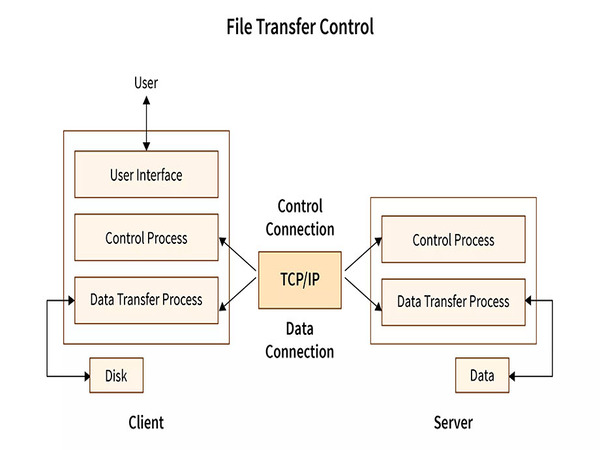
Phương thức truyền dữ liệu trong FTP là gì? Trong giao thức FTP, việc truyền tải dữ liệu giữa máy khách và máy chủ có thể diễn ra theo nhiều phương thức khác nhau, phụ thuộc vào loại tệp tin và mục đích sử dụng. Có ba phương thức truyền dữ liệu chính trong FTP:

  • Compressed mode: Compressed mode là phương thức truyền dữ liệu nén nhằm tối ưu hóa kích thước tệp tin trước khi truyền qua mạng. Phương pháp này giúp tiết kiệm băng thông và rút ngắn thời gian truyền dữ liệu, đặc biệt hữu ích khi truyền các tệp tin lớn hoặc khi băng thông mạng bị giới hạn. Compressed mode thường được sử dụng khi truyền tải dữ liệu trên các đường truyền có tốc độ chậm hoặc khi truyền các tệp có kích thước lớn mà không yêu cầu tốc độ thời gian thực. Tuy nhiên, trong các mạng có băng thông lớn, phương pháp này ít được ưu tiên vì việc nén và giải nén có thể mất thời gian.
  • Stream mode: Stream mode là phương thức truyền dữ liệu đơn giản và phổ biến nhất trong FTP, trong đó dữ liệu được gửi theo dòng liên tục từ máy khách đến máy chủ mà không cần chia nhỏ hoặc đóng gói. Dữ liệu sẽ được chuyển ngay lập tức qua kết nối TCP/IP. Stream mode được sử dụng phổ biến trong các môi trường có mạng ổn định, nơi tốc độ truyền tải là yếu tố quan trọng. Do tính đơn giản và tốc độ cao, phương thức này phù hợp với việc truyền tải các tệp tin không yêu cầu bảo mật hoặc kiểm tra lỗi nghiêm ngặt.
  • Block mode: Block mode là phương thức truyền dữ liệu trong FTP mà dữ liệu được chia thành các khối (block) nhỏ, mỗi khối đều có một tiêu đề chứa thông tin về kích thước và định dạng của dữ liệu. Điều này giúp kiểm soát và theo dõi quá trình truyền tải dễ dàng hơn, đặc biệt trong các tình huống truyền tải phức tạp hoặc yêu cầu độ tin cậy cao. Block mode thường được sử dụng trong các trường hợp mà việc truyền tải dữ liệu yêu cầu độ tin cậy và kiểm tra toàn vẹn, ví dụ như truyền tải các tệp tin quan trọng hoặc trong môi trường mạng không ổn định. Phương thức này thích hợp cho các hệ thống cần khả năng phục hồi và kiểm tra lỗi chặt chẽ.

Mỗi phương thức truyền dữ liệu trong FTP – Compressed mode, Stream mode, và Block mode – đều có những ưu điểm và nhược điểm riêng, phù hợp với các yêu cầu truyền tải dữ liệu khác nhau. Lựa chọn phương thức phù hợp phụ thuộc vào yêu cầu cụ thể về tốc độ, tính toàn vẹn dữ liệu, và tài nguyên mạng của người dùng hoặc hệ thống.

So sánh giữa kết nối FTP chủ động và thụ động
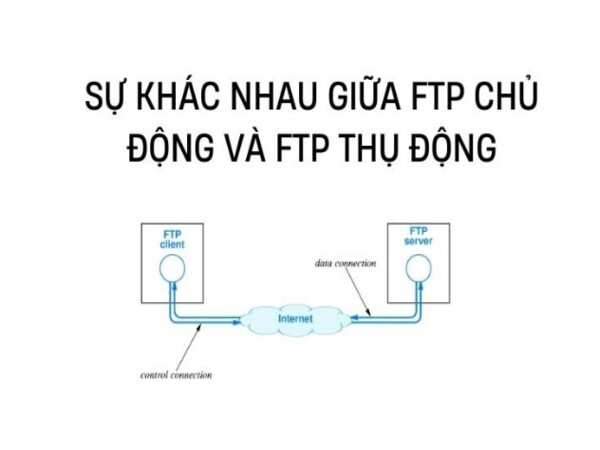
Kết nối FTP có thể diễn ra theo hai chế độ: chủ động (Active Mode) và thụ động (Passive Mode). Cả hai chế độ đều có ưu điểm riêng, nhưng khác nhau về cách máy khách và máy chủ thiết lập kết nối và trao đổi dữ liệu.

  • FTP chủ động (Active Mode): FTP chủ động là phương thức truyền tải dữ liệu truyền thống trong giao thức FTP. Đây là phương thức đơn giản và trực tiếp, nhưng có thể gặp một số thách thức trong môi trường mạng hiện đại.

    • Cách thức hoạt động: Trong chế độ chủ động, máy khách sẽ mở một cổng để nhận dữ liệu và gửi địa chỉ IP và cổng đó cho máy chủ. Sau đó, máy chủ sẽ kết nối lại với máy khách qua cổng được chỉ định để bắt đầu truyền dữ liệu.

    • Ưu điểm: Chế độ này thường nhanh chóng và dễ thiết lập khi không có tường lửa phức tạp.

    • Hạn chế: Nếu máy khách nằm sau một tường lửa nghiêm ngặt, việc mở cổng để nhận kết nối từ máy chủ có thể bị chặn, gây ra lỗi kết nối hoặc truyền dữ liệu thất bại. Điều này đặc biệt phổ biến khi máy khách sử dụng các mạng bảo mật hoặc công cộng.

  • FTP thụ động (Passive Mode): FTP thụ động là một phương thức thay thế được phát triển để giải quyết một số hạn chế của chế độ chủ động. Phương thức này thường được ưa chuộng hơn trong các môi trường có tường lửa và NAT.

    • Cách thức hoạt động: Trong chế độ thụ động, thay vì máy khách mở cổng, máy chủ sẽ mở một cổng để truyền dữ liệu và gửi thông tin cổng đó về cho máy khách. Máy khách sau đó sẽ kết nối tới cổng của máy chủ để truyền tải dữ liệu.
    • Ưu điểm: Phù hợp với các máy khách nằm sau tường lửa hoặc NAT (Network Address Translation), vì máy khách không cần mở cổng và có thể tự do kết nối tới máy chủ.
    • Hạn chế: Chế độ này yêu cầu máy chủ phải quản lý các cổng mở, dễ gây ra các vấn đề bảo mật nếu không được quản lý chặt chẽ.
  • So sánh chi tiết hai phương thức FTP: Để hiểu rõ hơn về sự khác biệt giữa hai phương thức kết nối FTP này, chúng ta cần đi sâu vào phân tích chi tiết về cách thức hoạt động, ưu điểm, nhược điểm và các tình huống sử dụng phù hợp của mỗi phương thức.

    • Tường lửa và NAT: FTP thụ động thường phù hợp hơn khi máy khách hoặc máy chủ nằm sau tường lửa hoặc NAT, vì nó không yêu cầu kết nối ngược lại từ máy chủ đến máy khách.
    • Bảo mật: Chế độ thụ động an toàn hơn trong một số trường hợp, đặc biệt khi máy khách không cần mở cổng mạng. Ngược lại, chế độ chủ động có thể khiến máy khách dễ bị tấn công hơn nếu không được bảo vệ cẩn thận.
    • Hiệu quả: FTP chủ động thường nhanh hơn trong các môi trường không bị ràng buộc bởi các quy tắc tường lửa nghiêm ngặt, vì máy chủ có thể kết nối trực tiếp đến máy khách mà không cần thêm các bước trung gian. Tóm lại, cả kết nối FTP chủ động và thụ động đều có những ưu nhược điểm riêng. Việc lựa chọn phương thức kết nối phù hợp phụ thuộc vào yêu cầu cụ thể của hệ thống, cấu hình mạng và các chính sách bảo mật. Hiểu rõ cách hoạt động của cả hai phương thức sẽ giúp quản trị viên đưa ra quyết định tốt nhất cho môi trường FTP của mình, đảm bảo truyền tải dữ liệu hiệu quả và an toàn.

Hướng dẫn thiết lập máy chủ FTP đơn giản và hiệu quả

Thiết lập một máy chủ FTP (File Transfer Protocol) là cách nhanh chóng và tiện lợi để chia sẻ và truyền tải tệp tin giữa các thiết bị thông qua mạng. Dưới đây là hướng dẫn chi tiết để cài đặt máy chủ FTP trên cả hệ điều hành Windows và Linux, giúp bạn dễ dàng thực hiện các thao tác này một cách đơn giản và hiệu quả.

Chuẩn bị trước khi cài đặt
Trước khi bắt đầu thiết lập máy chủ FTP, cần chuẩn bị một số điều kiện cơ bản:

  • Máy chủ hoặc máy tính: Đảm bảo rằng máy tính của bạn luôn có kết nối internet ổn định và có đủ dung lượng lưu trữ.
  • Phần mềm máy chủ FTP: Có nhiều phần mềm hỗ trợ thiết lập máy chủ FTP như FileZilla Server (Windows) hoặc vsftpd (Linux).
  • Quyền quản trị hệ thống: Bạn cần có quyền quản trị (administrator/root) trên máy tính để thực hiện các thao tác cài đặt và cấu hình.

Thiết lập máy chủ FTP trên Windows
Dưới đây là các bước cài đặt và cấu hình máy chủ FTP trên hệ điều hành Windows sử dụng FileZilla Server:

  • Bước 1 – Tải và cài đặt phần mềm FileZilla Server: Tải FileZilla Server từ trang web chính thức của FileZilla (filezilla-project.org). Sau khi tải xuống, tiến hành cài đặt bằng cách chạy tệp cài đặt và làm theo hướng dẫn trên màn hình.

  • Bước 2 – Cấu hình FileZilla Server: Khi mở FileZilla Server lần đầu, bạn sẽ thấy giao diện quản trị của chương trình. Thiết lập cổng kết nối mặc định là 21 (cổng tiêu chuẩn của FTP). Tạo thư mục chính để lưu trữ các tệp tin bạn muốn chia sẻ và thiết lập quyền truy cập cho từng người dùng hoặc nhóm người dùng.

  • Bước 3 – Tạo tài khoản người dùng FTP: Trong FileZilla Server, vào mục "Edit" > "Users" và thêm các tài khoản người dùng FTP. Bạn có thể đặt quyền hạn cụ thể cho từng tài khoản, bao gồm quyền truy cập, tải lên, tải xuống hoặc xóa tệp tin.

  • Bước 4 – Cấu hình tường lửa: Đảm bảo rằng cổng 21 được mở trên tường lửa của Windows để cho phép kết nối FTP từ bên ngoài. Nếu bạn sử dụng một router, hãy đảm bảo rằng bạn đã thiết lập port forwarding để chuyển tiếp các kết nối đến đúng máy chủ FTP của bạn.

  • Bước 5 – Kiểm tra kết nối: Sau khi hoàn thành cấu hình, bạn có thể kiểm tra kết nối FTP bằng cách sử dụng một phần mềm khách FTP như FileZilla Client hoặc trình duyệt web. Nhập địa chỉ IP hoặc tên miền của máy chủ FTP, tài khoản và mật khẩu để kết nối và kiểm tra xem có thể tải lên và tải xuống tệp tin hay không.

Thiết lập máy chủ FTP trên Linux
Đối với người dùng Linux, vsftpd (Very Secure FTP Daemon) là một trong những phần mềm phổ biến nhất để thiết lập máy chủ FTP.

Bước 1 – Cài đặt vsftpd: Sử dụng lệnh sau để cài đặt vsftpd trên các hệ thống Ubuntu/Debian:

  • sudo apt update

  • sudo apt install vsftpd Bước 2 – Cấu hình vsftpd: Sau khi cài đặt, mở và chỉnh sửa tệp cấu hình của vsftpd tại /etc/vsftpd.conf:

  • sudo nano /etc/vsftpd.conf

  • Tắt truy cập ẩn danh bằng cách thay đổi dòng sau: anonymous_enable=NO

  • Cho phép người dùng địa phương đăng nhập: local_enable=YES

  • Bật quyền tải lên và thay đổi tệp tin: write_enable=YES

  • Sau khi chỉnh sửa, lưu và thoát khỏi tệp cấu hình. Bước 3 – Khởi động lại vsftpd: Sau khi hoàn tất cấu hình, bạn cần khởi động lại dịch vụ vsftpd để áp dụng các thay đổi: Bước 4 – Tạo tài khoản người dùng FTP: Tạo tài khoản người dùng với quyền hạn truy cập tới một thư mục nhất định:

  • sudo adduser ftpuser

  • sudo passwd ftpuser

  • sudo mkdir /home/ftpuser/ftp

  • sudo chown nobody:nogroup /home/ftpuser/ftp

  • sudo chmod a-w /home/ftpuser/ftp

  • sudo mkdir /home/ftpuser/ftp/files

  • sudo chown ftpuser:ftpuser /home/ftpuser/ftp/files Người dùng này sẽ chỉ có quyền truy cập vào thư mục /home/ftpuser/ftp/files trên hệ thống. Bước 5 – Kiểm tra kết nối: Sử dụng một phần mềm FTP khách hoặc lệnh ftp trên máy tính khác để kiểm tra kết nối tới máy chủ FTP vừa thiết lập. Nhập địa chỉ IP của máy chủ FTP, tên tài khoản và mật khẩu để truy cập.

Các biện pháp bảo mật khi thiết lập FTP
Việc triển khai các biện pháp bảo mật khi thiết lập FTP không chỉ bảo vệ dữ liệu của bạn mà còn đảm bảo tính toàn vẹn của hệ thống mạng. FTP mặc định không mã hóa dữ liệu, vì vậy cần áp dụng các biện pháp bảo mật sau:

  • Sử dụng FTPS hoặc SFTP: FTPS sử dụng SSL/TLS để mã hóa dữ liệu, trong khi SFTP chạy trên SSH (Secure Shell) và bảo mật toàn bộ kết nối.
  • Thiết lập tường lửa: Giới hạn các địa chỉ IP có thể truy cập máy chủ FTP của bạn.
  • Sử dụng mật khẩu mạnh: Đảm bảo mật khẩu của các tài khoản người dùng đủ phức tạp để tránh bị tấn công.
  • Giới hạn quyền truy cập: Chỉ cấp quyền cần thiết cho từng người dùng, và thường xuyên kiểm tra nhật ký kết nối để phát hiện các truy cập bất thường.

Việc thiết lập máy chủ FTP khá đơn giản nhưng đòi hỏi bạn phải cẩn thận trong việc cấu hình và bảo mật hệ thống. Bằng cách làm theo hướng dẫn trên, bạn có thể tạo ra một môi trường an toàn và hiệu quả để chia sẻ tệp tin giữa các thiết bị và người dùng trong mạng.

Top 4 phần mềm FTP phổ biến và dễ sử dụng

FTP không chỉ là một giao thức truyền tải tệp mà còn có nhiều phần mềm hỗ trợ để quản lý và thực hiện việc truyền tải này một cách hiệu quả. Dưới đây là bốn phần mềm FTP phổ biến và dễ sử dụng nhất:

Phần mềm FileZilla

FileZilla là phần mềm FTP mã nguồn mở và hoàn toàn miễn phí, rất được ưa chuộng bởi giao diện đơn giản và tính năng mạnh mẽ. Hỗ trợ các giao thức FTP, FTPS và SFTP. Cho phép kéo thả tệp tin giữa máy tính và máy chủ FTP dễ dàng. FileZilla còn hỗ trợ đa nền tảng (Windows, macOS, Linux) và có tính năng quản lý kết nối tự động giúp tiết kiệm thời gian. Phù hợp cho cả người dùng mới lẫn chuyên gia do tính linh hoạt và khả năng tùy chỉnh cao.

Phần mềm Transmit
Transmit là phần mềm FTP dành riêng cho macOS, nổi bật với giao diện người dùng trực quan và dễ sử dụng. Hỗ trợ không chỉ FTP, FTPS, SFTP mà còn các dịch vụ lưu trữ đám mây như Amazon S3, Google Drive, và Dropbox. Tính năng Sync của Transmit giúp đồng bộ hóa tệp tin giữa máy chủ và máy tính cá nhân nhanh chóng và tiện lợi. Transmit được đánh giá cao bởi tốc độ truyền tải nhanh và khả năng kết nối ổn định, rất phù hợp cho người dùng macOS làm việc với nhiều máy chủ khác nhau.

Phần mềm WinSCP
WinSCP là phần mềm FTP mã nguồn mở dành cho hệ điều hành Windows, rất phổ biến nhờ giao diện đơn giản và tính bảo mật cao. Hỗ trợ các giao thức FTP, SFTP, FTPS và SCP (Secure Copy Protocol). Tích hợp tính năng kéo thả tệp tin, giúp người dùng dễ dàng thao tác truyền tải tệp giữa máy tính và máy chủ từ xa. Ngoài ra, WinSCP còn cho phép người dùng chỉnh sửa trực tiếp tệp tin trên máy chủ mà không cần phải tải về máy tính, giúp tiết kiệm thời gian làm việc.

Phần mềm WS_FTP
WS_FTP là một phần mềm FTP thương mại, được biết đến với khả năng bảo mật cao và nhiều tính năng mạnh mẽ dành cho người dùng chuyên nghiệp. Hỗ trợ các giao thức FTP, FTPS, SFTP, đảm bảo an toàn khi truyền tải tệp nhờ mã hóa AES và chế độ xác thực đa yếu tố. Tính năng Backup tự động và lịch trình truyền tải giúp người dùng dễ dàng quản lý công việc mà không cần theo dõi thường xuyên. Phần mềm này có giao diện thân thiện, dễ sử dụng và phù hợp cho các doanh nghiệp cần giải pháp FTP chuyên nghiệp với độ bảo mật cao.

Mã độc là gì? Phân loại, đặc tính và cách phòng tránh

Các loại giao thức FTP phổ biến hiện nay

FTP là một giao thức truyền tải tệp tin từ máy tính này sang máy tính khác qua mạng Internet, nhưng với sự phát triển của công nghệ và yêu cầu về bảo mật, FTP đã được cải tiến và phát triển thành nhiều phiên bản khác nhau nhằm đáp ứng nhu cầu đa dạng của người dùng. Dưới đây là các loại giao thức FTP phổ biến hiện nay, bao gồm FTP Plain, FTPS, và FTPES.

Giao thức FTP Plain
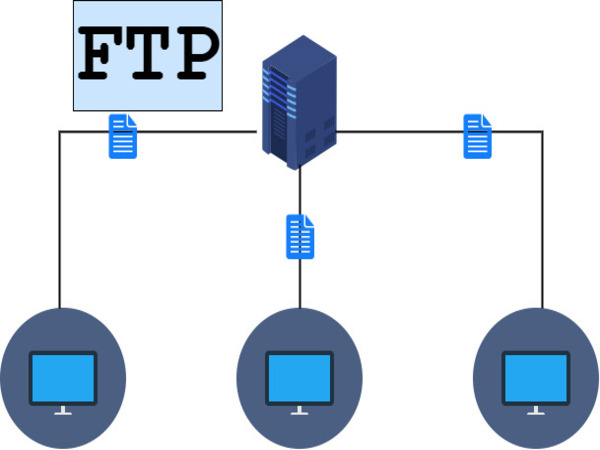
FTP Plain (hay còn gọi là FTP thông thường) là phiên bản cơ bản của giao thức FTP, cho phép truyền tải tệp tin giữa máy chủ và máy khách mà không có bất kỳ cơ chế mã hóa nào. Đây là loại FTP đầu tiên được phát triển và vẫn được sử dụng trong một số trường hợp yêu cầu ít về bảo mật.

  • Kết nối không mã hóa: FTP Plain truyền tải dữ liệu dưới dạng văn bản thuần túy, tức là cả dữ liệu tệp tin và thông tin đăng nhập như tên người dùng, mật khẩu đều không được mã hóa. Điều này có thể gây nguy hiểm khi sử dụng trên các mạng công cộng hoặc không an toàn.
  • Tốc độ truyền nhanh: Do không có quá trình mã hóa, FTP Plain có tốc độ truyền tải nhanh hơn so với các giao thức bảo mật khác.
  • Sử dụng cổng mặc định: Cổng mặc định của FTP Plain là cổng 21, và nó yêu cầu một loạt các cổng bổ sung để quản lý dữ liệu, điều này có thể phức tạp trong việc thiết lập tường lửa.

FTP Plain chủ yếu được sử dụng trong các môi trường nội bộ, mạng cục bộ (LAN) hoặc những trường hợp mà dữ liệu không yêu cầu bảo mật cao. Nó ít được sử dụng trên Internet công cộng do nguy cơ bị đánh cắp dữ liệu và tấn công mạng.

Giao thức FTPS
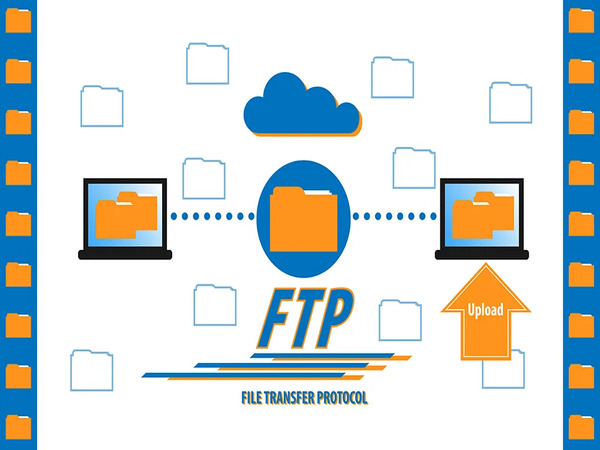
FTPS (FTP Secure hoặc FTP-SSL) là phiên bản nâng cao của FTP, được tích hợp thêm khả năng mã hóa dữ liệu thông qua giao thức SSL/TLS (Secure Sockets Layer/Transport Layer Security). Điều này giúp bảo vệ thông tin truyền tải, đặc biệt là tên người dùng và mật khẩu, tránh bị rò rỉ hoặc tấn công.

  • Mã hóa SSL/TLS: FTPS sử dụng SSL/TLS để mã hóa cả dữ liệu và thông tin đăng nhập, đảm bảo rằng các thông tin này không thể bị đọc hoặc thay đổi bởi bên thứ ba.
  • Bảo mật mạnh mẽ: FTPS cung cấp bảo mật cao hơn so với FTP Plain nhờ sử dụng các chứng chỉ SSL/TLS. Các chứng chỉ này có thể do bên thứ ba phát hành hoặc tự tạo tùy theo nhu cầu của người dùng.
  • Sử dụng cổng 21 và cổng SSL: FTPS vẫn sử dụng cổng 21 cho việc khởi tạo kết nối, nhưng sẽ yêu cầu các cổng bổ sung cho việc truyền tải dữ liệu mã hóa thông qua SSL.

FTPS được sử dụng phổ biến trong các doanh nghiệp hoặc tổ chức có yêu cầu cao về bảo mật dữ liệu khi truyền tải qua mạng Internet. Nó phù hợp với các ứng dụng như truyền tải dữ liệu nhạy cảm, dữ liệu tài chính, hoặc thông tin cá nhân.

Giao thức FTPES
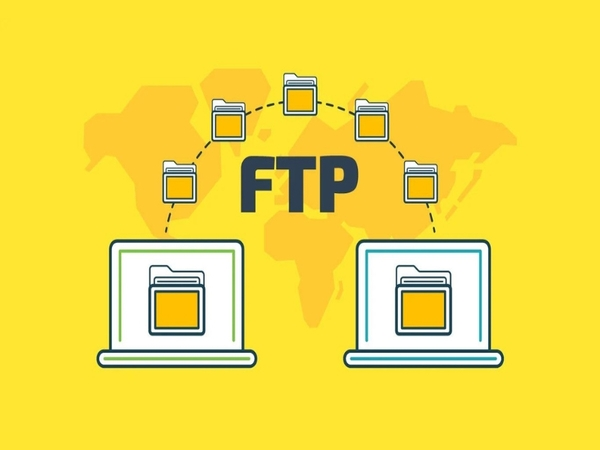
FTPES (FTP Explicit SSL/TLS) là một biến thể khác của FTP bảo mật, trong đó SSL/TLS chỉ được kích hoạt khi người dùng yêu cầu một cách rõ ràng (explicit) sau khi kết nối đã được thiết lập. Điều này cho phép máy chủ hỗ trợ cả kết nối FTP thông thường và kết nối FTP bảo mật trên cùng một cổng, tùy thuộc vào nhu cầu của người dùng.

  • Kết nối linh hoạt: FTPES cho phép người dùng lựa chọn giữa kết nối bảo mật (sử dụng SSL/TLS) hoặc kết nối thông thường (không mã hóa). Điều này giúp FTPES linh hoạt hơn trong việc hỗ trợ các kiểu kết nối khác nhau.
  • Chứng chỉ SSL/TLS: Giống như FTPS, FTPES cũng sử dụng chứng chỉ SSL/TLS để mã hóa dữ liệu khi cần thiết. Tuy nhiên, sự khác biệt là FTPES không bắt buộc phải mã hóa mọi kết nối, điều này giúp tiết kiệm tài nguyên trong một số trường hợp.
  • Cổng sử dụng: FTPES thường vẫn sử dụng cổng 21 cho các kết nối, nhưng sẽ kích hoạt SSL/TLS sau khi kết nối được thiết lập nếu người dùng yêu cầu.

FTPES thường được sử dụng trong các môi trường yêu cầu tính linh hoạt cao, nơi một số người dùng có thể cần bảo mật dữ liệu trong khi những người khác có thể không. Nó thích hợp cho các tổ chức hoặc doanh nghiệp hỗ trợ nhiều loại khách hàng hoặc đối tác có nhu cầu kết nối khác nhau.

Những điều cần lưu ý khi sử dụng giao thức FTP
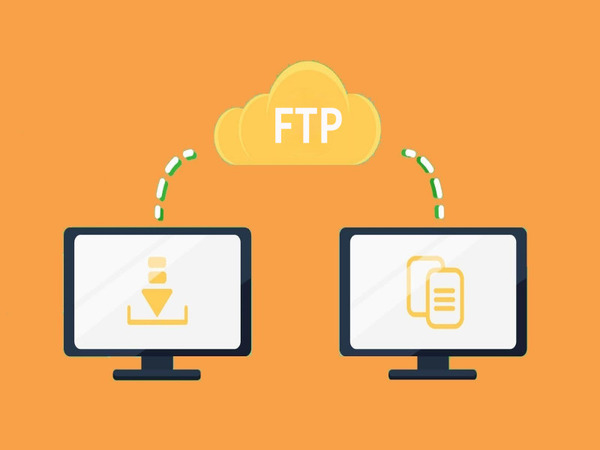
Những điều lưu ý khi sử dụng giao thức FTP là gì? Việc sử dụng giao thức này cũng đòi hỏi người dùng phải chú ý đến một số vấn đề quan trọng để đảm bảo an toàn thông tin và hiệu quả trong quá trình sử dụng. Dưới đây là những điểm cần lưu ý khi sử dụng giao thức FTP, giúp người dùng có thể tận dụng tối đa lợi ích của giao thức này đồng thời tránh được những rủi ro tiềm ẩn.

  • Bảo mật thông tin: FTP Plain không mã hóa dữ liệu, nên thông tin truyền tải có thể bị tấn công hoặc đánh cắp trên đường truyền. Để tăng cường bảo mật, bạn nên sử dụng các giao thức FTP bảo mật như FTPS hoặc FTPES nhằm mã hóa dữ liệu và bảo vệ thông tin đăng nhập.
  • Thiết lập tường lửa và cổng kết nối: FTP yêu cầu nhiều cổng để truyền tải dữ liệu, nên khi cấu hình, bạn cần đảm bảo tường lửa của hệ thống đã mở các cổng cần thiết để kết nối không bị gián đoạn. Trong trường hợp này, chế độ FTP thụ động (Passive FTP) thường dễ thiết lập hơn vì máy chủ quản lý nhiều cổng.
  • Quản lý quyền truy cập: Hạn chế quyền truy cập chỉ dành cho những người thực sự cần thiết và đặt mật khẩu mạnh cho các tài khoản truy cập FTP. Điều này giúp bảo vệ máy chủ khỏi các truy cập trái phép và giảm nguy cơ tấn công mạng.
  • Giám sát và ghi log: Cần theo dõi và ghi log mọi hoạt động liên quan đến FTP, bao gồm các lần đăng nhập và tải xuống hoặc tải lên tệp tin. Điều này giúp phát hiện các hoạt động bất thường hoặc truy cập trái phép nhanh chóng.
  • Cập nhật phần mềm và chứng chỉ bảo mật: Thường xuyên kiểm tra và cập nhật phần mềm FTP để đảm bảo bạn đang sử dụng phiên bản an toàn nhất, tránh các lỗ hổng bảo mật. Đồng thời, nếu sử dụng FTPS hoặc FTPES, hãy đảm bảo rằng các chứng chỉ SSL/TLS luôn được cập nhật và hợp lệ.
  • Lưu ý khi sử dụng trên mạng công cộng: Tránh sử dụng FTP Plain trên các mạng công cộng hoặc không an toàn, vì thông tin dễ bị đánh cắp. Nếu bắt buộc phải sử dụng trên mạng công cộng, bạn nên dùng các giao thức bảo mật hoặc kênh VPN để đảm bảo an toàn.

Tóm lại, giao thức FTP là một công cụ hữu ích trong việc truyền tải dữ liệu, nhưng việc sử dụng nó đòi hỏi sự cẩn trọng và hiểu biết. Bằng cách tuân thủ các nguyên tắc an toàn, sử dụng các phiên bản bảo mật, và thường xuyên cập nhật kiến thức về các mối đe dọa mới, người dùng có thể tối ưu hóa việc sử dụng FTP trong khi vẫn đảm bảo an toàn cho dữ liệu của mình.

{{< test-result title="So sánh các giao thức truyền tệp" columns="Giao thức | Mã hóa | Cổng mặc định | Tốc độ | Bảo mật | Phù hợp" rows="FTP Plain | Không | 21 | Nhanh nhất | Thấp | Mạng nội bộ (LAN);FTPS (Implicit) | SSL/TLS | 990 | Trung bình | Cao | Doanh nghiệp;FTPES (Explicit) | SSL/TLS tùy chọn | 21 | Trung bình | Cao | Môi trường linh hoạt;SFTP | SSH | 22 | Trung bình | Rất cao | Production server;SCP | SSH | 22 | Nhanh | Rất cao | Truyền file đơn lẻ" />}}

Khuyến nghị bảo mật FTP

Không sử dụng FTP Plain trên mạng công cộng. Ưu tiên SFTP hoặc FTPS, đặt mật khẩu mạnh, giới hạn quyền truy cập theo thư mục, và bật ghi log để giám sát hoạt động truyền tải.

Kết luận: FTP vẫn là giao thức truyền tải tệp tin quan trọng nhờ tốc độ cao và khả năng xử lý file lớn. Tuy nhiên, trong môi trường hiện đại, nên sử dụng các biến thể bảo mật như FTPS hoặc SFTP để bảo vệ dữ liệu truyền tải và thông tin đăng nhập.

Nguồn tham khảo
  1. RFC 959 — File Transfer Protocol — Đặc tả gốc của giao thức FTP
  2. FileZilla Documentation — Tài liệu hướng dẫn FileZilla
  3. vsftpd Official Page — Phần mềm FTP server bảo mật cho Linux
  4. DigitalOcean — How To Set Up vsftpd — Hướng dẫn thiết lập vsftpd
  5. Cloudflare — What is FTP? — Giải thích FTP cho người mới

Câu hỏi thường gặpQ&A
FTP là gì?
FTP (File Transfer Protocol) là giao thức mạng chuẩn dùng để truyền tải tệp tin giữa máy khách và máy chủ qua mạng Internet. FTP sử dụng hai kênh riêng biệt: kênh điều khiển (cổng 21) và kênh dữ liệu.
FTP sử dụng cổng nào?
FTP sử dụng cổng 21 cho kênh điều khiển (gửi lệnh) và cổng 20 hoặc cổng ngẫu nhiên cho kênh dữ liệu tùy thuộc vào chế độ Active hay Passive Mode.
Sự khác biệt giữa FTP, FTPS và SFTP là gì?
FTP truyền dữ liệu dạng plaintext không mã hóa. FTPS thêm lớp mã hóa SSL/TLS lên FTP. SFTP là giao thức hoàn toàn khác, chạy trên SSH và mã hóa toàn bộ kết nối.
Active Mode và Passive Mode trong FTP khác nhau thế nào?
Active Mode: máy chủ kết nối ngược lại máy khách để truyền dữ liệu. Passive Mode: máy khách chủ động kết nối tới cổng do máy chủ mở. Passive Mode phù hợp hơn khi máy khách ở sau tường lửa hoặc NAT.
Có nên sử dụng FTP Plain trên mạng công cộng không?
Không nên vì FTP Plain truyền dữ liệu và thông tin đăng nhập dạng plaintext, dễ bị nghe lén. Trên mạng công cộng nên dùng FTPS, SFTP hoặc kết hợp VPN để bảo mật.

FTP (File Transfer Protocol) is a standard network protocol used to transfer files between a client and a server over the Internet. This article explains in detail how it works, compares Active/Passive Mode, provides instructions for setting up an FTP server on Windows and Linux, along with FTPS/FTPES secure protocols.

What is FTP?

What is FTP? FTP (File Transfer Protocol) is a file transfer protocol used to move data between a client and a server over the internet. This protocol allows users to upload and download files from the server, manage data on the server such as copying, renaming, or deleting files. FTP is commonly used in environments that require transferring large amounts of data or when users want remote access to files on a server.

Purposes of FTP Protocol

What is the purpose of FTP? FTP is designed to primarily serve the purpose of transferring files between a client and a server quickly and efficiently. Some specific purposes of using the FTP protocol include:

  • File sharing: FTP allows users to upload and share files on a server so that many other users can access them remotely.
  • Data backup: Users can use FTP to back up important data from personal computers to a server to ensure safety and easy recovery when needed.
  • Website management: Web developers commonly use FTP to upload HTML files, images, and other documents necessary for building and managing websites.
  • Remote access: FTP allows users to remotely access the server's file system, making it easy to manage data without being physically present at the server.
  • Transferring data between different systems: FTP helps transfer files between different operating systems (Windows, Linux, macOS), ensuring compatibility and easy data exchange.

In summary, FTP helps users easily upload or download files from the server, perform data management such as renaming, deleting, or moving files without needing direct access to the system. It is a useful tool for sharing and distributing data in both personal and enterprise environments.

Benefits and Limitations of FTP Protocol

What are the benefits and limitations of FTP? FTP (File Transfer Protocol) offers many benefits in transmitting and managing data over the internet. However, it also has certain limitations that need to be considered when deploying and using it. Understanding both the benefits and limitations will help users make better decisions when choosing FTP for their work.

Benefits

What are the benefits of FTP? The File Transfer Protocol (FTP) has become an indispensable tool for data transmission over networks since its inception in the 1970s. With its long history and widespread popularity, FTP offers significant benefits for individual users and businesses.

  • Fast file transfer: FTP is designed to optimize file transfer, especially large files or multiple files simultaneously. Compared to sending via email or other methods, FTP is faster and more efficient on high-speed networks.
  • Support for large file transfers: FTP does not limit file sizes like some email or cloud storage services. Users can transfer large files without difficulty.
  • Parallel transfer capability: FTP allows users to upload and download multiple files simultaneously. This saves time and increases work efficiency, especially when processing large amounts of data.
  • Easy file management and organization: FTP allows users to perform file management operations directly on the server, such as copying, moving, renaming, deleting files and folders without downloading them to a personal computer. This is very convenient for remote data management.
  • Remote access capability: Users can connect to and access an FTP server from anywhere via the internet, making remote file management flexible and convenient.

In summary, the FTP protocol maintains its important position in data transmission thanks to the diverse benefits it provides. Although there are security challenges, with the application of appropriate protective measures, FTP remains a powerful and reliable tool in the modern digital world.

Limitations

What are the limitations of FTP? In the digital age with ever-increasing demands for security and performance, FTP reveals some significant limitations. These limitations not only affect data security but also impact usage efficiency in certain specific environments.

  • Lack of security: FTP transmits data in plain text, including login information (username, password). This makes it vulnerable to attacks such as data sniffing and credential theft. SFTP (Secure FTP) and FTPS (FTP Secure) were developed to address this shortcoming, but standard FTP still lacks strong security.
  • Difficult firewall configuration: Due to its use of multiple ports, configuring firewalls and network security settings for FTP can be complex. This makes deploying FTP in high-security networks challenging.
  • Lack of version control: FTP does not support file version control, making it difficult to track changes to files and restore older versions without the assistance of additional software.
  • Dependence on network connection: FTP requires a stable and high-speed network connection to operate effectively. If the network is slow or unstable, the file transfer process can be interrupted, causing errors.
  • Difficult command-line interface: Many users may find it challenging to work with FTP through the command-line interface, especially those without much technology experience. Although there are FTP software with user-friendly interfaces (such as FileZilla), basic FTP still requires some technical knowledge.

What is Proxy 911? Where to buy high-speed proxies at affordable prices

Security, performance, and configuration complexity issues pose significant challenges for users and system administrators. This has driven the development and adoption of safer alternatives such as SFTP, FTPS, or cloud-based data transfer services.

How FTP Protocol Works

How does FTP work? FTP operates on the client-server model, where there is a client and a server. The client is the device or software that the user uses to access the FTP server. The working principle of FTP is described in detail as follows:

  • Connection between client and server: First, the client initiates a connection to the FTP server through port 21 (the default port for the control connection). Then, the client sends login information including username and password for authentication. If the login information is valid, the server grants the client access.
  • Establishing the control channel and data channel: FTP uses two separate channels to operate:
    • Control channel: Used to send commands from the client to the server and receive acknowledgments. This channel typically uses port 21.
    • Data channel: Used to transfer files between the client and server. FTP may use different ports for the data channel, depending on the operating mode (Active Mode or Passive Mode).
  • Data transfer:
    • In Active Mode: The client opens a port and waits for the server to connect back through that port to transfer data.
    • In Passive Mode: The client requests the server to open a port to receive data, then the client connects to that port to transfer data.
  • Sending and receiving files: After the data channel is established, the client can begin sending requests to upload or download files. Data is transferred through this data channel. The client can also perform other operations such as renaming, deleting files, creating directories, or moving files on the server.
  • Ending the session: When the transfer or file management is complete, the client sends a command to disconnect and close the control channel with the server.

FTP operates on a basic transfer model, but can still integrate additional security elements (such as SFTP, FTPS) or use supporting software for better management in modern environments.

Data Transfer Methods in FTP

What are the data transfer methods in FTP? In the FTP protocol, data transfer between a client and server can occur through different methods, depending on the file type and purpose of use. There are three main data transfer methods in FTP:

  • Compressed mode: Compressed mode is a data transfer method that compresses data to optimize file size before transmitting over the network. This method helps save bandwidth and shorten data transfer time, especially useful when transferring large files or when network bandwidth is limited. Compressed mode is typically used when transmitting data over slow connections or when transferring large files that do not require real-time speed. However, on high-bandwidth networks, this method is less preferred because compression and decompression can take time.
  • Stream mode: Stream mode is the simplest and most common data transfer method in FTP, where data is sent in a continuous stream from client to server without being divided or packaged. Data is immediately transferred over the TCP/IP connection. Stream mode is commonly used in environments with stable networks, where transfer speed is an important factor. Due to its simplicity and high speed, this method is suitable for transferring files that do not require strict security or error checking.
  • Block mode: Block mode is a data transfer method in FTP where data is divided into small blocks, each with a header containing information about the size and format of the data. This helps control and monitor the transfer process more easily, especially in complex transfer situations or those requiring high reliability. Block mode is typically used in cases where data transfer requires reliability and integrity checking, such as transferring important files or in unstable network environments. This method is suitable for systems that need recovery capability and strict error checking.

Each data transfer method in FTP -- Compressed mode, Stream mode, and Block mode -- has its own advantages and disadvantages, suited to different data transfer requirements. Choosing the appropriate method depends on specific requirements for speed, data integrity, and network resources of the user or system.

Comparison Between Active and Passive FTP Connections

FTP connections can operate in two modes: Active Mode and Passive Mode. Both modes have their own advantages, but differ in how the client and server establish connections and exchange data.

  • Active FTP (Active Mode): Active FTP is the traditional data transfer method in the FTP protocol. It is a simple and direct method, but may face some challenges in modern network environments.
    • How it works: In Active Mode, the client opens a port to receive data and sends the IP address and port to the server. The server then connects back to the client through the specified port to begin transferring data.
    • Advantages: This mode is typically fast and easy to set up when there are no complex firewalls.
    • Limitations: If the client is behind a strict firewall, opening a port to receive connections from the server may be blocked, causing connection errors or data transfer failures. This is especially common when clients use secure or public networks.
  • Passive FTP (Passive Mode): Passive FTP is an alternative method developed to address some limitations of Active Mode. This method is often preferred in environments with firewalls and NAT.
    • How it works: In Passive Mode, instead of the client opening a port, the server opens a port for data transfer and sends the port information back to the client. The client then connects to the server's port to transfer data.
    • Advantages: Suitable for clients behind firewalls or NAT (Network Address Translation), as the client does not need to open a port and can freely connect to the server.
    • Limitations: This mode requires the server to manage open ports, which can easily cause security issues if not managed carefully.
  • Detailed comparison of the two FTP methods: To better understand the differences between these two FTP connection methods, we need to delve into a detailed analysis of how each works, their advantages, disadvantages, and appropriate use cases.
    • Firewall and NAT: Passive FTP is usually more suitable when the client or server is behind a firewall or NAT, as it does not require a reverse connection from the server to the client.
    • Security: Passive Mode is safer in some cases, especially when the client does not need to open a network port. Conversely, Active Mode may make the client more vulnerable to attacks if not carefully protected.
    • Efficiency: Active FTP is usually faster in environments not constrained by strict firewall rules, as the server can connect directly to the client without additional intermediate steps.

How to quickly and easily set up a Proxy for Google Chrome

In summary, both Active and Passive FTP connections have their own advantages and disadvantages. Choosing the appropriate connection method depends on the specific requirements of the system, network configuration, and security policies. Understanding how both methods work will help administrators make the best decisions for their FTP environment, ensuring efficient and secure data transfer.

Guide to Setting Up an FTP Server Simply and Effectively

Setting up an FTP (File Transfer Protocol) server is a quick and convenient way to share and transfer files between devices over a network. Below is a detailed guide for installing an FTP server on both Windows and Linux operating systems, helping you easily perform these operations in a simple and efficient manner.

Pre-Installation Preparation

Before starting to set up the FTP server, some basic prerequisites need to be prepared:

  • Server or computer: Ensure that your computer always has a stable internet connection and sufficient storage capacity.
  • FTP server software: There are many software options for setting up an FTP server such as FileZilla Server (Windows) or vsftpd (Linux).
  • System administration privileges: You need administrator/root privileges on the computer to perform installation and configuration operations.

Setting Up an FTP Server on Windows

Below are the steps to install and configure an FTP server on the Windows operating system using FileZilla Server:

  • Step 1 -- Download and install FileZilla Server: Download FileZilla Server from the official FileZilla website (filezilla-project.org). After downloading, proceed with the installation by running the installer file and following the on-screen instructions.
  • Step 2 -- Configure FileZilla Server: When opening FileZilla Server for the first time, you will see the program's administration interface. Set the default connection port to 21 (the standard FTP port). Create a main directory to store the files you want to share and set access permissions for each user or user group.
  • Step 3 -- Create FTP user accounts: In FileZilla Server, go to "Edit" > "Users" and add FTP user accounts. You can set specific permissions for each account, including access, upload, download, or delete file permissions.
  • Step 4 -- Configure the firewall: Ensure that port 21 is open on the Windows firewall to allow FTP connections from outside. If you use a router, make sure you have set up port forwarding to forward connections to the correct FTP server.
  • Step 5 -- Test the connection: After completing the configuration, you can test the FTP connection by using an FTP client software such as FileZilla Client or a web browser. Enter the FTP server's IP address or domain name, account, and password to connect and verify that you can upload and download files.

Setting Up an FTP Server on Linux

For Linux users, vsftpd (Very Secure FTP Daemon) is one of the most popular software for setting up an FTP server.

Step 1 -- Install vsftpd: Use the following commands to install vsftpd on Ubuntu/Debian systems:

  • sudo apt update
  • sudo apt install vsftpd Step 2 -- Configure vsftpd: After installation, open and edit the vsftpd configuration file at /etc/vsftpd.conf:
  • sudo nano /etc/vsftpd.conf
  • Disable anonymous access by changing the following line: anonymous_enable=NO
  • Allow local users to log in: local_enable=YES
  • Enable upload and file modification permissions: write_enable=YES
  • After editing, save and exit the configuration file. Step 3 -- Restart vsftpd: After completing the configuration, you need to restart the vsftpd service to apply the changes: Step 4 -- Create an FTP user account: Create a user account with access permissions to a specific directory:
  • sudo adduser ftpuser
  • sudo passwd ftpuser
  • sudo mkdir /home/ftpuser/ftp
  • sudo chown nobody:nogroup /home/ftpuser/ftp
  • sudo chmod a-w /home/ftpuser/ftp
  • sudo mkdir /home/ftpuser/ftp/files
  • sudo chown ftpuser:ftpuser /home/ftpuser/ftp/files This user will only have access to the /home/ftpuser/ftp/files directory on the system. Step 5 -- Test the connection: Use an FTP client software or the ftp command on another computer to test the connection to the newly set up FTP server. Enter the FTP server's IP address, account name, and password to access.

Security Measures When Setting Up FTP

Implementing security measures when setting up FTP not only protects your data but also ensures the integrity of the network system. FTP does not encrypt data by default, so the following security measures should be applied:

  • Use FTPS or SFTP: FTPS uses SSL/TLS to encrypt data, while SFTP runs on SSH (Secure Shell) and secures the entire connection.
  • Set up a firewall: Limit the IP addresses that can access your FTP server.
  • Use strong passwords: Ensure user account passwords are complex enough to prevent attacks.
  • Limit access permissions: Only grant necessary permissions to each user, and regularly check connection logs to detect abnormal access.

Setting up an FTP server is quite straightforward but requires careful attention to configuration and system security. By following the above guide, you can create a safe and efficient environment for sharing files between devices and users on the network.

FTP is not just a file transfer protocol but also has many supporting software to manage and perform transfers efficiently. Below are the four most popular and easy-to-use FTP software:

FileZilla

FileZilla is an open-source and completely free FTP software, highly popular due to its simple interface and powerful features. It supports FTP, FTPS, and SFTP protocols. It allows easy drag-and-drop file transfer between computers and FTP servers. FileZilla also supports multiple platforms (Windows, macOS, Linux) and has automatic connection management features that save time. It is suitable for both beginners and experts due to its flexibility and high customizability.

Transmit

Transmit is an FTP software exclusively for macOS, notable for its intuitive and easy-to-use user interface. It supports not only FTP, FTPS, SFTP but also cloud storage services such as Amazon S3, Google Drive, and Dropbox. Transmit's Sync feature helps synchronize files between the server and personal computer quickly and conveniently. Transmit is highly rated for its fast transfer speeds and stable connections, making it very suitable for macOS users working with multiple different servers.

WinSCP

WinSCP is an open-source FTP software for the Windows operating system, very popular thanks to its simple interface and high security. It supports FTP, SFTP, FTPS, and SCP (Secure Copy Protocol) protocols. It integrates drag-and-drop file functionality, making it easy for users to transfer files between computers and remote servers. Additionally, WinSCP allows users to edit files directly on the server without downloading them, saving work time.

WS_FTP

WS_FTP is a commercial FTP software known for its high security and many powerful features for professional users. It supports FTP, FTPS, SFTP protocols, ensuring safe file transfers through AES encryption and multi-factor authentication. The automatic Backup feature and transfer scheduling help users easily manage work without constant monitoring. This software has a user-friendly interface and is suitable for businesses that need professional FTP solutions with high security.

What is malware? Classification, characteristics, and prevention methods

Common FTP Protocol Types Today

FTP is a file transfer protocol from one computer to another over the Internet, but with the development of technology and security requirements, FTP has been improved and developed into different versions to meet diverse user needs. Below are the common FTP protocol types today, including FTP Plain, FTPS, and FTPES.

FTP Plain Protocol

FTP Plain (also known as standard FTP) is the basic version of the FTP protocol, allowing file transfer between the server and client without any encryption mechanism. This is the first type of FTP developed and is still used in some cases with low security requirements.

  • Unencrypted connection: FTP Plain transmits data in plain text, meaning both file data and login information such as username and password are not encrypted. This can be dangerous when used on public or insecure networks.
  • Fast transfer speed: Due to the absence of encryption processes, FTP Plain has faster transfer speeds compared to other secure protocols.
  • Default port usage: The default port for FTP Plain is port 21, and it requires a range of additional ports for data management, which can be complex for firewall setup.

FTP Plain is mainly used in internal environments, local area networks (LAN), or cases where data does not require high security. It is rarely used on the public Internet due to the risk of data theft and network attacks.

FTPS Protocol

FTPS (FTP Secure or FTP-SSL) is an enhanced version of FTP, integrated with data encryption capabilities through the SSL/TLS (Secure Sockets Layer/Transport Layer Security) protocol. This helps protect transmitted information, especially usernames and passwords, from being leaked or attacked.

  • SSL/TLS encryption: FTPS uses SSL/TLS to encrypt both data and login information, ensuring that this information cannot be read or altered by third parties.
  • Strong security: FTPS provides higher security than FTP Plain through the use of SSL/TLS certificates. These certificates can be issued by third parties or self-generated depending on the user's needs.
  • Uses port 21 and SSL port: FTPS still uses port 21 for initiating connections but requires additional ports for encrypted data transfer via SSL.

FTPS is widely used in businesses or organizations with high data security requirements when transferring over the Internet. It is suitable for applications such as transferring sensitive data, financial data, or personal information.

FTPES Protocol

FTPES (FTP Explicit SSL/TLS) is another variant of secure FTP, in which SSL/TLS is only activated when the user explicitly requests it after the connection has been established. This allows the server to support both standard FTP connections and secure FTP connections on the same port, depending on the user's needs.

  • Flexible connection: FTPES allows users to choose between a secure connection (using SSL/TLS) or a standard connection (unencrypted). This makes FTPES more flexible in supporting different connection types.
  • SSL/TLS certificates: Like FTPS, FTPES also uses SSL/TLS certificates to encrypt data when needed. However, the difference is that FTPES does not require encryption for all connections, which helps save resources in some cases.
  • Port usage: FTPES typically still uses port 21 for connections but activates SSL/TLS after the connection is established if the user requests it.

FTPES is commonly used in environments requiring high flexibility, where some users may need data security while others may not. It is suitable for organizations or businesses supporting multiple types of customers or partners with different connection needs.

Important Considerations When Using FTP Protocol

What should you keep in mind when using FTP? Using this protocol also requires users to pay attention to some important issues to ensure information security and efficiency during use. Below are the key points to note when using FTP, helping users maximize the benefits of this protocol while avoiding potential risks.

  • Information security: FTP Plain does not encrypt data, so transmitted information can be attacked or stolen during transit. To enhance security, you should use secure FTP protocols such as FTPS or FTPES to encrypt data and protect login credentials.
  • Firewall and port configuration: FTP requires multiple ports for data transfer, so when configuring, you need to ensure the system's firewall has opened the necessary ports so connections are not interrupted. In this case, Passive FTP mode is usually easier to set up because the server manages multiple ports.
  • Access permission management: Limit access only to those who truly need it and set strong passwords for FTP access accounts. This helps protect the server from unauthorized access and reduces the risk of network attacks.
  • Monitoring and logging: All FTP-related activities need to be monitored and logged, including logins and file downloads or uploads. This helps quickly detect abnormal activities or unauthorized access.
  • Update software and security certificates: Regularly check and update FTP software to ensure you are using the safest version, avoiding security vulnerabilities. Also, if using FTPS or FTPES, ensure that SSL/TLS certificates are always updated and valid.
  • Caution when using on public networks: Avoid using FTP Plain on public or insecure networks, as information can easily be stolen. If you must use it on public networks, you should use secure protocols or VPN channels to ensure safety.

In summary, the FTP protocol is a useful tool for data transfer, but its use requires caution and understanding. By adhering to safety principles, using secure versions, and regularly updating knowledge about new threats, users can optimize the use of FTP while still ensuring the safety of their data.

{{< test-result title="Comparison of File Transfer Protocols" columns="Protocol | Encryption | Default Port | Speed | Security | Suitable For" rows="FTP Plain | None | 21 | Fastest | Low | Internal networks (LAN);FTPS (Implicit) | SSL/TLS | 990 | Medium | High | Enterprise;FTPES (Explicit) | SSL/TLS optional | 21 | Medium | High | Flexible environments;SFTP | SSH | 22 | Medium | Very High | Production server;SCP | SSH | 22 | Fast | Very High | Single file transfer" />}}

FTP Security Recommendations

Do not use FTP Plain on public networks. Prioritize SFTP or FTPS, set strong passwords, limit access permissions by directory, and enable logging to monitor transfer activities.

Conclusion: FTP remains an important file transfer protocol thanks to its high speed and large file handling capability. However, in modern environments, secure variants such as FTPS or SFTP should be used to protect transferred data and login credentials.

Sources
  1. RFC 959 — File Transfer Protocol — Original specification of the FTP protocol
  2. FileZilla Documentation — FileZilla user guide documentation
  3. vsftpd Official Page — Secure FTP server software for Linux
  4. DigitalOcean — How To Set Up vsftpd — Guide to setting up vsftpd
  5. Cloudflare — What is FTP? — FTP explained for beginners
Frequently Asked QuestionsQ&A
What is FTP?
FTP (File Transfer Protocol) is a standard network protocol used to transfer files between a client and a server over the Internet. FTP uses two separate channels: a control channel (port 21) and a data channel.
What ports does FTP use?
FTP uses port 21 for the control channel (sending commands) and port 20 or a random port for the data channel, depending on whether Active or Passive Mode is used.
What is the difference between FTP, FTPS, and SFTP?
FTP transmits data in plaintext without encryption. FTPS adds an SSL/TLS encryption layer on top of FTP. SFTP is an entirely different protocol that runs over SSH and encrypts the entire connection.
How do Active Mode and Passive Mode differ in FTP?
Active Mode: the server connects back to the client to transfer data. Passive Mode: the client actively connects to a port opened by the server. Passive Mode is more suitable when the client is behind a firewall or NAT.
Should you use FTP Plain on public networks?
No, because FTP Plain transmits data and login credentials in plaintext, making it vulnerable to eavesdropping. On public networks, you should use FTPS, SFTP, or combine with a VPN for security.