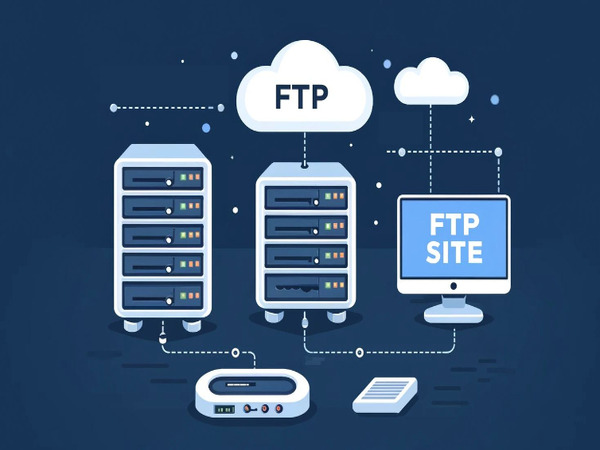
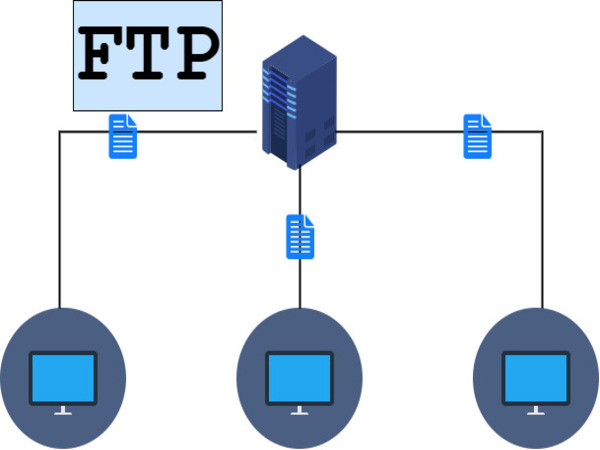
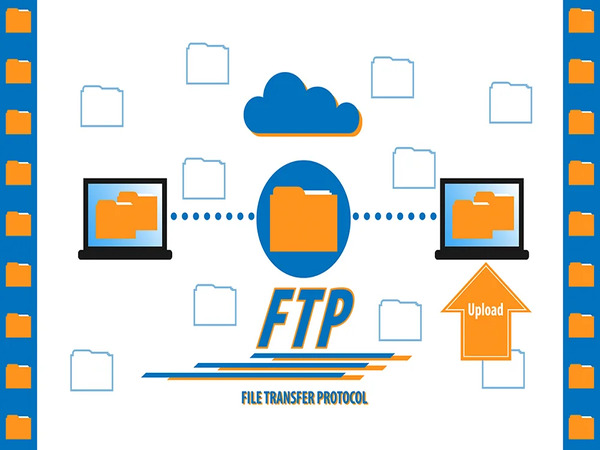
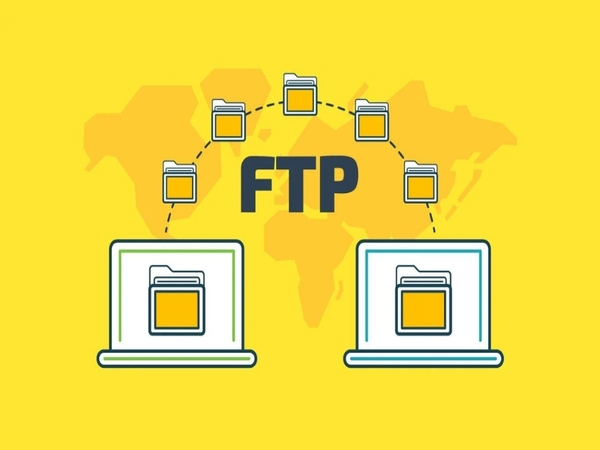
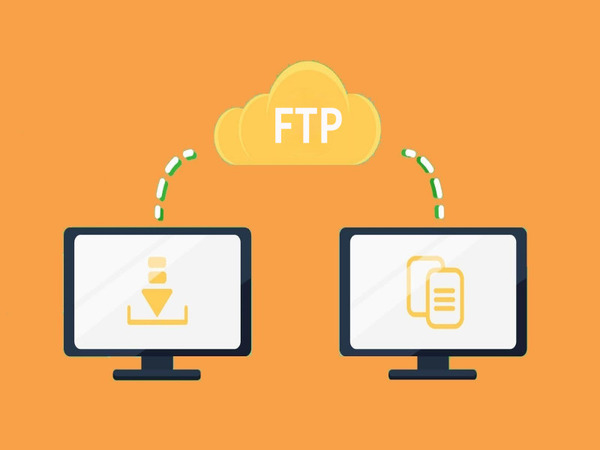
FTP (File Transfer Protocol) is a standard network protocol used to transfer files between a client and a server over the Internet. This article explains in detail how it works, compares Active/Passive Mode, provides instructions for setting up an FTP server on Windows and Linux, along with FTPS/FTPES secure protocols.
2019Trusted since
B2BData solutions
Data·AIExpertise
Need data solutions for your business?
AlgoData has helped businesses with data engineering, analytics & AI since 2019.
What is FTP? FTP (File Transfer Protocol) is a file transfer protocol used to move data between a client and a server over the internet. This protocol allows users to upload and download files from the server, manage data on the server such as copying, renaming, or deleting files. FTP is commonly used in environments that require transferring large amounts of data or when users want remote access to files on a server.
Purposes of FTP Protocol
What is the purpose of FTP? FTP is designed to primarily serve the purpose of transferring files between a client and a server quickly and efficiently. Some specific purposes of using the FTP protocol include:
File sharing: FTP allows users to upload and share files on a server so that many other users can access them remotely.
Data backup: Users can use FTP to back up important data from personal computers to a server to ensure safety and easy recovery when needed.
Website management: Web developers commonly use FTP to upload HTML files, images, and other documents necessary for building and managing websites.
Remote access: FTP allows users to remotely access the server's file system, making it easy to manage data without being physically present at the server.
Transferring data between different systems: FTP helps transfer files between different operating systems (Windows, Linux, macOS), ensuring compatibility and easy data exchange.
In summary, FTP helps users easily upload or download files from the server, perform data management such as renaming, deleting, or moving files without needing direct access to the system. It is a useful tool for sharing and distributing data in both personal and enterprise environments.
Benefits and Limitations of FTP Protocol
What are the benefits and limitations of FTP? FTP (File Transfer Protocol) offers many benefits in transmitting and managing data over the internet. However, it also has certain limitations that need to be considered when deploying and using it. Understanding both the benefits and limitations will help users make better decisions when choosing FTP for their work.
Benefits
What are the benefits of FTP? The File Transfer Protocol (FTP) has become an indispensable tool for data transmission over networks since its inception in the 1970s. With its long history and widespread popularity, FTP offers significant benefits for individual users and businesses.
Fast file transfer: FTP is designed to optimize file transfer, especially large files or multiple files simultaneously. Compared to sending via email or other methods, FTP is faster and more efficient on high-speed networks.
Support for large file transfers: FTP does not limit file sizes like some email or cloud storage services. Users can transfer large files without difficulty.
Parallel transfer capability: FTP allows users to upload and download multiple files simultaneously. This saves time and increases work efficiency, especially when processing large amounts of data.
Easy file management and organization: FTP allows users to perform file management operations directly on the server, such as copying, moving, renaming, deleting files and folders without downloading them to a personal computer. This is very convenient for remote data management.
Remote access capability: Users can connect to and access an FTP server from anywhere via the internet, making remote file management flexible and convenient.
In summary, the FTP protocol maintains its important position in data transmission thanks to the diverse benefits it provides. Although there are security challenges, with the application of appropriate protective measures, FTP remains a powerful and reliable tool in the modern digital world.
Limitations
What are the limitations of FTP? In the digital age with ever-increasing demands for security and performance, FTP reveals some significant limitations. These limitations not only affect data security but also impact usage efficiency in certain specific environments.
Lack of security: FTP transmits data in plain text, including login information (username, password). This makes it vulnerable to attacks such as data sniffing and credential theft. SFTP (Secure FTP) and FTPS (FTP Secure) were developed to address this shortcoming, but standard FTP still lacks strong security.
Difficult firewall configuration: Due to its use of multiple ports, configuring firewalls and network security settings for FTP can be complex. This makes deploying FTP in high-security networks challenging.
Lack of version control: FTP does not support file version control, making it difficult to track changes to files and restore older versions without the assistance of additional software.
Dependence on network connection: FTP requires a stable and high-speed network connection to operate effectively. If the network is slow or unstable, the file transfer process can be interrupted, causing errors.
Difficult command-line interface: Many users may find it challenging to work with FTP through the command-line interface, especially those without much technology experience. Although there are FTP software with user-friendly interfaces (such as FileZilla), basic FTP still requires some technical knowledge.
Security, performance, and configuration complexity issues pose significant challenges for users and system administrators. This has driven the development and adoption of safer alternatives such as SFTP, FTPS, or cloud-based data transfer services.
How FTP Protocol Works
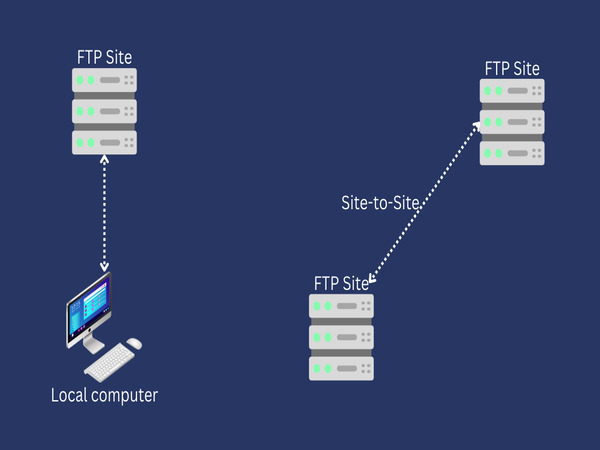
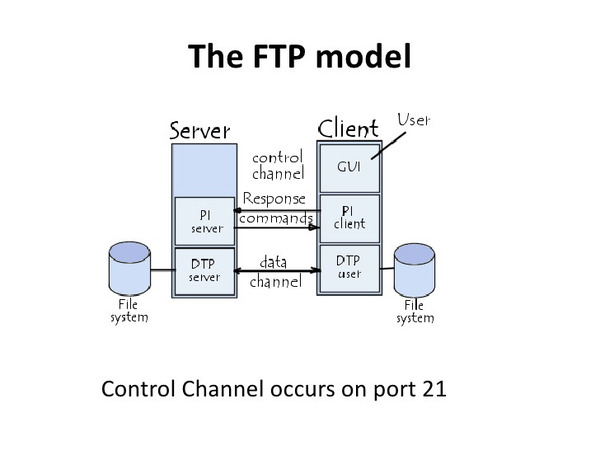
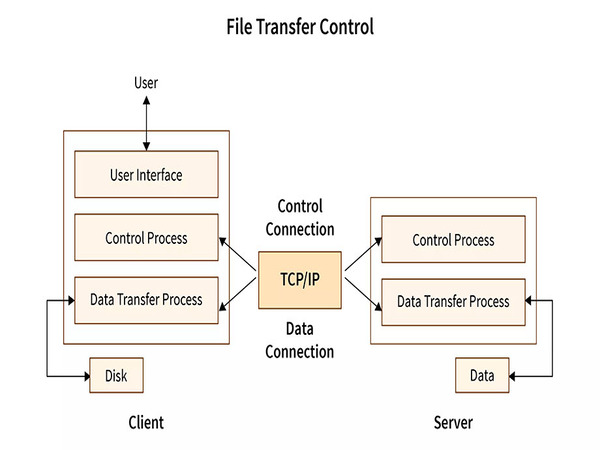
How does FTP work? FTP operates on the client-server model, where there is a client and a server. The client is the device or software that the user uses to access the FTP server. The working principle of FTP is described in detail as follows:
Connection between client and server: First, the client initiates a connection to the FTP server through port 21 (the default port for the control connection). Then, the client sends login information including username and password for authentication. If the login information is valid, the server grants the client access.
Establishing the control channel and data channel: FTP uses two separate channels to operate:
Control channel: Used to send commands from the client to the server and receive acknowledgments. This channel typically uses port 21.
Data channel: Used to transfer files between the client and server. FTP may use different ports for the data channel, depending on the operating mode (Active Mode or Passive Mode).
Data transfer:
In Active Mode: The client opens a port and waits for the server to connect back through that port to transfer data.
In Passive Mode: The client requests the server to open a port to receive data, then the client connects to that port to transfer data.
Sending and receiving files: After the data channel is established, the client can begin sending requests to upload or download files. Data is transferred through this data channel. The client can also perform other operations such as renaming, deleting files, creating directories, or moving files on the server.
Ending the session: When the transfer or file management is complete, the client sends a command to disconnect and close the control channel with the server.
FTP operates on a basic transfer model, but can still integrate additional security elements (such as SFTP, FTPS) or use supporting software for better management in modern environments.
Data Transfer Methods in FTP
What are the data transfer methods in FTP? In the FTP protocol, data transfer between a client and server can occur through different methods, depending on the file type and purpose of use. There are three main data transfer methods in FTP:
Compressed mode: Compressed mode is a data transfer method that compresses data to optimize file size before transmitting over the network. This method helps save bandwidth and shorten data transfer time, especially useful when transferring large files or when network bandwidth is limited. Compressed mode is typically used when transmitting data over slow connections or when transferring large files that do not require real-time speed. However, on high-bandwidth networks, this method is less preferred because compression and decompression can take time.
Stream mode: Stream mode is the simplest and most common data transfer method in FTP, where data is sent in a continuous stream from client to server without being divided or packaged. Data is immediately transferred over the TCP/IP connection. Stream mode is commonly used in environments with stable networks, where transfer speed is an important factor. Due to its simplicity and high speed, this method is suitable for transferring files that do not require strict security or error checking.
Block mode: Block mode is a data transfer method in FTP where data is divided into small blocks, each with a header containing information about the size and format of the data. This helps control and monitor the transfer process more easily, especially in complex transfer situations or those requiring high reliability. Block mode is typically used in cases where data transfer requires reliability and integrity checking, such as transferring important files or in unstable network environments. This method is suitable for systems that need recovery capability and strict error checking.
Each data transfer method in FTP -- Compressed mode, Stream mode, and Block mode -- has its own advantages and disadvantages, suited to different data transfer requirements. Choosing the appropriate method depends on specific requirements for speed, data integrity, and network resources of the user or system.
Comparison Between Active and Passive FTP Connections
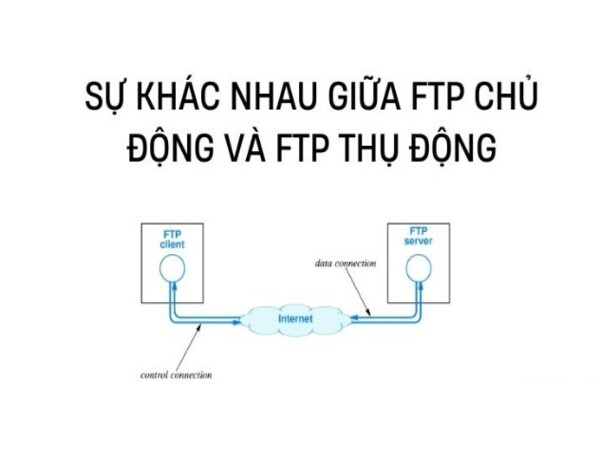
FTP connections can operate in two modes: Active Mode and Passive Mode. Both modes have their own advantages, but differ in how the client and server establish connections and exchange data.
Active FTP (Active Mode): Active FTP is the traditional data transfer method in the FTP protocol. It is a simple and direct method, but may face some challenges in modern network environments.
How it works: In Active Mode, the client opens a port to receive data and sends the IP address and port to the server. The server then connects back to the client through the specified port to begin transferring data.
Advantages: This mode is typically fast and easy to set up when there are no complex firewalls.
Limitations: If the client is behind a strict firewall, opening a port to receive connections from the server may be blocked, causing connection errors or data transfer failures. This is especially common when clients use secure or public networks.
Passive FTP (Passive Mode): Passive FTP is an alternative method developed to address some limitations of Active Mode. This method is often preferred in environments with firewalls and NAT.
How it works: In Passive Mode, instead of the client opening a port, the server opens a port for data transfer and sends the port information back to the client. The client then connects to the server's port to transfer data.
Advantages: Suitable for clients behind firewalls or NAT (Network Address Translation), as the client does not need to open a port and can freely connect to the server.
Limitations: This mode requires the server to manage open ports, which can easily cause security issues if not managed carefully.
Detailed comparison of the two FTP methods: To better understand the differences between these two FTP connection methods, we need to delve into a detailed analysis of how each works, their advantages, disadvantages, and appropriate use cases.
Firewall and NAT: Passive FTP is usually more suitable when the client or server is behind a firewall or NAT, as it does not require a reverse connection from the server to the client.
Security: Passive Mode is safer in some cases, especially when the client does not need to open a network port. Conversely, Active Mode may make the client more vulnerable to attacks if not carefully protected.
Efficiency: Active FTP is usually faster in environments not constrained by strict firewall rules, as the server can connect directly to the client without additional intermediate steps.
In summary, both Active and Passive FTP connections have their own advantages and disadvantages. Choosing the appropriate connection method depends on the specific requirements of the system, network configuration, and security policies. Understanding how both methods work will help administrators make the best decisions for their FTP environment, ensuring efficient and secure data transfer.
Guide to Setting Up an FTP Server Simply and Effectively
Setting up an FTP (File Transfer Protocol) server is a quick and convenient way to share and transfer files between devices over a network. Below is a detailed guide for installing an FTP server on both Windows and Linux operating systems, helping you easily perform these operations in a simple and efficient manner.
Pre-Installation Preparation
Before starting to set up the FTP server, some basic prerequisites need to be prepared:
Server or computer: Ensure that your computer always has a stable internet connection and sufficient storage capacity.
FTP server software: There are many software options for setting up an FTP server such as FileZilla Server (Windows) or vsftpd (Linux).
System administration privileges: You need administrator/root privileges on the computer to perform installation and configuration operations.
Setting Up an FTP Server on Windows
Below are the steps to install and configure an FTP server on the Windows operating system using FileZilla Server:
Step 1 -- Download and install FileZilla Server: Download FileZilla Server from the official FileZilla website (filezilla-project.org). After downloading, proceed with the installation by running the installer file and following the on-screen instructions.
Step 2 -- Configure FileZilla Server: When opening FileZilla Server for the first time, you will see the program's administration interface. Set the default connection port to 21 (the standard FTP port). Create a main directory to store the files you want to share and set access permissions for each user or user group.
Step 3 -- Create FTP user accounts: In FileZilla Server, go to "Edit" > "Users" and add FTP user accounts. You can set specific permissions for each account, including access, upload, download, or delete file permissions.
Step 4 -- Configure the firewall: Ensure that port 21 is open on the Windows firewall to allow FTP connections from outside. If you use a router, make sure you have set up port forwarding to forward connections to the correct FTP server.
Step 5 -- Test the connection: After completing the configuration, you can test the FTP connection by using an FTP client software such as FileZilla Client or a web browser. Enter the FTP server's IP address or domain name, account, and password to connect and verify that you can upload and download files.
Setting Up an FTP Server on Linux
For Linux users, vsftpd (Very Secure FTP Daemon) is one of the most popular software for setting up an FTP server.
Step 1 -- Install vsftpd: Use the following commands to install vsftpd on Ubuntu/Debian systems:
sudo apt update
sudo apt install vsftpdStep 2 -- Configure vsftpd: After installation, open and edit the vsftpd configuration file at /etc/vsftpd.conf:
sudo nano /etc/vsftpd.conf
Disable anonymous access by changing the following line: anonymous_enable=NO
Allow local users to log in: local_enable=YES
Enable upload and file modification permissions: write_enable=YES
After editing, save and exit the configuration file.
Step 3 -- Restart vsftpd: After completing the configuration, you need to restart the vsftpd service to apply the changes:
Step 4 -- Create an FTP user account: Create a user account with access permissions to a specific directory:
sudo adduser ftpuser
sudo passwd ftpuser
sudo mkdir /home/ftpuser/ftp
sudo chown nobody:nogroup /home/ftpuser/ftp
sudo chmod a-w /home/ftpuser/ftp
sudo mkdir /home/ftpuser/ftp/files
sudo chown ftpuser:ftpuser /home/ftpuser/ftp/files
This user will only have access to the /home/ftpuser/ftp/files directory on the system.
Step 5 -- Test the connection: Use an FTP client software or the ftp command on another computer to test the connection to the newly set up FTP server. Enter the FTP server's IP address, account name, and password to access.
Security Measures When Setting Up FTP
Implementing security measures when setting up FTP not only protects your data but also ensures the integrity of the network system. FTP does not encrypt data by default, so the following security measures should be applied:
Use FTPS or SFTP: FTPS uses SSL/TLS to encrypt data, while SFTP runs on SSH (Secure Shell) and secures the entire connection.
Set up a firewall: Limit the IP addresses that can access your FTP server.
Use strong passwords: Ensure user account passwords are complex enough to prevent attacks.
Limit access permissions: Only grant necessary permissions to each user, and regularly check connection logs to detect abnormal access.
Setting up an FTP server is quite straightforward but requires careful attention to configuration and system security. By following the above guide, you can create a safe and efficient environment for sharing files between devices and users on the network.
Top 4 Popular and Easy-to-Use FTP Software
FTP is not just a file transfer protocol but also has many supporting software to manage and perform transfers efficiently. Below are the four most popular and easy-to-use FTP software:
FileZilla
FileZilla is an open-source and completely free FTP software, highly popular due to its simple interface and powerful features. It supports FTP, FTPS, and SFTP protocols. It allows easy drag-and-drop file transfer between computers and FTP servers. FileZilla also supports multiple platforms (Windows, macOS, Linux) and has automatic connection management features that save time. It is suitable for both beginners and experts due to its flexibility and high customizability.
Transmit
Transmit is an FTP software exclusively for macOS, notable for its intuitive and easy-to-use user interface. It supports not only FTP, FTPS, SFTP but also cloud storage services such as Amazon S3, Google Drive, and Dropbox. Transmit's Sync feature helps synchronize files between the server and personal computer quickly and conveniently. Transmit is highly rated for its fast transfer speeds and stable connections, making it very suitable for macOS users working with multiple different servers.
WinSCP
WinSCP is an open-source FTP software for the Windows operating system, very popular thanks to its simple interface and high security. It supports FTP, SFTP, FTPS, and SCP (Secure Copy Protocol) protocols. It integrates drag-and-drop file functionality, making it easy for users to transfer files between computers and remote servers. Additionally, WinSCP allows users to edit files directly on the server without downloading them, saving work time.
WS_FTP
WS_FTP is a commercial FTP software known for its high security and many powerful features for professional users. It supports FTP, FTPS, SFTP protocols, ensuring safe file transfers through AES encryption and multi-factor authentication. The automatic Backup feature and transfer scheduling help users easily manage work without constant monitoring. This software has a user-friendly interface and is suitable for businesses that need professional FTP solutions with high security.
FTP is a file transfer protocol from one computer to another over the Internet, but with the development of technology and security requirements, FTP has been improved and developed into different versions to meet diverse user needs. Below are the common FTP protocol types today, including FTP Plain, FTPS, and FTPES.
FTP Plain Protocol
FTP Plain (also known as standard FTP) is the basic version of the FTP protocol, allowing file transfer between the server and client without any encryption mechanism. This is the first type of FTP developed and is still used in some cases with low security requirements.
Unencrypted connection: FTP Plain transmits data in plain text, meaning both file data and login information such as username and password are not encrypted. This can be dangerous when used on public or insecure networks.
Fast transfer speed: Due to the absence of encryption processes, FTP Plain has faster transfer speeds compared to other secure protocols.
Default port usage: The default port for FTP Plain is port 21, and it requires a range of additional ports for data management, which can be complex for firewall setup.
FTP Plain is mainly used in internal environments, local area networks (LAN), or cases where data does not require high security. It is rarely used on the public Internet due to the risk of data theft and network attacks.
FTPS Protocol
FTPS (FTP Secure or FTP-SSL) is an enhanced version of FTP, integrated with data encryption capabilities through the SSL/TLS (Secure Sockets Layer/Transport Layer Security) protocol. This helps protect transmitted information, especially usernames and passwords, from being leaked or attacked.
SSL/TLS encryption: FTPS uses SSL/TLS to encrypt both data and login information, ensuring that this information cannot be read or altered by third parties.
Strong security: FTPS provides higher security than FTP Plain through the use of SSL/TLS certificates. These certificates can be issued by third parties or self-generated depending on the user's needs.
Uses port 21 and SSL port: FTPS still uses port 21 for initiating connections but requires additional ports for encrypted data transfer via SSL.
FTPS is widely used in businesses or organizations with high data security requirements when transferring over the Internet. It is suitable for applications such as transferring sensitive data, financial data, or personal information.
FTPES Protocol
FTPES (FTP Explicit SSL/TLS) is another variant of secure FTP, in which SSL/TLS is only activated when the user explicitly requests it after the connection has been established. This allows the server to support both standard FTP connections and secure FTP connections on the same port, depending on the user's needs.
Flexible connection: FTPES allows users to choose between a secure connection (using SSL/TLS) or a standard connection (unencrypted). This makes FTPES more flexible in supporting different connection types.
SSL/TLS certificates: Like FTPS, FTPES also uses SSL/TLS certificates to encrypt data when needed. However, the difference is that FTPES does not require encryption for all connections, which helps save resources in some cases.
Port usage: FTPES typically still uses port 21 for connections but activates SSL/TLS after the connection is established if the user requests it.
FTPES is commonly used in environments requiring high flexibility, where some users may need data security while others may not. It is suitable for organizations or businesses supporting multiple types of customers or partners with different connection needs.
Important Considerations When Using FTP Protocol
What should you keep in mind when using FTP? Using this protocol also requires users to pay attention to some important issues to ensure information security and efficiency during use. Below are the key points to note when using FTP, helping users maximize the benefits of this protocol while avoiding potential risks.
Information security: FTP Plain does not encrypt data, so transmitted information can be attacked or stolen during transit. To enhance security, you should use secure FTP protocols such as FTPS or FTPES to encrypt data and protect login credentials.
Firewall and port configuration: FTP requires multiple ports for data transfer, so when configuring, you need to ensure the system's firewall has opened the necessary ports so connections are not interrupted. In this case, Passive FTP mode is usually easier to set up because the server manages multiple ports.
Access permission management: Limit access only to those who truly need it and set strong passwords for FTP access accounts. This helps protect the server from unauthorized access and reduces the risk of network attacks.
Monitoring and logging: All FTP-related activities need to be monitored and logged, including logins and file downloads or uploads. This helps quickly detect abnormal activities or unauthorized access.
Update software and security certificates: Regularly check and update FTP software to ensure you are using the safest version, avoiding security vulnerabilities. Also, if using FTPS or FTPES, ensure that SSL/TLS certificates are always updated and valid.
Caution when using on public networks: Avoid using FTP Plain on public or insecure networks, as information can easily be stolen. If you must use it on public networks, you should use secure protocols or VPN channels to ensure safety.
In summary, the FTP protocol is a useful tool for data transfer, but its use requires caution and understanding. By adhering to safety principles, using secure versions, and regularly updating knowledge about new threats, users can optimize the use of FTP while still ensuring the safety of their data.
{{< test-result
title="Comparison of File Transfer Protocols"
columns="Protocol | Encryption | Default Port | Speed | Security | Suitable For"
rows="FTP Plain | None | 21 | Fastest | Low | Internal networks (LAN);FTPS (Implicit) | SSL/TLS | 990 | Medium | High | Enterprise;FTPES (Explicit) | SSL/TLS optional | 21 | Medium | High | Flexible environments;SFTP | SSH | 22 | Medium | Very High | Production server;SCP | SSH | 22 | Fast | Very High | Single file transfer"
/>}}
FTP Security Recommendations
Do not use FTP Plain on public networks. Prioritize SFTP or FTPS, set strong passwords, limit access permissions by directory, and enable logging to monitor transfer activities.
Conclusion: FTP remains an important file transfer protocol thanks to its high speed and large file handling capability. However, in modern environments, secure variants such as FTPS or SFTP should be used to protect transferred data and login credentials.
FTP (File Transfer Protocol) is a standard network protocol used to transfer files between a client and a server over the Internet. FTP uses two separate channels: a control channel (port 21) and a data channel.
QWhat ports does FTP use?
FTP uses port 21 for the control channel (sending commands) and port 20 or a random port for the data channel, depending on whether Active or Passive Mode is used.
QWhat is the difference between FTP, FTPS, and SFTP?
FTP transmits data in plaintext without encryption. FTPS adds an SSL/TLS encryption layer on top of FTP. SFTP is an entirely different protocol that runs over SSH and encrypts the entire connection.
QHow do Active Mode and Passive Mode differ in FTP?
Active Mode: the server connects back to the client to transfer data. Passive Mode: the client actively connects to a port opened by the server. Passive Mode is more suitable when the client is behind a firewall or NAT.
QShould you use FTP Plain on public networks?
No, because FTP Plain transmits data and login credentials in plaintext, making it vulnerable to eavesdropping. On public networks, you should use FTPS, SFTP, or combine with a VPN for security.